
Organizations
The Organizations page allows administrators to manage all registered business accounts within the system. Each organization represents a business entity operating under the platform.
This page provides tools to search, review, manage, and control organization-level settings.
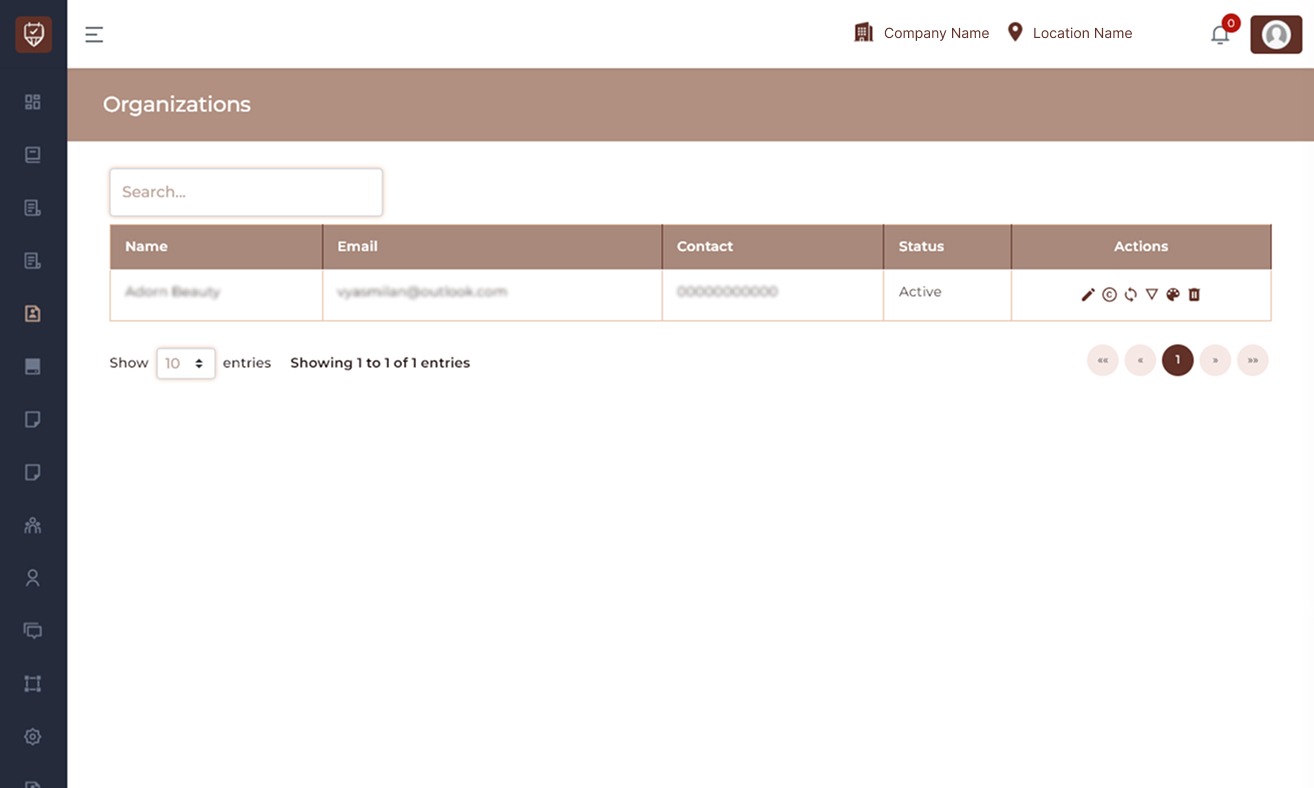
Page Overview
The Organizations page displays a structured table containing:
- Organization Name
- Email Address
- Contact Number
- Status
- Action Controls
For privacy and security, organization details such as name, email, and contact should only be visible to authorized administrators.
Search Function
The search bar at the top allows administrators to:
- Quickly find an organization
- Filter by name
- Locate accounts instantly
Search results update automatically.
Table Columns Explained
Organization Name : Displays the registered business name.
Email : Shows the registered administrative email associated with the organization.
Contact : Displays the primary contact number registered for the organization.
Status : Indicates whether the organization is currently:
- Active – Fully operational
- Inactive – Temporarily disabled
Action Icons : Each organization row contains action icons that allow administrators to manage the account.
Edit Organization
Allows you to:
- Modify organization details
- Update contact information
- Change status
- Adjust configuration settings
Copy Organization
Creates a duplicate of the selected organization. This is useful for:
- Setting up a new branch using existing configuration
- Testing environment setup
- Cloning settings for similar businesses
Sync Organization
Synchronizes organization data with the system.This may include:
- Updating configuration
- Refreshing connected modules
- Applying latest system changes
Use this option if updates are not reflecting immediately.
Subscriptions
Opens the subscription management panel.Here you can:
- View active plans
- Upgrade or downgrade subscription
- Monitor billing status
- Manage renewal settings
Booking Form Color
Allows customization of the organization’s booking form theme color.This affects:
- Online booking page appearance
- Brand alignment
- Client-facing booking interface
Delete Organization
Permanently removes the organization from the system.
Important:
- This action may delete associated data.
- Use only if the organization is no longer required.
- Ensure backups are taken before deletion.
Pagination Controls
At the bottom of the page, you can:
- Select number of entries to display
- Navigate between pages
- View total record count
Best Practices
- Restrict access to the Organizations page to system administrators only.
- Avoid sharing organization email and contact information publicly.
- Use the Sync option after major updates.
- Confirm before deleting any organization.
- Regularly review subscription status to prevent service interruptions.
Edit Organization
The Edit Organization page allows administrators to update the main business configuration and operational settings of the system. These settings control important details such as organization information, communication settings, branding, tax configuration, notification preferences, and booking-related messages.
Changes made on this page affect how the organization information appears across the platform and how certain system features behave.
After updating the required fields, click Submit to save the changes. If you do not want to apply the changes, click Cancel to exit without saving.
Organization Details
This section contains the primary business information used throughout the system.
Name : Enter or update the name of the organization.This name may appear in invoices, reports, notifications, and other system areas.
Email : Specify the primary email address associated with the organization.This email may be used for system communication and notifications.
Contact Number : Enter the main contact number for the organization. This number may be displayed in customer communications or system records.
Password : This field can be used to update the organization account password if required.
Website Link : Provide the official website address for the organization. This may appear in customer communications or invoices.
Currency : Select the default currency used for transactions, pricing, and reports.
Timezone : Choose the appropriate timezone for the organization. This ensures that appointment schedules, reports, and notifications follow the correct local time.
Country Code : Select the country dialing code associated with the organization’s contact number.
Branding and Domain Settings
These settings control the branding elements and system domain configuration.
Image :Upload a logo or brand image for the organization.Supported formats typically include PNG, JPG, and JPEG.
Domain : This field defines the organization’s system domain identifier used within the platform.
Pixel Code :Enter tracking pixel code if the organization uses analytics or marketing tracking tools.
Integration Settings
This section includes keys and tokens used for system integrations.
AppointGem API Key (SMS) : Enter the API key used for SMS service integration.
WhatsApp Access Token : Provide the access token required to enable WhatsApp messaging functionality.
Tax Configuration
These settings control how taxes are applied within the system.
VAT Number : Enter the organization’s VAT registration number if applicable.
VAT Type : Select how VAT should be applied in pricing calculations.
Tax (%) : Specify the percentage value used for tax calculations.
SMTP Email Settings
SMTP settings are required to send automated emails such as appointment confirmations, invoices, and notifications.
SMTP From Name & Email : Enter the name and email address that will appear as the sender for outgoing emails.
SMTP Host : Specify the mail server host address used for sending emails.
SMTP Port : Enter the port number used by the mail server.
SMTP Username : Provide the username used for authentication with the mail server.
SMTP Password :Enter the password associated with the SMTP account.
Gift Card Settings
This section controls how gift cards are generated and managed.
Setting Level : Choose whether gift card settings apply at the company level or location level.
Prefix : Define the prefix that will appear at the beginning of gift card codes.
Gift Card Delivery Cost : Specify any delivery cost associated with gift card issuance.
Gift Card Terms & Conditions : Enter the terms and conditions that apply to gift card usage.These terms will typically appear on gift cards or related customer communications.
Price List Settings
These options allow customization of the visual design used in price lists or brochures.
Brochure Image :
Upload an image to be used in the price list or brochure.
Brochure Background Image : Upload a background image used in brochure design.
Brochure Background Color : Select the background color used in the brochure layout.
Brochure Heading Color : Choose the color used for headings in the brochure.
Brochure Font Color : Select the font color used for brochure text.
Brochure Footer : Enter any text or notes that should appear in the brochure footer.
Booking Text : This section allows administrators to define informational messages shown during the booking process.
The content entered here may include booking instructions, policies, or important notes that customers should read before confirming an appointment.
Notification Settings
These settings control certain automated notification behaviors within the system.
Resend Dynamic Cron Notification Days : Specify the number of days after which certain automated notifications may be resent if required.
Delay Between SMS / WhatsApp / Email : Define the delay time between sending different types of notifications.
Customer Visibility
Show to Customer : Choose whether the configured information or message should be visible to customers.
Status
This setting controls whether the organization configuration is active.
Active : The organization settings are active and applied across the system.
Inactive : The configuration is disabled.
Action Buttons
Submit : Saves all updated organization settings and applies the changes to the system.
Cancel : Closes the page without saving any modifications.