
Special Timing / Special Hours
The Special Timing / Special Hours page allows administrators to configure custom operating hours and closed days for a selected location. This is useful for holidays, seasonal schedules, bank holidays, special events, or temporary changes to normal business hours.
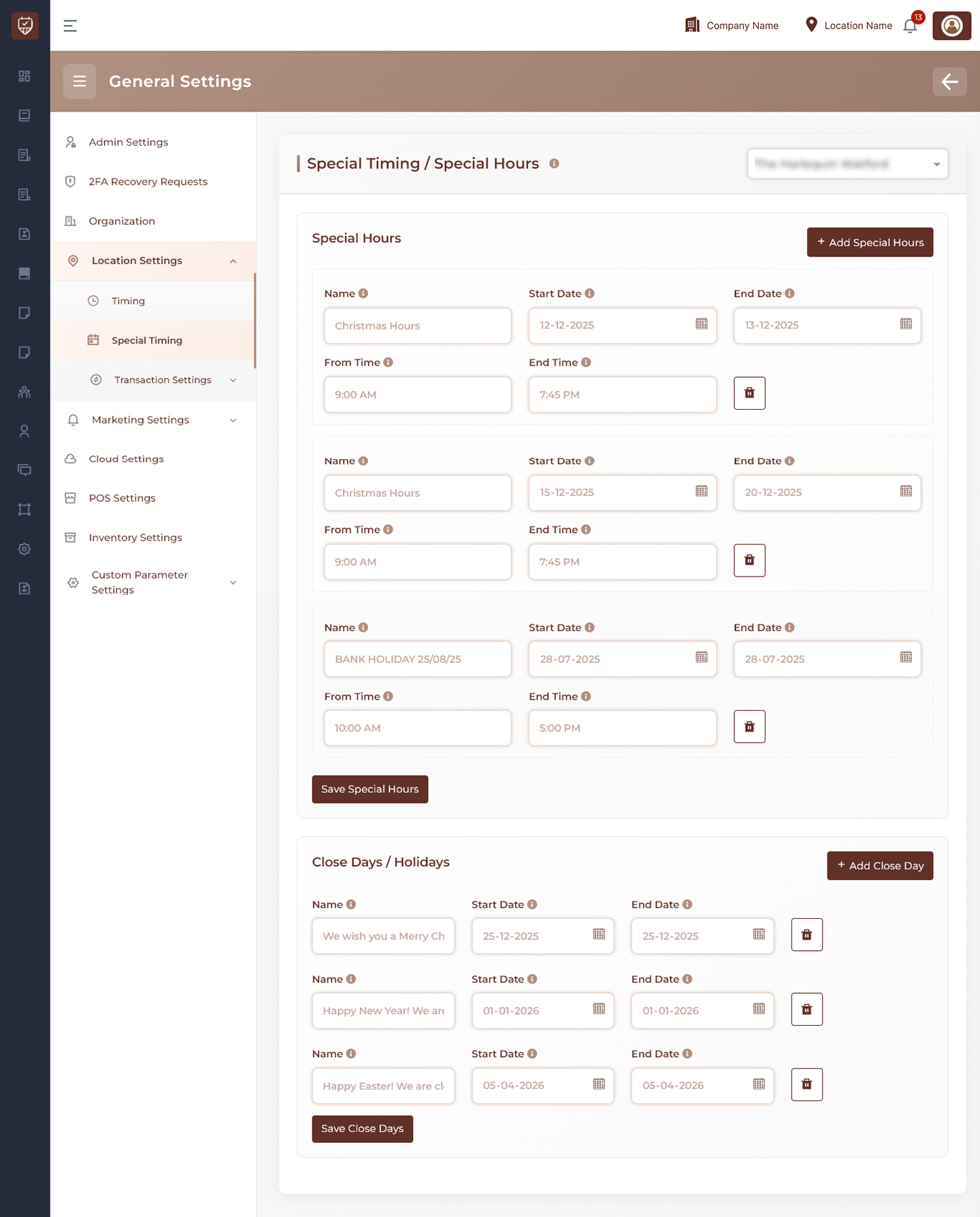
Location Selection
Use the location dropdown at the top of the page to choose the branch or location where special timings should be applied.
Examples:
- Main Branch
- City Center Branch
- North Location
Special Hours
Use this section to create temporary custom working hours for specific dates.
Examples:
- Holiday opening hours
- Reduced operating hours
- Extended trading hours
- Event-based schedules
Name
Enter a clear title for the special timing.
Examples:
- Easter Bank Holiday
- Summer Opening Hours
- Black Friday Hours
Start Date
Choose the first date the special timing begins.
End Date
Choose the last date the special timing applies.
From Time
Enter the opening time for the selected dates.
End Time
Enter the closing time for the selected dates.
Actions
- Add Special Hours : Add a new special timing row
- Delete Icon : Remove a special hours entry
- Save Special Hours : Save all special timing changes
Close Days / Holidays
Use this section to mark dates when the location will remain fully closed.
Examples:
- Public holidays
- Christmas shutdown
- New Year closure
- Emergency closures
- Maintenance days
Name
Enter the holiday or closure reason.
Examples:
- Christmas Day
- New Year Holiday
- Staff Training Day
Start Date
Choose the first closed date.
End Date
Choose the final closed date.
Actions
- Add Close Day : Add a new closure entry
- Delete Icon : Remove a close day row
Best Practices
- Add holiday timings well in advance
- Double-check selected location before saving
- Use descriptive names for easier management
- Remove expired special schedules regularly
- Keep customer booking availability aligned with special timings