
WhatsApp Logs
The WhatsApp Logs page provides a complete history of WhatsApp messages sent through the system. It helps administrators track customer communications, monitor message delivery, and review message activity for bookings, OTPs, notifications, and other automated messages.
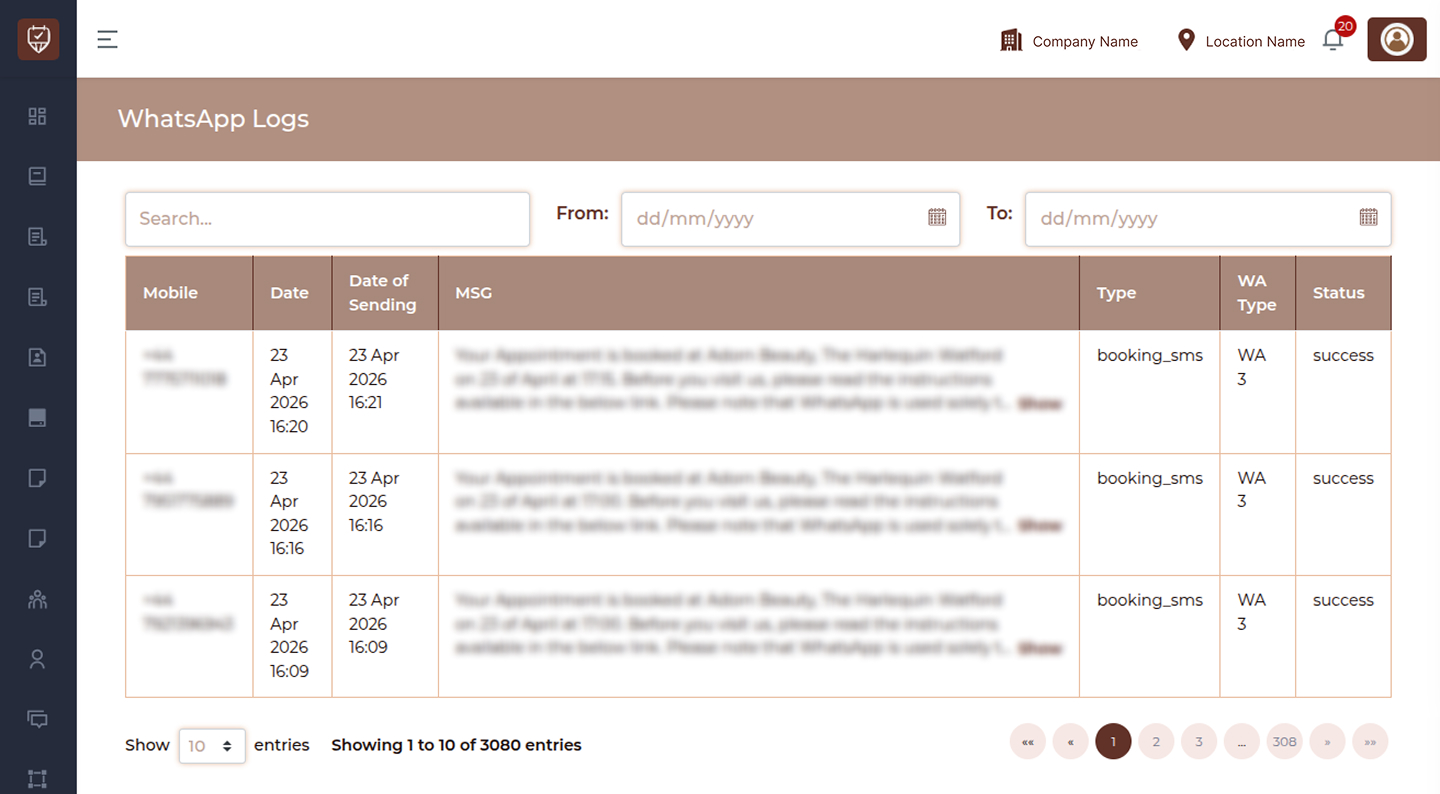
Filters & Controls
Search
Use the search bar to quickly find WhatsApp records using mobile number, message content, or related details.
Date Filters
- From : Select the start date to view WhatsApp logs from a specific date range.
- To : Select the end date to filter logs up to the selected date.
Table Overview
Mobile
Displays the recipient mobile number to which the WhatsApp message was sent.
Date
Shows the date and time when the message activity was recorded.
Date of Sending
Displays the exact date and time when the WhatsApp message was sent.
MSG
Shows the original WhatsApp message content. Use Show to view the full message if truncated.
Type
Indicates the purpose or category of the WhatsApp message.
Examples:
- Booking confirmations
- OTP verification
- Password reset
- Promotional notifications
- Reminder messages
WA Type
Displays the WhatsApp account, device, or sending channel used for the message.
Status
Shows the delivery or processing status of the WhatsApp message.
Examples:
- Success
- Pending
- Failed
Best Practices
- Use date filters to review messages within a selected period
- Monitor failed or pending messages regularly
- Review booking and OTP communications for accuracy
- Use logs for support and troubleshooting
- Keep message history for operational records