
Brands Management
The Brands page allows you to manage and organize all product or service brands used within your system. It helps maintain consistency, improves filtering, and supports better inventory and reporting management.
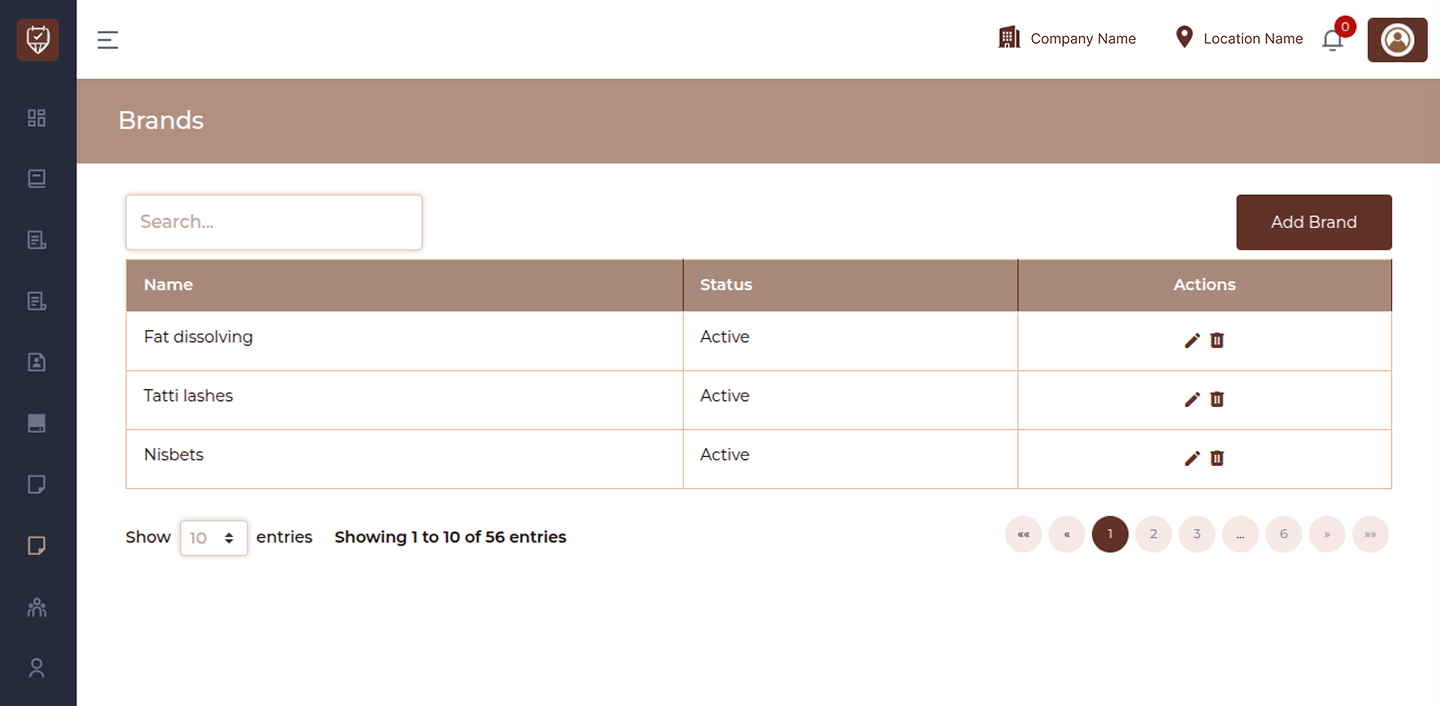
Search Bar
The Search field allows you to quickly find a specific brand.
- Type part or full name to filter results
- Results update instantly as you type
This is useful when managing a large number of brands.
Add Brand Button
Located at the top-right corner.Click Add Brand to create a new brand entry. You will typically need to provide:
- Brand name
- Status (Active / Inactive)
Brands Table
The main table displays a list of all brands with relevant details.
Name
Displays the brand name. This helps identify and categorize products or services.
Status
Indicates whether the brand is currently active..
Active : Available for use in the system
Inactive : Hidden or disabled from usage
Actions
Provides quick controls to manage each brand.Available actions include:
Edit : Update brand details
Delete : Remove the brand from the system
Add/Edit Brand
Overview
The Edit Brand page allows you to update the details of an existing brand used within the system. This includes managing its name, commission settings, description, and overall status. Keeping brand information accurate ensures proper tracking, reporting, and commission calculations.
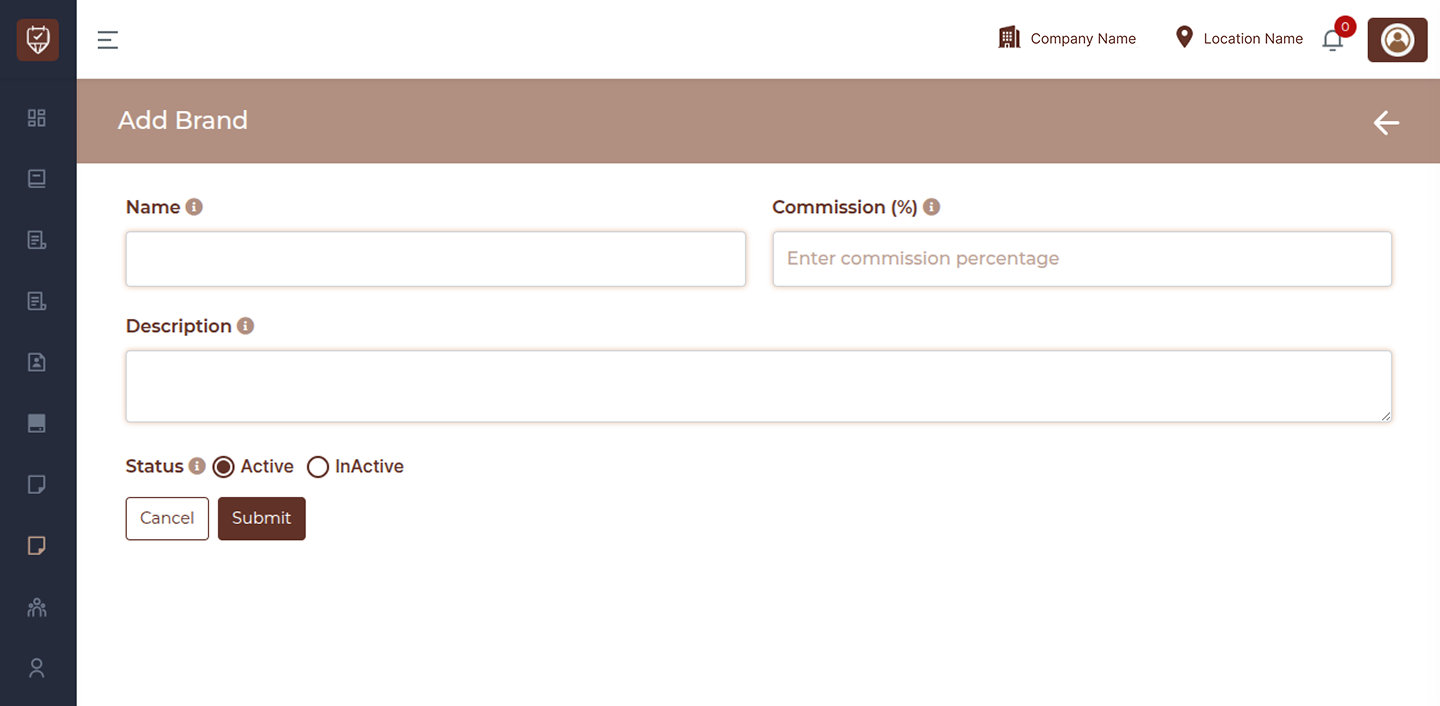
Name
Enter or update the brand name. This is the primary identifier used across the system, including product listings and reports.
Commission (%)
Specify the commission percentage associated with this brand. This value is used to calculate earnings or payouts where brand-based commission rules apply.
Description
Provide a brief description of the brand. This can include details about the brand’s purpose, category, or any internal notes useful for staff reference.
Status
Control whether the brand is available for use:
Active : The brand is enabled and can be selected and used across the system.
Inactive : The brand is disabled and will not appear in active selections, but its data remains stored.
Actions
Submit : Save all changes made to the brand details and apply them across the system.
Cancel : Discard any changes and return to the previous screen without saving.
Back Arrow (Top Right) : Navigate back to the brand list page without applying any updates.