
Packages
The Package page is used to manage all service packages offered within the system. It allows you to create, view, edit, and organize packages that combine multiple services into a single offering. This helps streamline service sales, improve customer experience, and manage bundled services efficiently.
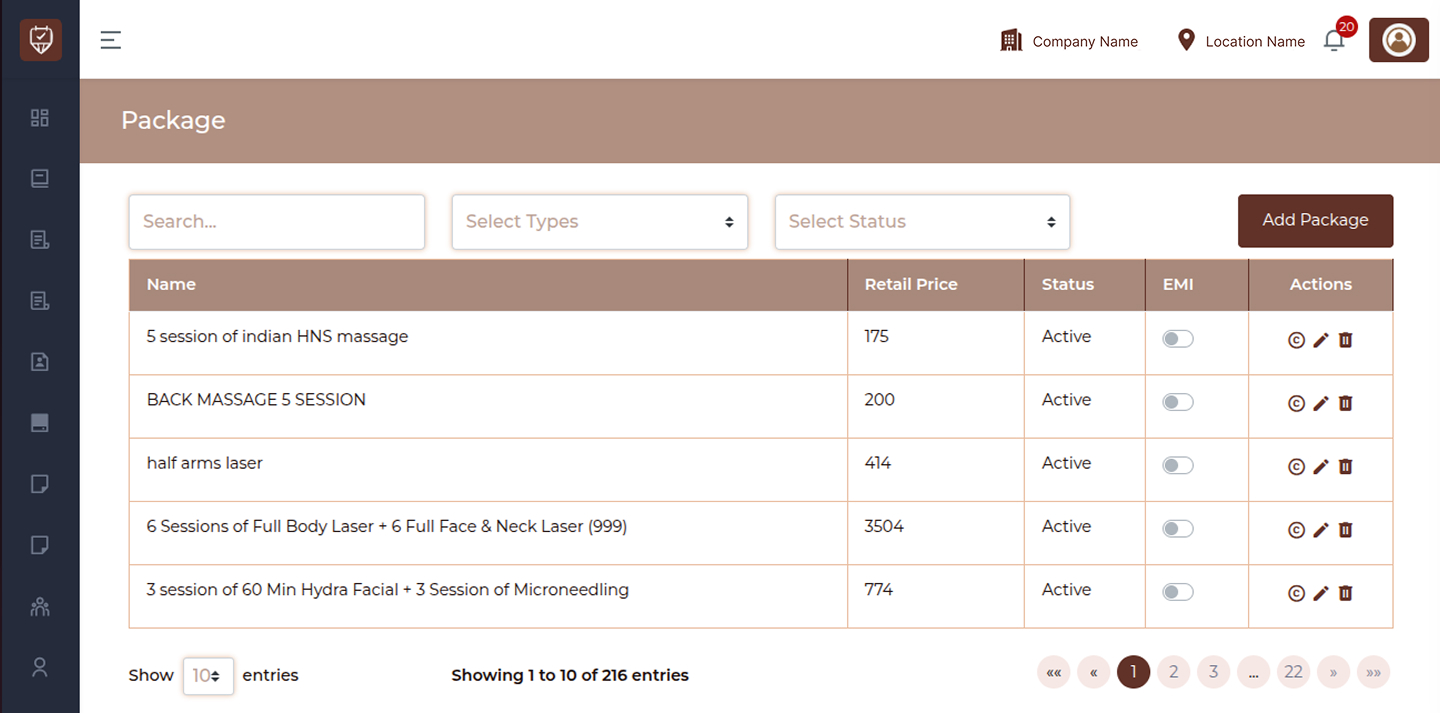
This module allows you to:
- View all available packages
- Search and filter packages easily
- Add new service packages
- Edit existing package details
- Activate or deactivate packages
- Manage pricing and availability
Filters and Controls
Search
Allows you to quickly find a package by entering its name or keyword.
Select Types
Filter packages based on predefined types or categories.
Select Status
Filter packages by their current status, such as Active or Inactive.
Add Package
Click to create a new service package with customized services and pricing.
Package Table
Name
Displays the name of the package.
Retail Price
Shows the total price of the package before any discounts or adjustments.
Status
Indicates whether the package is currently active or inactive.
EMI
Indicates whether the package supports installment-based payments. Enable EMI to allow package purchases through multiple payments instead of full upfront payment.
Actions
Provides options to manage the package:
- View : Open and review package details
- Edit : Modify package information
- Delete : Remove the package from the system
Best Practices
- Use clear and descriptive package names
- Regularly update pricing to reflect current offers
- Keep inactive packages archived instead of deleting if needed for records
- Group related services logically within packages
- Review package status to ensure only valid offers are active
Add / Edit Package
The Add / Edit Package page is used to create and manage bundled service packages with defined sessions, pricing, and validity. It allows you to combine multiple services into a structured offering that can be sold to customers. This page helps standardize service bundles, control pricing, and manage session-based offerings efficiently.
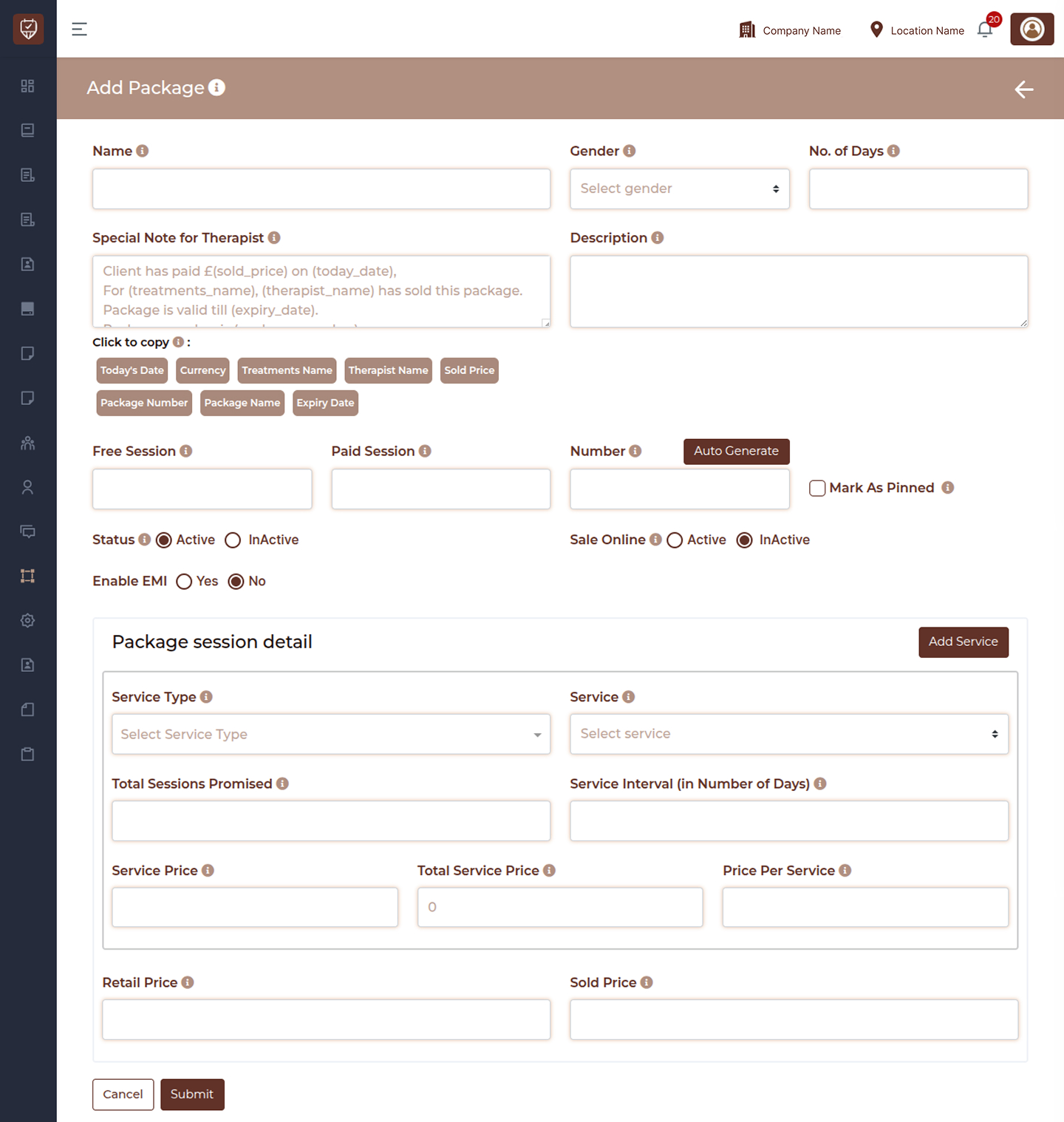
This module allows you to:
- Create new service packages
- Edit existing package details
- Define session counts and validity
- Configure pricing and discounts
- Add multiple services to a package
- Control availability and visibility
Basic Information
Name
Enter a clear and customer-friendly name for the package.
Gender
Define whether the package is applicable for Male, Female, or All customers.
No. of Days
Specify how many days the package will remain valid after purchase.
Special Note for Therapist
Add internal notes or instructions that are visible only to therapists.
Description
Provide details about what is included in the package for internal or customer reference.
Dynamic Tags
Insert smart variables such as package name, expiry date, therapist name, or sold price into notes or messages for automation and consistency.
Session Configuration
Free Session
Specify the number of complimentary sessions included in the package.
Paid Session
Specify the number of paid sessions included in the package.
Number
Enter a unique identifier for the package or use auto-generate to create one automatically.
Mark as Pinned
Highlight the package in listings or during sales for better visibility.
Status
Set the package as Active or Inactive to control availability.
Sale Online
Enable or disable whether the package can be sold through online channels.
Enable EMI
Controls whether the selected package can be purchased using installment payments.
- Yes: Allow package installment payments
- No: Require full payment during purchase
Package Session Detail
Add Service
Add one or more services that will be included in the package.
Service Type
Select the category of service included in the package.
Service
Choose the specific service to include in the package.
Total Sessions Promised
Define how many sessions are included for the selected service.
Service Interval (in Days)
Set the minimum number of days required between sessions.
Service Price
Enter the base price for the selected service.
Total Service Price
Displays the total calculated price for all sessions of the service.
Price Per Service
Shows the calculated price for each individual session.
Retail Price
Enter the original total price of the package before any discount.
Sold Price
Enter the final selling price after applying discounts or adjustments.
Actions
- Cancel: Exit without saving the package details.
- Submit: Save and activate the package.
Best Practices
- Use clear and descriptive names for better identification
- Define accurate session counts to avoid confusion
- Set appropriate service intervals to ensure proper scheduling
- Review pricing carefully before publishing the package
- Use pinned packages to promote popular offerings
- Keep inactive packages instead of deleting for record purposes