
Suppliers
Overview
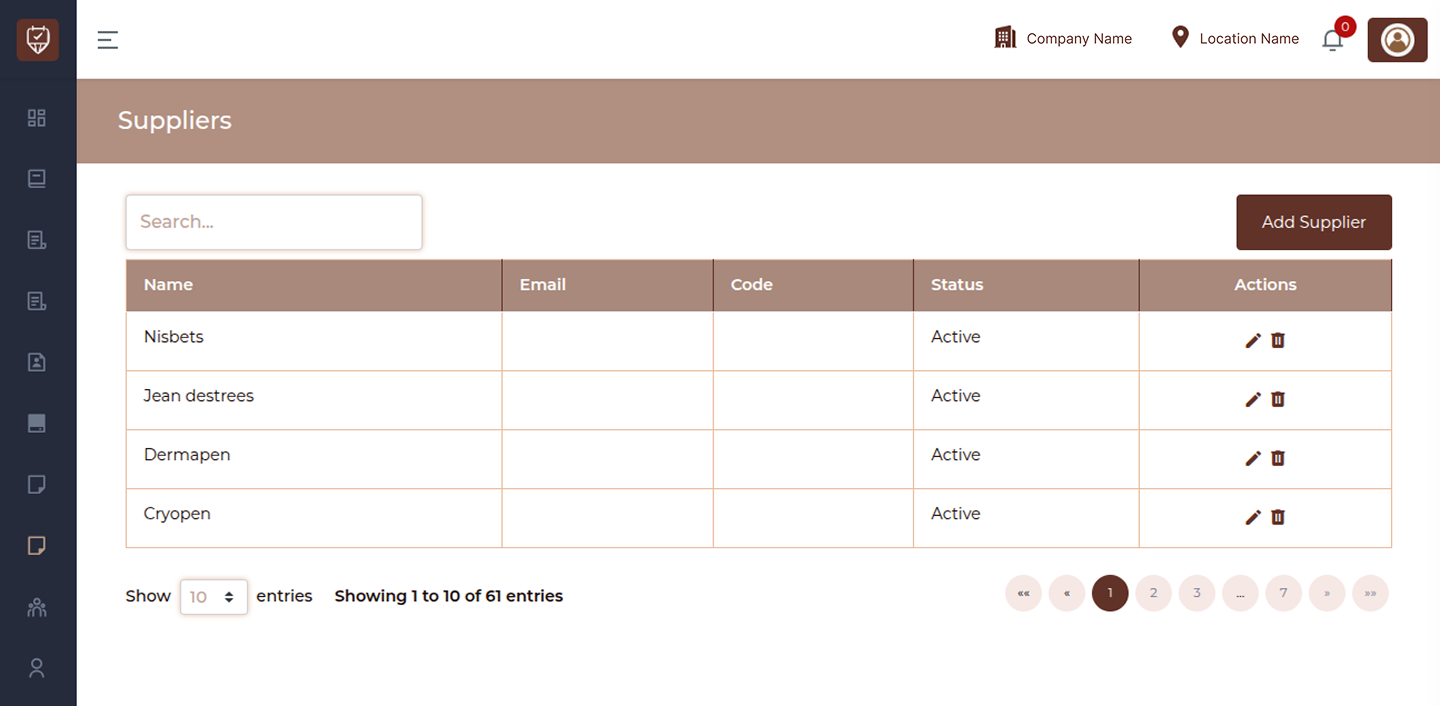
The Suppliers page allows you to manage all supplier records within the system. Suppliers are used for inventory management, product sourcing, and purchase tracking. This page provides a centralized view to add, update, and maintain supplier information.
Search
Use the search bar to quickly locate suppliers. The list updates dynamically as you type, making it easy to find specific records.
Add Supplier
Click the Add Supplier button to create a new supplier entry. This allows you to store supplier details for future transactions and inventory management.
Name
Displays the supplier name used for identification within the system.
Shows the supplier’s email address used for communication and notifications.
Code
Represents a unique identifier assigned to each supplier. This helps in tracking and referencing suppliers efficiently.
Status
Indicates whether the supplier is active or inactive:
Active : Available for use in purchases and inventory processes
Inactive : Disabled and not available for new transactions
Actions
Provides options to manage supplier records:
Edit : Update supplier details
Delete : Remove the supplier from the system
Add / Edit Supplier
Overview
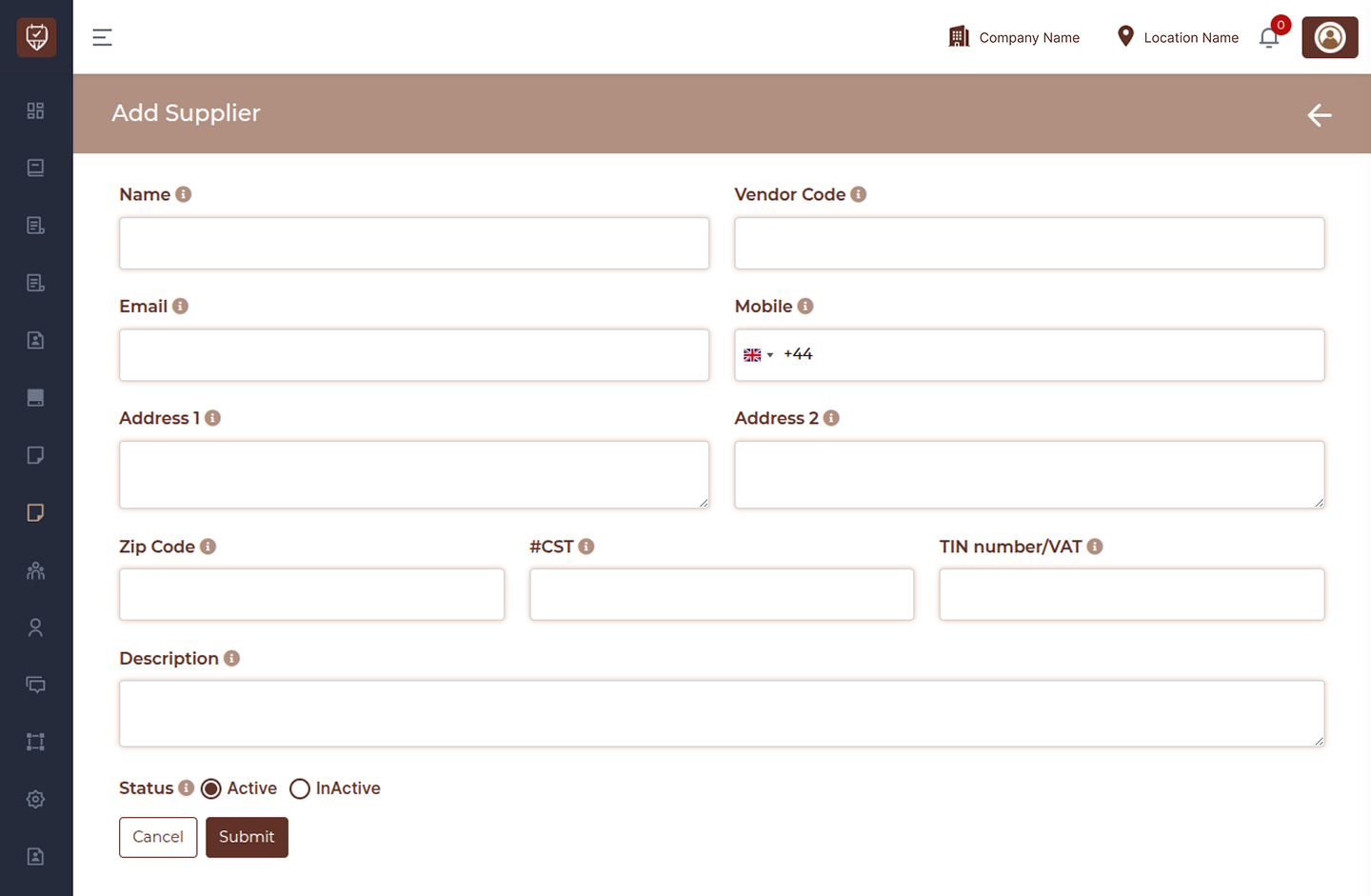
The Add / Edit Supplier page allows you to create a new supplier or update an existing one. This page captures all essential supplier details required for inventory management, purchasing, and communication.
Name
Enter the supplier name. This is the primary identifier used across the system for tracking and referencing.
Vendor Code
Provide a unique vendor or supplier code. This helps in organizing and quickly identifying suppliers in records and reports.
Enter the supplier’s email address. This is used for communication, notifications, and purchase-related correspondence.
Mobile
Add the supplier’s contact number along with the country code. This allows quick communication when needed.
Address 1
Enter the primary address of the supplier, such as street address or main location details.
Address 2
Provide additional address information if required, such as building, area, or secondary location details.
Zip Code
Enter the postal or zip code for the supplier’s location. This helps in accurate record keeping and location identification.
CST
Enter the CST (Central Sales Tax) number if applicable. This is used for tax-related documentation and compliance.
TIN Number / VAT
Provide the TIN or VAT number associated with the supplier. This is essential for taxation and billing processes.
Description
Add any relevant notes or additional information about the supplier. This can include internal remarks, product categories, or special instructions.
Status
Active : The supplier can be used in purchases and inventory operations
Inactive : The supplier is disabled and will not appear in new transactions
Actions
Submit : Save the supplier details and apply the changes to the system.
Cancel : Discard any changes and return to the previous screen.
Back Arrow (Top Right) : Navigate back to the supplier list without saving changes.