
Tax Groups
Overview
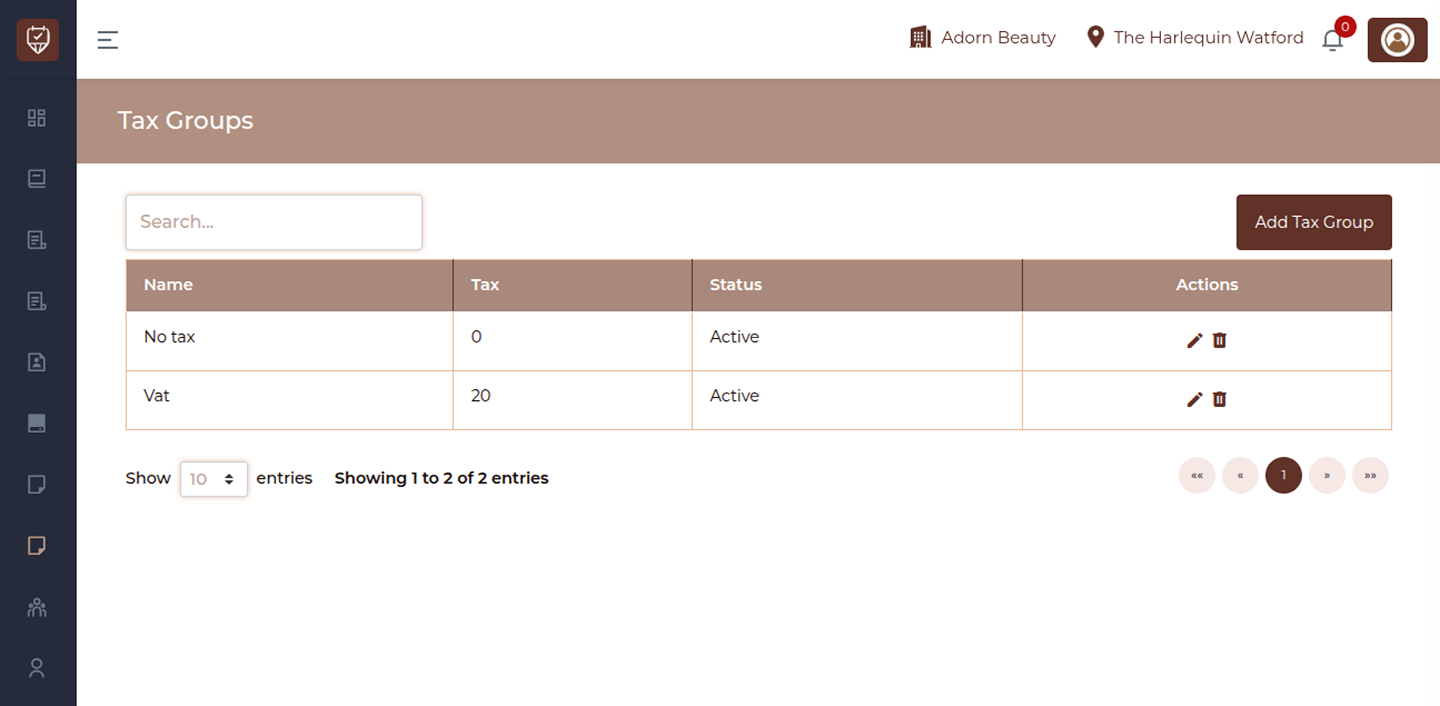
The Tax Groups page allows you to manage different tax configurations used within the system. These tax groups are applied to services and products to ensure accurate billing and compliance with tax regulations.
Search
Use the search bar to quickly find specific tax groups by name. Results update instantly as you type.
Add Tax Group
Click the Add Tax Group button to create a new tax configuration. This allows you to define tax percentages and control how taxes are applied.
Tax Group List
The page displays all configured tax groups in a structured table with the following details:
Name
Shows the name of the tax group used for identification.
Tax
Displays the tax percentage associated with the group.
Status
Indicates whether the tax group is currently active or inactive.
Active: Available for use in billing and transactions
Inactive: Disabled and not applied to new transactions
Actions
Provides options to manage each tax group:
Edit : Update the tax group details
Delete : Remove the tax group from the system
Add / Edit Tax Group
Overview
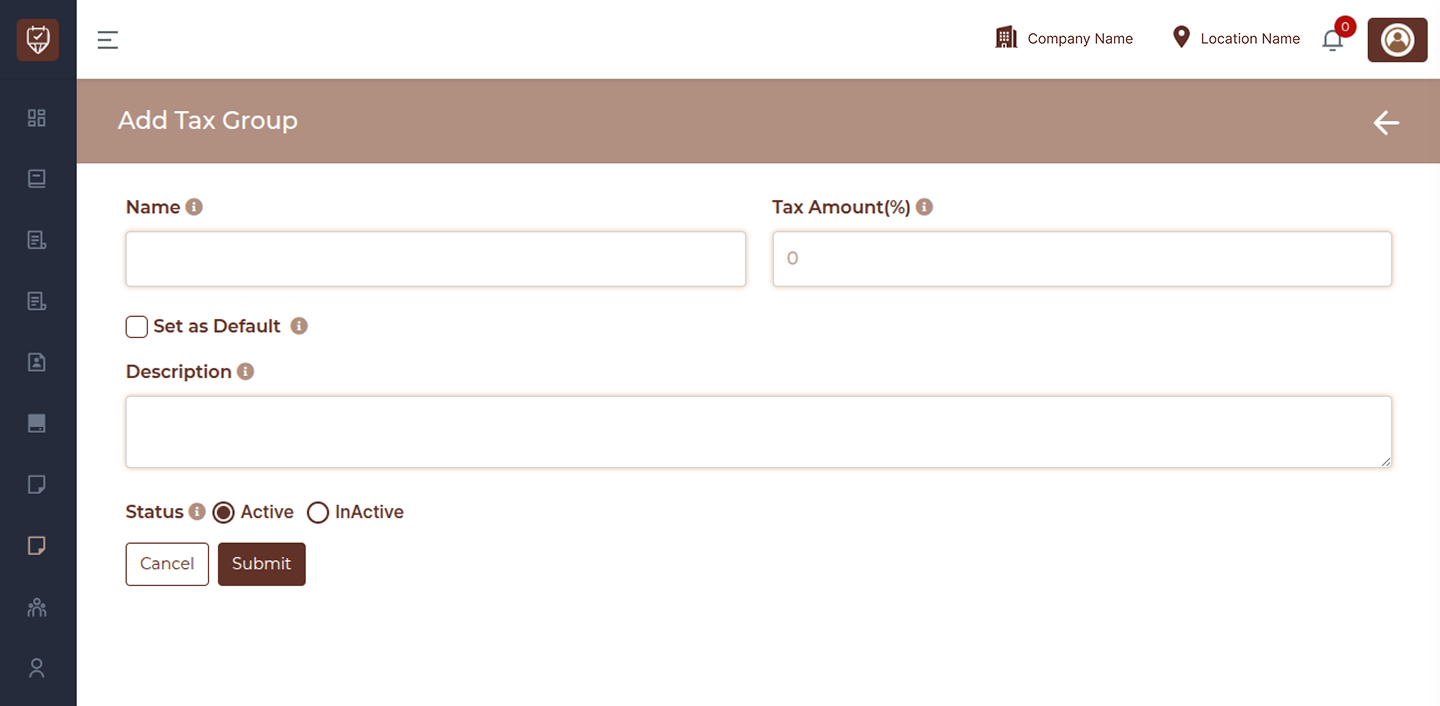
The Add / Edit Tax Group page allows you to create a new tax configuration or update an existing one. Tax groups define how tax is applied to services and products, ensuring accurate billing and compliance.
Name
Enter a clear and identifiable name for the tax group. This name will be used across the system when applying taxes.
Tax Amount (%)
Specify the tax percentage to be applied. This value is automatically used in calculations during billing and invoicing.
Set as Default
Enable this option to make the tax group the default selection. When set, this tax group will be automatically applied to new services and products unless changed manually.
Description
Provide additional details about the tax group. This can include notes about the tax type, usage, or any internal reference information.
Status
Active : The tax group is applied in billing and can be selected across the system
Inactive : The tax group is disabled and will not be used in new transactions
Actions
Submit : Save the tax group details and apply the configuration across the system.
Cancel : Exit the page without saving any changes.
Back Arrow (Top Right) : Return to the Tax Groups list page without applying updates.