
Email Settings (SMTP)
The Email Settings (SMTP) page allows administrators to configure outgoing email services for a selected location. These settings are used for sending booking confirmations, reminders, invoices, password resets, marketing emails, and other automated notifications.
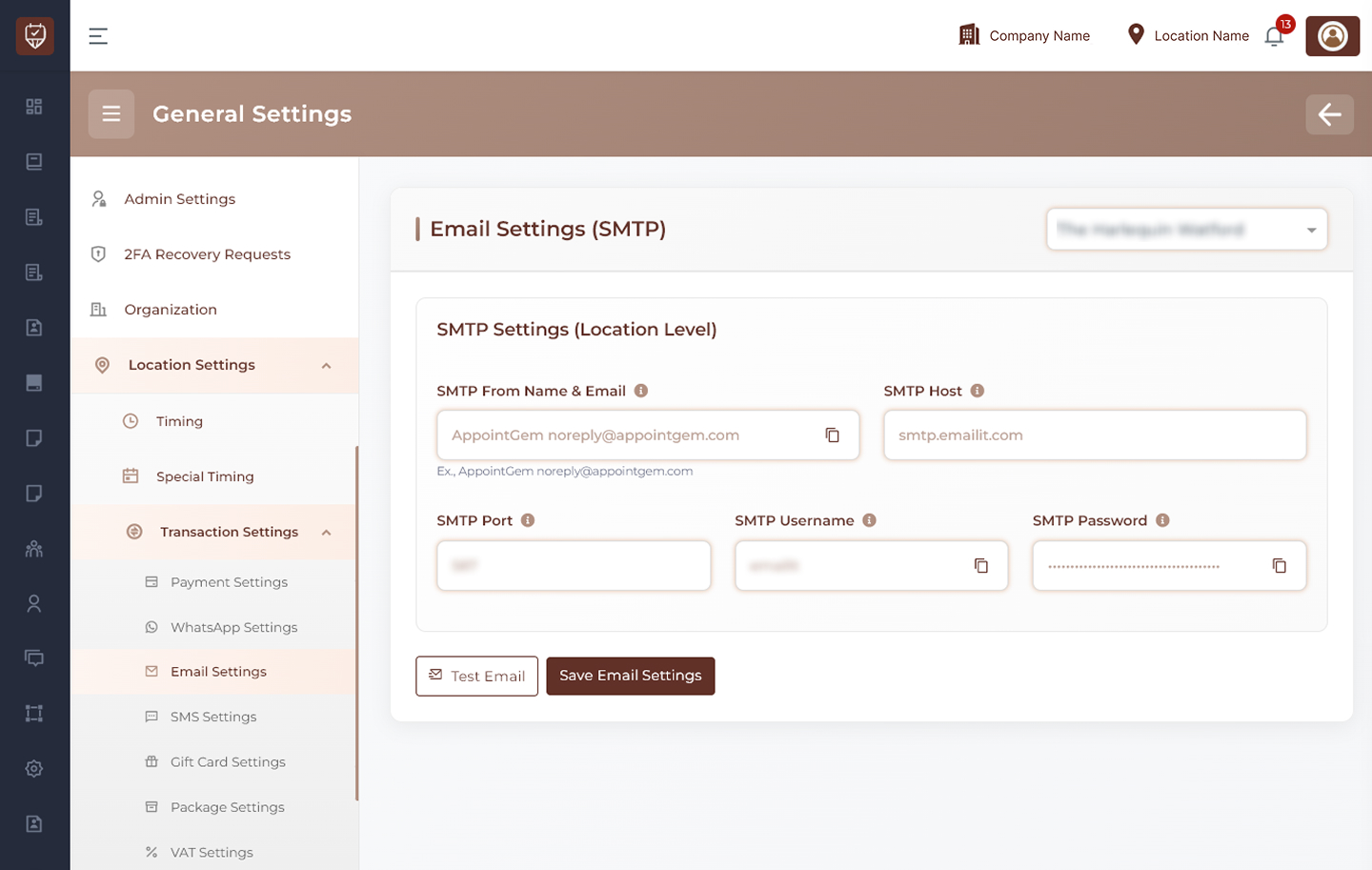
Location Selection
Use the location dropdown at the top-right to choose the branch or location where email settings should be applied.
Examples:
- Main Branch
- City Center Branch
- North Location
SMTP Settings (Location Level)
Configure the SMTP server credentials for the selected location.
SMTP settings allow the system to send emails through your preferred mail provider.
Fields Available
SMTP From Name & Email
Enter the sender name and email address that recipients will see.
Examples:
- Support Team support@example.com
- Bookings bookings@example.com
- No Reply noreply@example.com
Used as the sender identity for outgoing emails.
SMTP Host
Enter the mail server hostname provided by your email provider.
Examples:
- smtp.example.com
- mail.example.com
Used to connect to the outgoing email server.
SMTP Port
Enter the SMTP port number.
Common examples:
- 587 (TLS)
- 465 (SSL)
- 25 (standard)
Use the port recommended by your provider.
SMTP Username
Enter the username used to log in to the SMTP server. Often this is the full email address.
SMTP Password
Enter the password or app password for the SMTP account. Used securely for authentication.
Actions
Test Email
Click to send a test email using the current SMTP configuration. Useful for checking credentials and delivery before saving.
Save Email Settings
Click to save the SMTP configuration for the selected location.
Best Practices
- Use a professional business email address
- Use secure ports such as 587 or 465
- Store credentials securely
- Test settings after every change
- Monitor email delivery and spam issues
- Use app passwords if required by your provider