
Service Type Groups
Overview
The Service Type Groups page allows you to organize multiple service types into structured groups. This helps streamline service management, improve navigation, and create a more organized experience for both staff and clients.
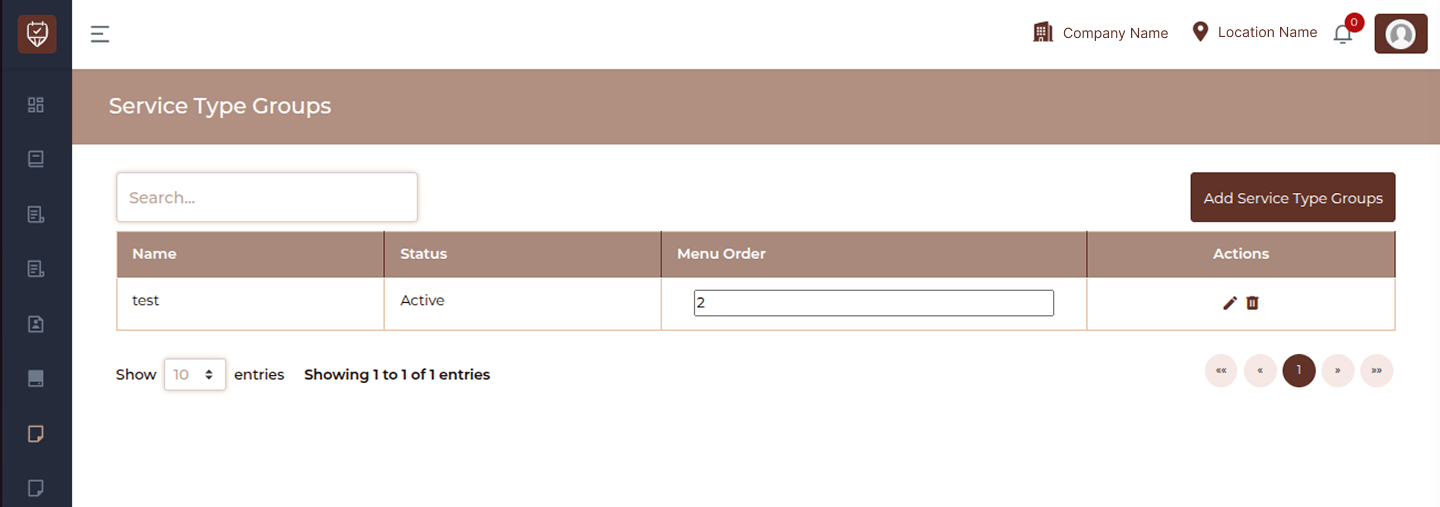
Search
Use the search bar to quickly find specific service type groups by name. This is useful when managing a large number of groups.
The table displays all created service type groups with the following details:
Name
Shows the name of the service type group. This represents how service types are grouped together for better organization.
Status
Indicates whether the group is active or inactive. Active groups are available for use, while inactive ones are hidden but retained in the system.
Menu Order
Defines the display order of the group. Lower numbers appear first, helping you control how groups are arranged in lists or menus.
Actions
Each group includes action options for management:
Edit : Allows you to update the group name, status, and order.
Delete :Removes the selected group from the system.
Empty State
If no service type groups have been created, the system will display a “No Data Found” message. You can begin by adding new groups to organize your service types effectively.
Add / Edit Service Type Groups
Service Type
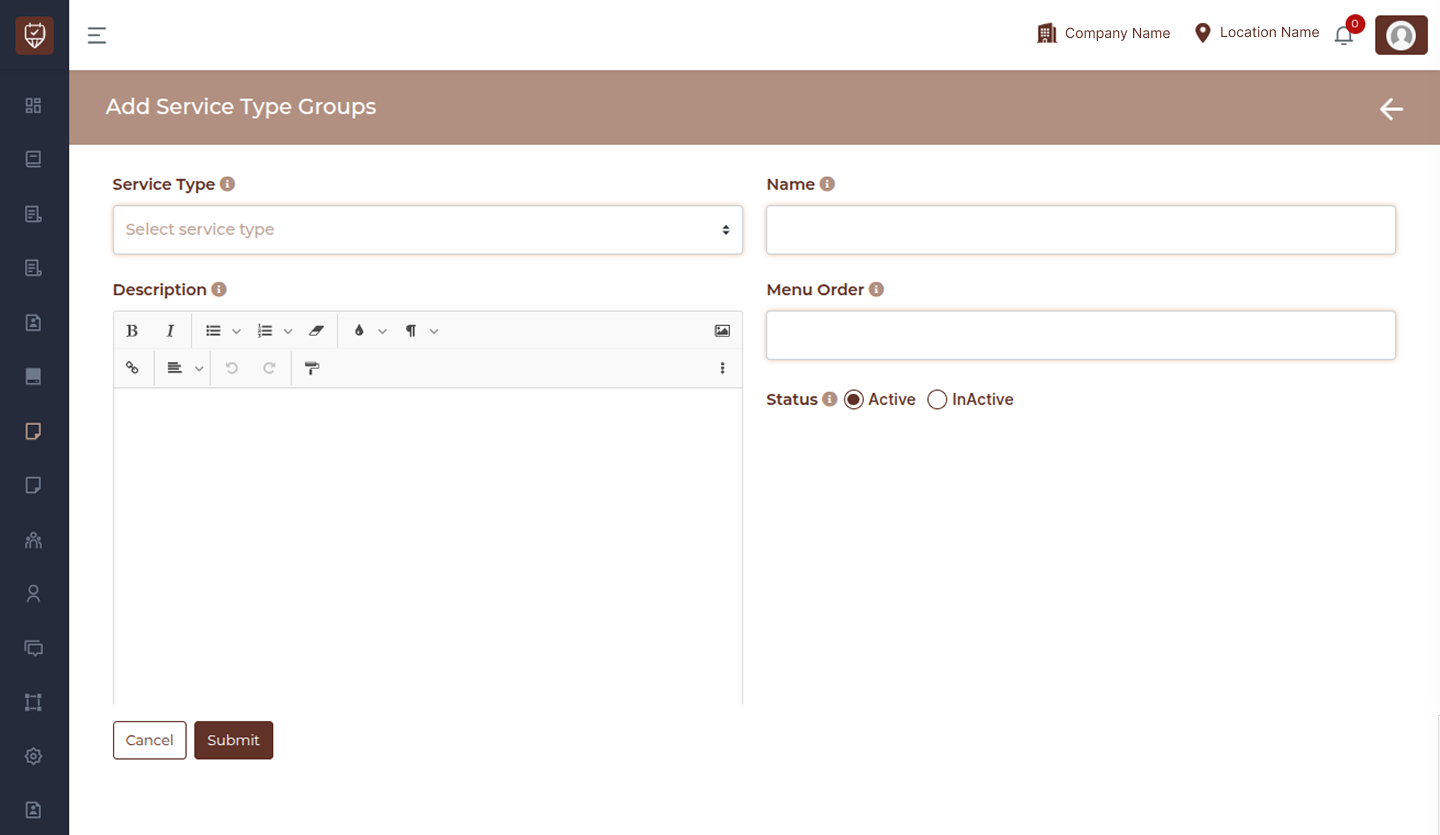
Select the service type you want this group to be linked with. Service Type Groups help you organize services into structured collections under each service type.
Group Name
Enter a clear and descriptive name for the service type group. This helps both clients and staff easily recognize what the group represents.
Description
Use this section to explain what the service type group is about. You can include details, highlights, or any specific information that helps users better understand the purpose of this group.
Menu Order
Define where this group appears in the list. Lower numbers will appear first. You can leave this field blank if you prefer automatic ordering.
Status
Choose whether the group should be Active or Inactive.
Active: The group will appear in menus and dropdowns.
Inactive: The group will be hidden but can be used later.
Submit
Click Submit to save the new service type group with all the details you have entered.
Cancel
Click Cancel to exit the page without saving any changes.