
VAT Settings
The VAT Settings page allows administrators to configure tax (VAT) details for a selected location. These settings are applied to services, products, invoices, and transactions to ensure correct tax calculation and compliance.
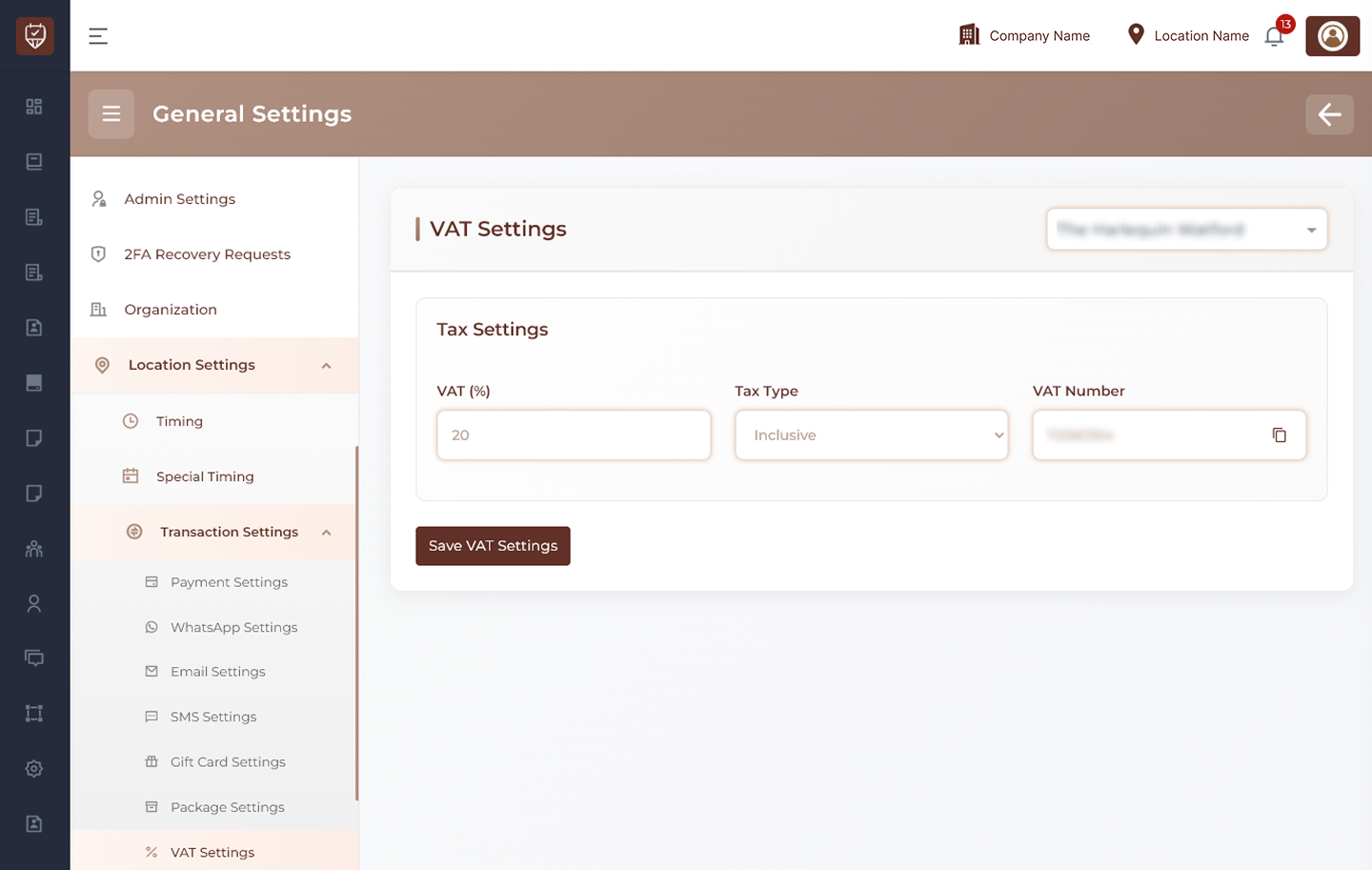
Location Selection
Use the location dropdown at the top-right to choose the branch or location where VAT settings should be applied.
Examples:
- Main Branch
- City Center Branch
- North Location
Tax Settings
Configure VAT details that will be applied across all transactions for the selected location.
VAT (%)
Enter the VAT percentage to be applied.
Examples:
- 5
- 12
- 20
This value determines how much tax is added to transactions.
Tax Type
Select how VAT should be applied.
Options include:
- Inclusive – VAT is included in the displayed price
- Exclusive – VAT is added on top of the displayed price
VAT Number
Enter the registered VAT number for the business.
Used for:
- Invoices
- Tax reporting
- Compliance documentation
Actions
Save VAT Settings
Click this button to save the VAT configuration for the selected location.
Best Practices
- Ensure the VAT percentage matches local tax regulations
- Choose the correct tax type based on pricing strategy
- Keep VAT numbers accurate and up to date
- Review tax settings periodically for compliance changes
- Verify calculations on invoices after updates