
Offers
The Offers page is used to create and manage promotional campaigns that can be applied to customers over a specific period. It helps you attract customers, promote services, and increase sales through targeted offers.
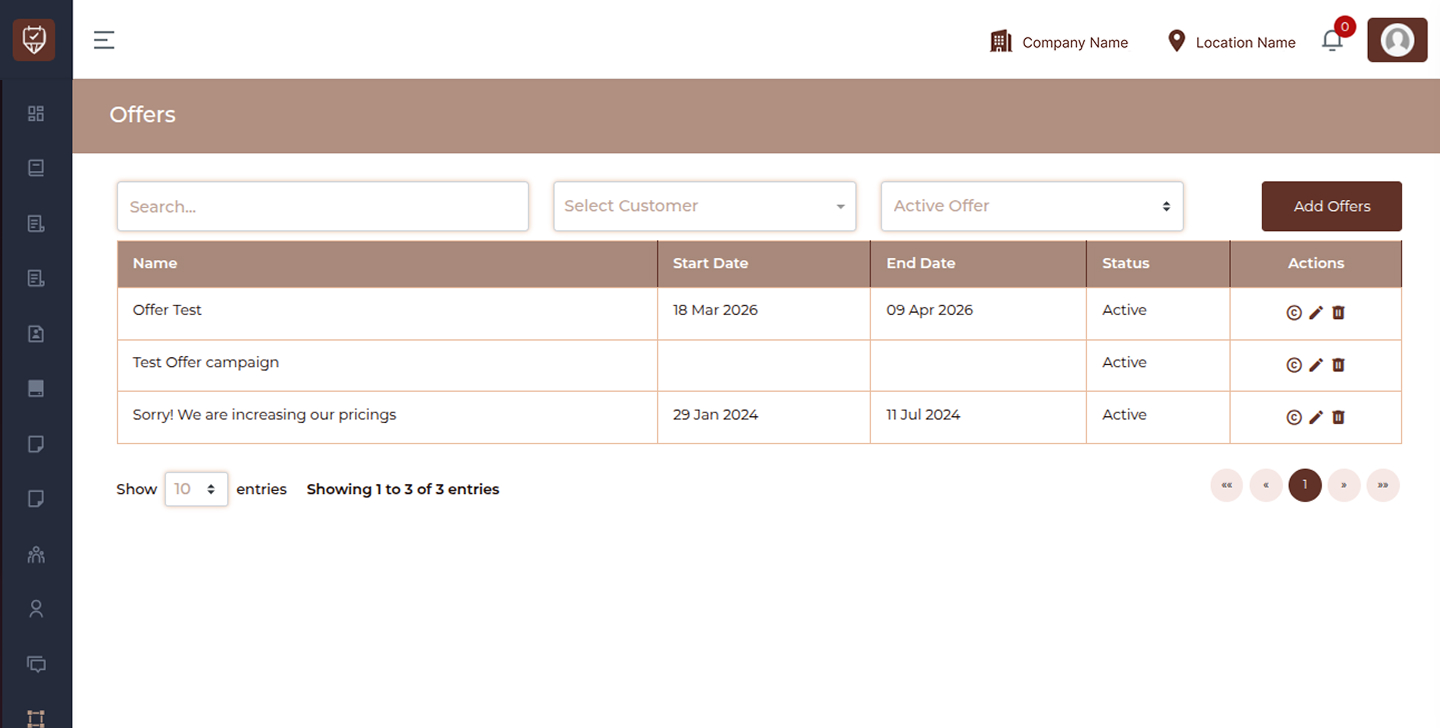
This page allows you to:
- View all created offers
- Filter offers based on customer or status
- Manage active and inactive campaigns
- Edit or remove existing offers
Filters & Controls
Search
Search for offers using keywords such as offer name.
Select Customer
Filter offers assigned to a specific customer.
Offer Status
Filter offers based on their status such as Active or Inactive.
Add Offers
Create a new promotional offer.
Offer List Columns
Name
Displays the name or title of the offer.
Start Date
Shows the date from which the offer becomes active.
End Date
Indicates the expiry date of the offer.
Status
Shows whether the offer is currently Active or Inactive.
Actions
- Edit : Modify offer details
- Delete : Remove the offer from the system
Best Practices
- Use clear and attractive offer names
- Set accurate start and end dates to avoid confusion
- Regularly review and deactivate expired offers
- Avoid overlapping multiple offers for the same service
- Keep offers simple and easy to understand for customers
Add / Edit Offers
The Add / Edit Offers page is used to create and manage promotional campaigns with flexible targeting rules. It allows you to define who can use the offer, when it is valid, and which services it applies to.
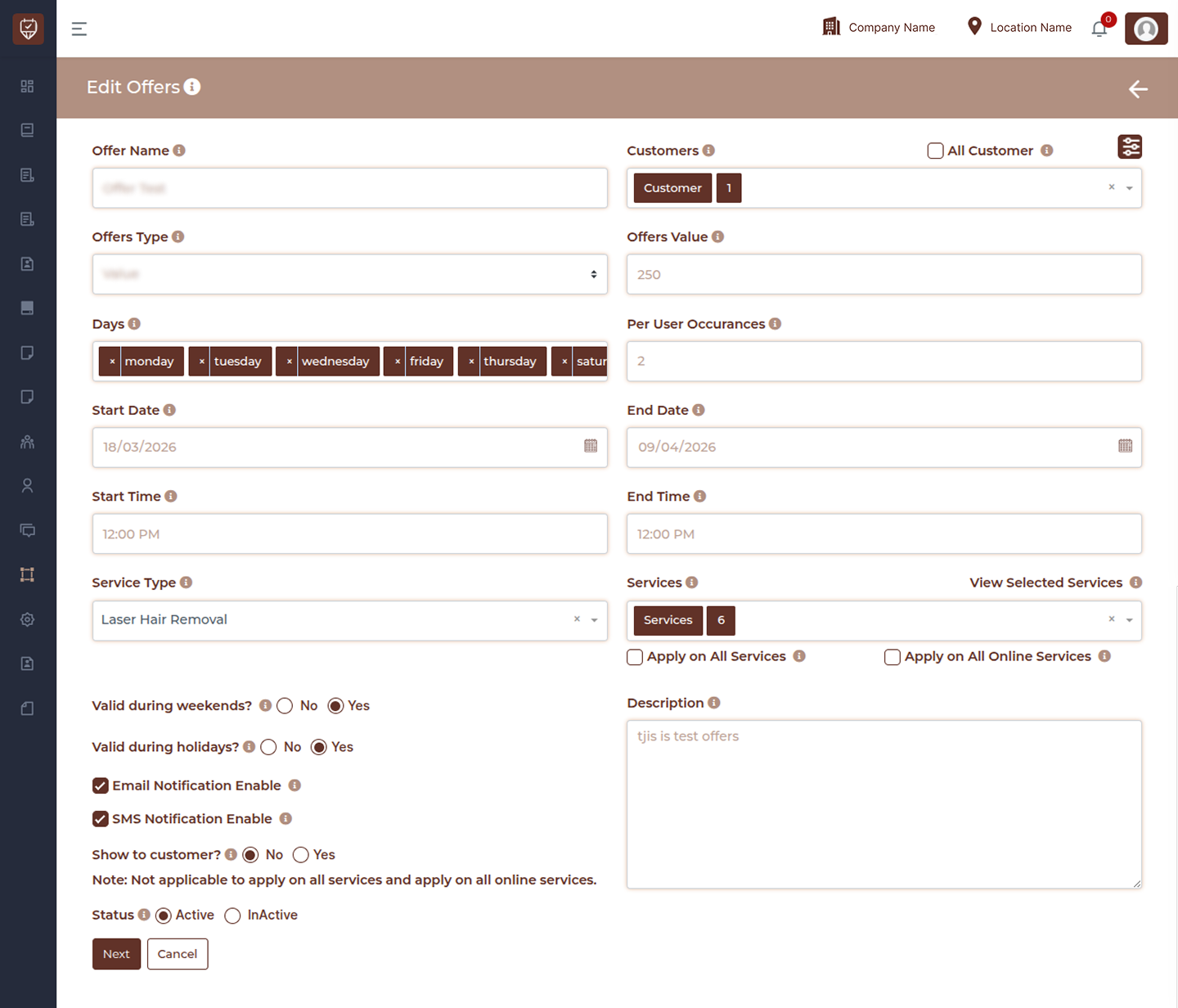
This page helps you:
- Create targeted offers for specific customers or all customers
- Define offer rules based on date, time, and usage limits
- Apply offers to selected services or globally
- Enable notifications and visibility controls
Offer Name
Enter a clear and attractive name for the offer.
Customers
Select specific customers for this offer.
All Customer
Enable to apply the offer to all customers.
Offers Type
Select how the offer is applied such as percentage, flat value, or special pricing.
Offers Value
Enter the value of the offer based on the selected type.
Days
Select the days of the week when the offer is valid.
Per User Occurrences
Limit how many times a single customer can use the offer.
Start Date
Set the date when the offer becomes active.
End Date
Set the expiry date for the offer.
Start Time
Define the start time for time-based offers.
End Time
Define the end time for time-based offers.
Service Type
Select the category of services to which the offer applies.
Services
Choose specific services included in the offer.
View Selected Services
Review the services selected for this offer.
Apply on All Services
Apply the offer across all services.
Apply on All Online Services
Restrict the offer to online bookings only.
Valid during weekends
Control whether the offer is applicable on weekends.
Valid during holidays
Control whether the offer is applicable on holidays.
Email Notification Enable
Enable to send email notifications about the offer.
SMS Notification Enable
Enable to send SMS notifications about the offer.
Show to customer
Control whether the offer is visible to customers.
Description
Add details or notes about the offer.
Status
Set the offer as Active or Inactive.
Customer Filter Popup
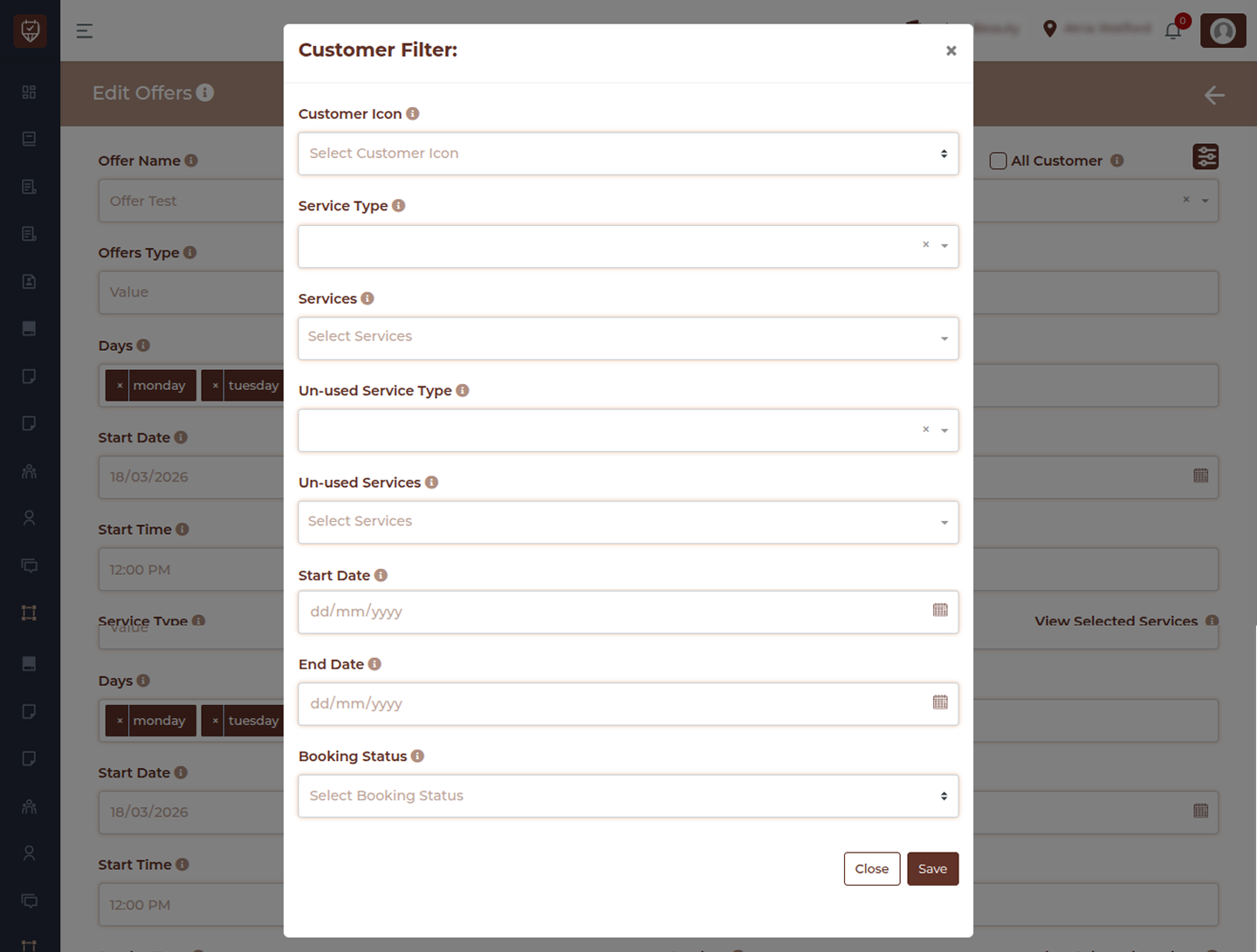
The Customer Filter popup allows you to apply advanced conditions to target specific customers for the offer.
Customer Icon
Select customer type or category for filtering.
Service Type
Filter customers based on service categories they have used.
Services
Filter customers based on specific services.
Un-used Service Type
Filter customers who have not used a specific service category.
Un-used Services
Filter customers who have not used specific services.
Start Date
Filter customers based on activity from a selected start date.
End Date
Filter customers based on activity up to a selected end date.
Booking Status
Filter customers based on booking status such as completed or pending.
Actions
- Next : Proceed to the next step of configuration
- Cancel : Exit without saving changes
Best Practices
- Use clear and engaging offer names
- Avoid overlapping multiple offers for the same services
- Set proper date and time limits to control usage
- Use customer filters for targeted marketing
- Enable notifications to increase offer visibility