
Rota Management
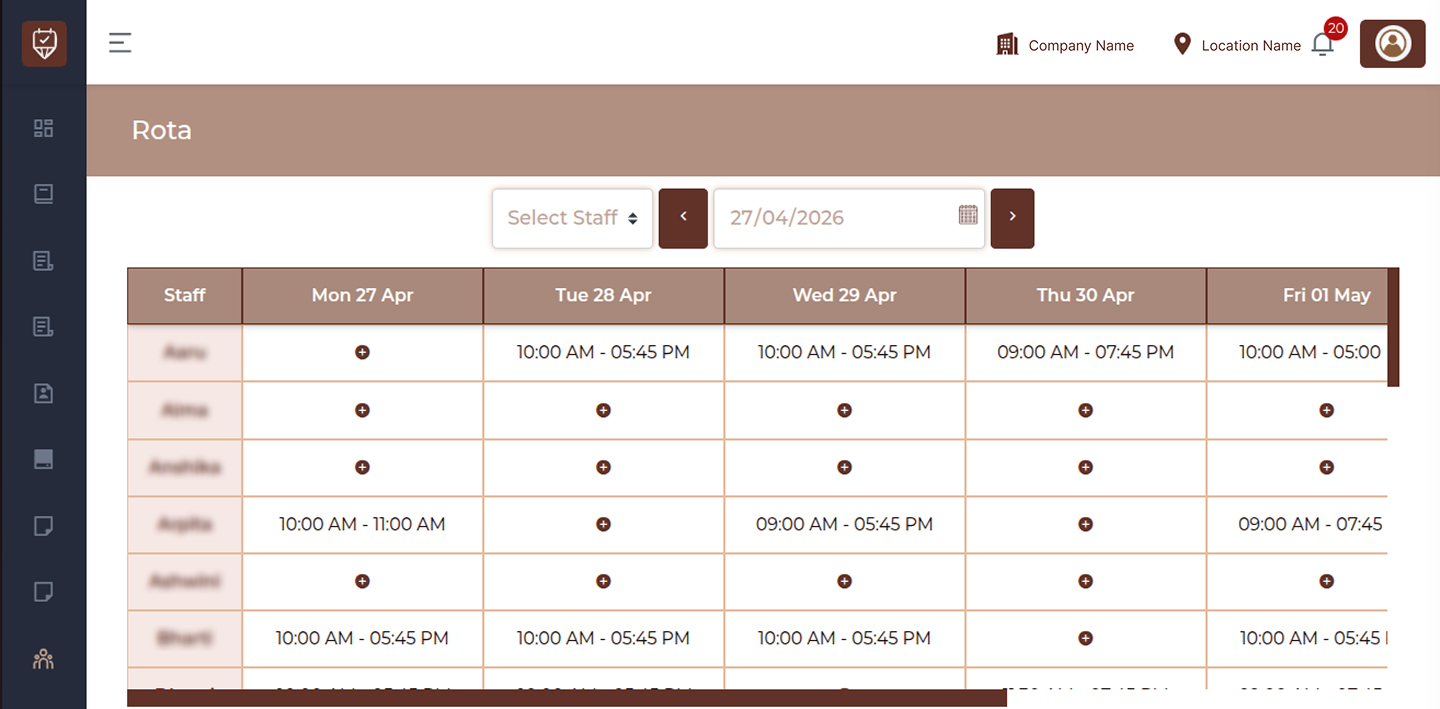
The Rota page provides a weekly overview of staff working schedules. It allows you to view, filter, and manage employee shifts across the entire week, ensuring proper workforce planning and availability.
Select Staff
Use the staff dropdown to filter the rota for a specific employee. If no selection is made, the system displays schedules for all staff members.
Date Picker
Choose a date to load the rota for the corresponding week. The system automatically displays the full week (Monday to Sunday) based on the selected date.
Previous Week ( < )
Click this button to navigate to the previous week’s schedule.
Next Week ( > )
Click this button to move forward and view the upcoming week’s schedule.
Rota Table (Weekly Schedule)
The table displays staff members along with their assigned working hours for each day of the week.
Staff Column
Lists all employees included in the rota. Each row represents one staff member.
Daily Columns
Each column represents a specific day of the selected week. These columns display the assigned schedule for that day.
Working Hours
Time ranges (e.g., start time to end time) indicate when a staff member is scheduled to work on a particular day.
Empty Slot / Add Shift Icon
If no shift is assigned for a day, an icon appears indicating an empty slot. Clicking this allows you to assign or update working hours for that employee.
How to Use
- Select a staff member or view all schedules at once
- Choose a date to load the desired week
- Navigate between weeks using the arrow buttons
- Review daily schedules directly in the table
- Add or update shifts by interacting with empty or existing entries
Shift Management
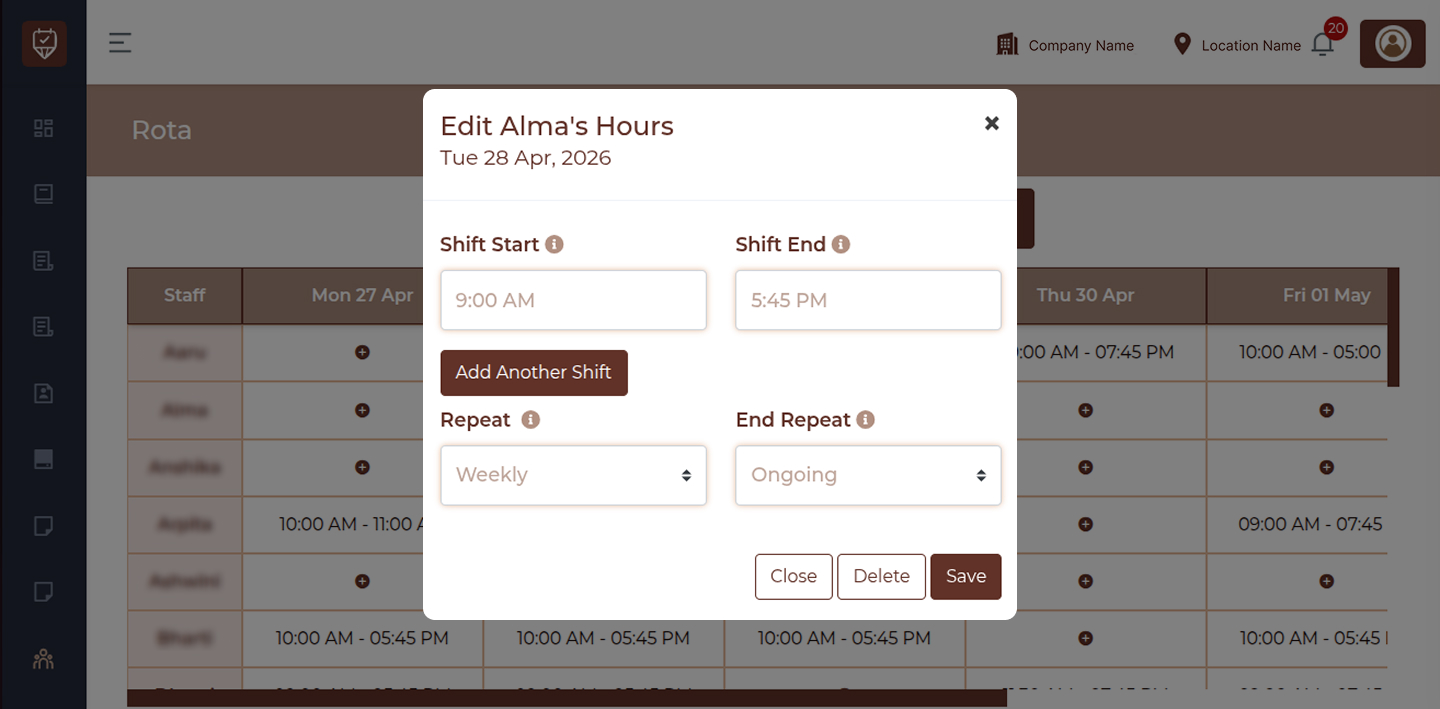
This window allows you to create, update, or remove a staff member’s working shift for a selected day. You can define start and end times, add multiple shifts in a single day, and configure how the shift repeats over time.
Shift Start
Select the time when the shift should begin for the selected day. This defines when the employee’s working hours start.
Shift End
Enter the time when the shift ends. This marks the completion of the employee’s working hours for that shift.
Multiple Shifts
Add Another Shift : Use this option if the employee has more than one working session in a day (for example, a morning shift and an evening shift). This allows you to create additional time slots within the same day.
Repeat
Controls how the shift pattern should be repeated in the schedule.
Weekly : Repeats the shift every week on the same weekday as the selected date.
Everyday : Repeats the shift daily, including weekends, until the defined end condition is reached.
End Repeat
Defines how long the repeating schedule should continue.
Ongoing : The shift continues indefinitely until it is manually changed or removed.
Specific Date : Allows you to set a final date. After this date, the shift will stop repeating.
Action Buttons
Close : Closes the window without saving any changes.
Delete : Removes the shift completely. If the shift is part of a repeating pattern, all linked occurrences will also be removed.
Save : Saves the shift details and applies the schedule, including any repeat settings.
How to Use
- Set the shift start and end time
- Add additional shifts if required
- Choose how the shift should repeat
- Define when the repetition should end
- Save the changes to update the rota