
Customer Packages
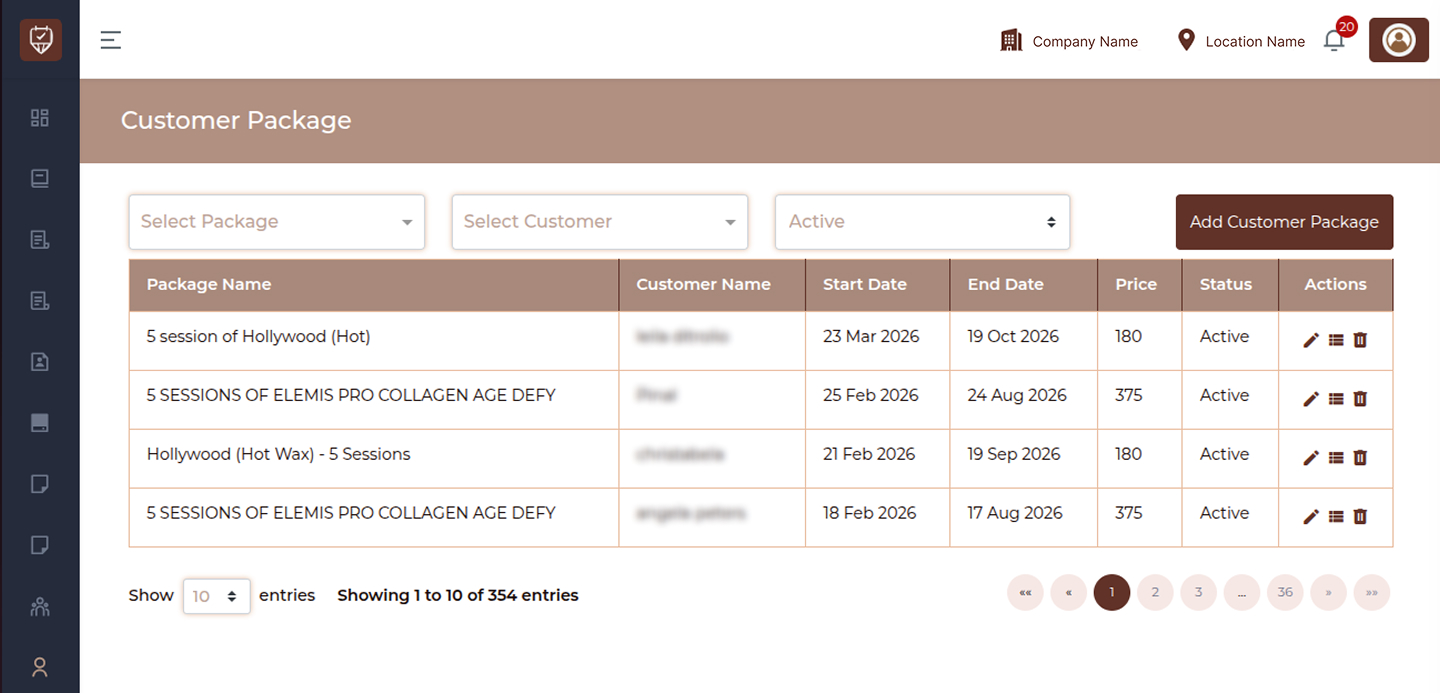
The Customer Packages page allows you to manage all service packages assigned to customers. It helps track package details, validity periods, pricing, and current status.
This page is essential for monitoring package usage and managing customer subscriptions efficiently.
Overview
This page provides:
- Package filtering options
- List of all assigned customer packages
- Quick actions to manage packages
Top Filters
Located at the top of the page, these filters help you quickly find specific packages.
Select Package
Filter records by a specific package.
- Displays available package options
- Helps locate customers associated with a particular package
Select Customer
Filter packages assigned to a specific customer.
- Displays list of customers
- Useful for viewing package history of a single customer
Status
Filter packages based on their current status.
Examples:
- Active
- Expired
- Inactive
Add Customer Package
Located at the top-right.Click this button to assign a new package to a customer.
Customer Package Table
The main section displays all package records in a structured table.
Package Name
Displays the name and details of the package.
Examples:
- Multiple session packages
- Service combinations
- Custom packages
Customer Name
Shows the name of the customer assigned to the package.
Start Date
Indicates when the package becomes active.
End Date
Displays the expiry date of the package.
Price
Shows the total price of the package.
Status
Indicates the current state of the package.
Examples:
- Active : Currently valid and usable
- Expired : Validity has ended
Actions
Each package record includes three action icons
Edit : Allows you to modify package details.
View : Opens detailed information about the package.
Delete :Removes the package from the system.
Best Practices
- Keep package data accurate and updated
- Regularly check expiring packages
- Avoid deleting packages unless necessary
- Use filters for faster navigation
- Review package details before editing
Add / Edit Customer Package
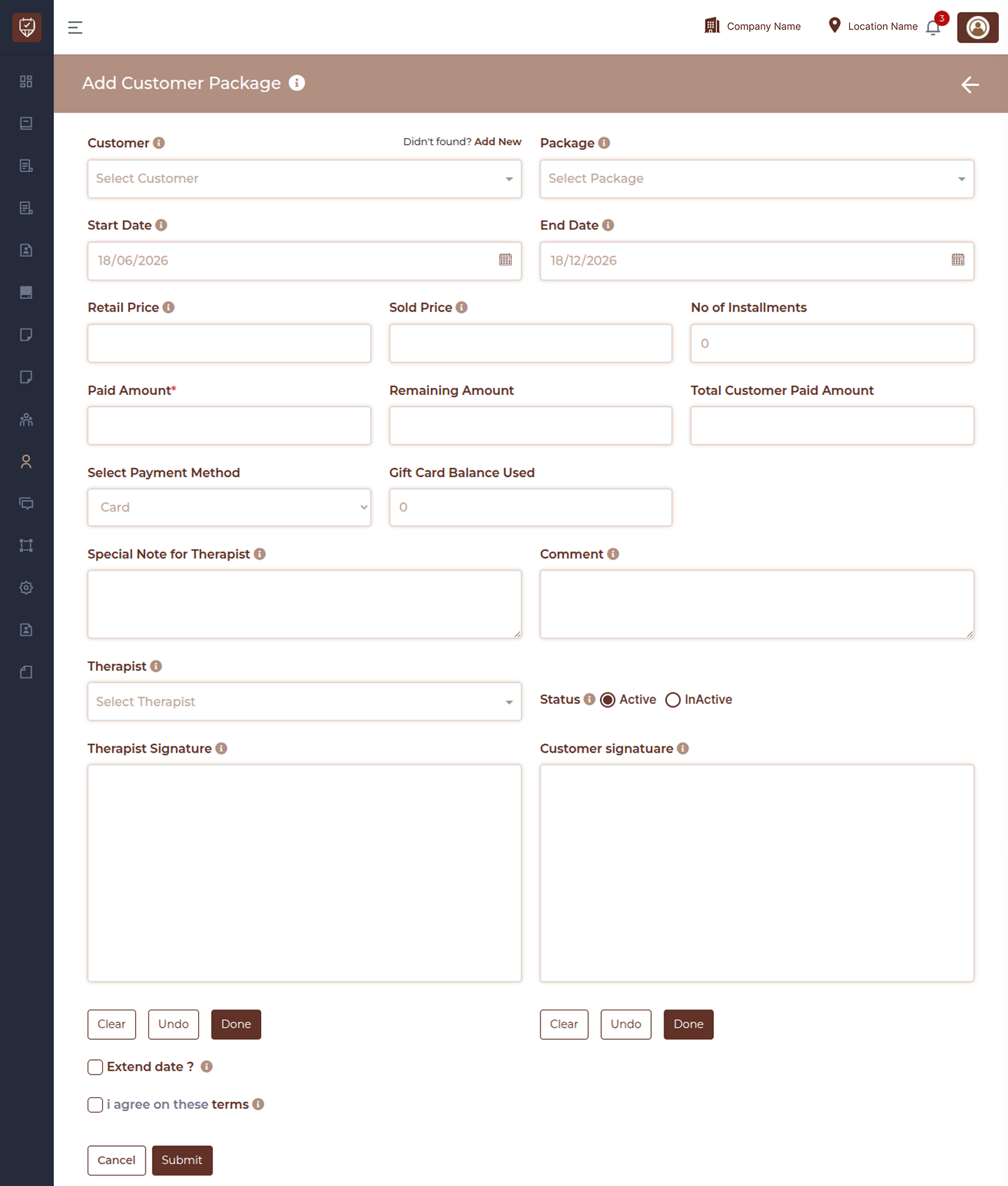
The Add / Edit Customer Package page allows you to assign, sell, and manage service packages for customers. It helps track package validity, pricing, payments, therapist assignment, and agreement confirmations.
This page is used when creating a new package for a customer or updating an existing one.
Overview
This page enables you to:
- Assign a package to a customer
- Define validity period
- Manage pricing and payments
- Add internal notes and therapist instructions
- Capture digital signatures for confirmation
Page Title
Indicates that you are assigning or editing a customer package.
Back Button
Located at the top-right corner. Click to return to the package listing page without saving changes.
Customer
Select the customer to whom the package will be assigned.
- Displays a dropdown list of customers
- Option available to quickly add a new customer if not found
Package
Select the service package to assign.
- Displays available packages
- Determines included services and structure
Start Date
Defines when the package becomes active.
End Date
Defines the expiry date of the package.
Retail Price
Displays the original price of the package before any discount.
Sold Price
Enter the final price charged to the customer after discounts or adjustments.
Sold Price
Displays the actual package selling price. Which is used for Discounts, Promotional pricing, Revenue tracking
Paid Amount
Enter the amount paid by the customer at the time of purchase.
Remaining Amount
Displays or calculates the pending amount (if any).
Total Customer Paid Amount
Shows the total amount paid by the customer so far.
Select Payment Method
Choose how the payment was made.
Examples:
- Card
- Cash
- Online
Gift Card Balance Used
Displays any gift card value applied toward the package payment. Which is used for Reduce payable amount and Track gift card usage
Special Note for Therapist
Add instructions or notes specifically for the therapist.
- Visible only to staff
- Helps ensure proper service delivery
Comment
Add internal remarks related to the package.Used for administrative or tracking purposes
Therapist
Select the therapist responsible for handling this package.
Status
Set the package status:
- Active : Package can be used for bookings
- Inactive : Package is paused or not usable
Therapist Signature
Capture the therapist’s digital signature. Confirms package agreement from staff side
Customer Signature
Capture the customer’s digital signature. Confirms acceptance of package terms
Signature Controls
Each signature section includes:
- Clear Remove signature
- Undo Undo last action
- Done Confirm signature
Extend Date
Enable this option to extend the package expiry date when required.
Terms Agreement
Customer must agree to terms and conditions before submission.
This ensures:
- Policy acknowledgment
- Legal and operational compliance
Actions
Submit :Click Submit to save and activate the package. Creates a new package (Add mode)
Updates an existing package (Edit mode)
Cancel : Click Cancel to exit without saving changes.
Best Practices
- Always verify customer and package selection
- Ensure correct start and end dates
- Record accurate payment details
- Add therapist notes for clarity
- Capture both signatures for confirmation
- Review all details before submission