
Roles
The Roles page allows administrators to create and manage user roles within the system. Roles define what actions a user can perform and what data they can access.
This feature ensures proper access control, security, and operational efficiency across the organization.
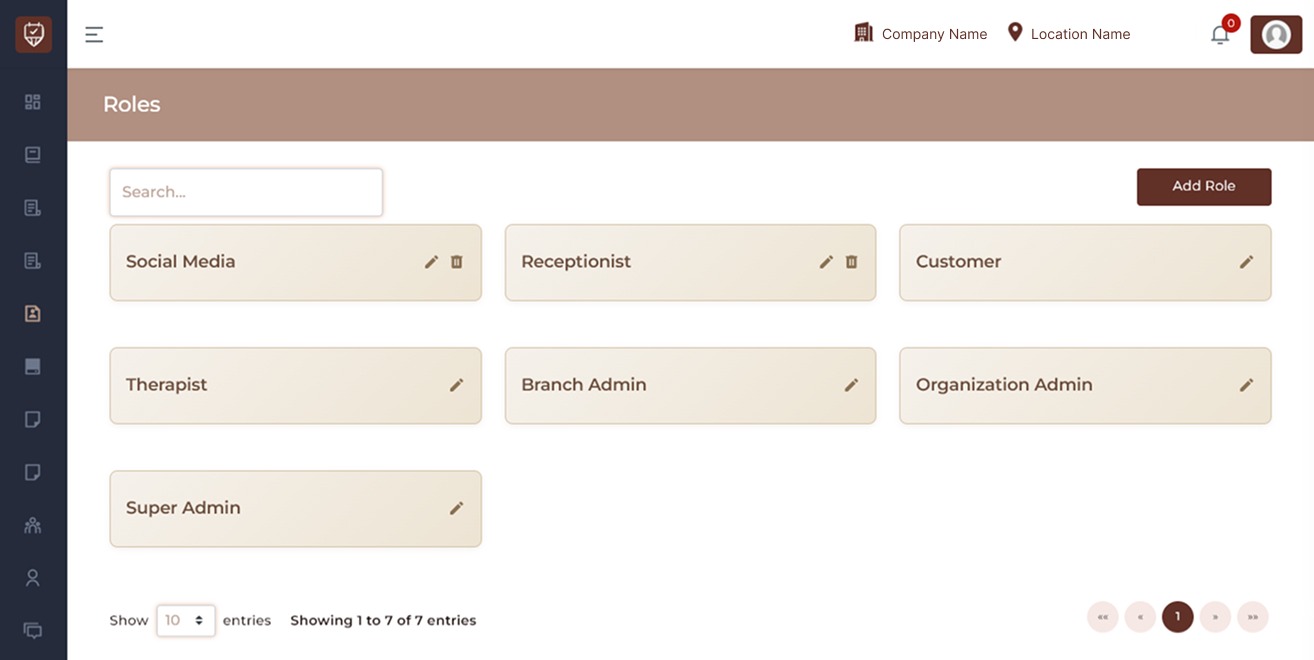
Page Overview
The Roles page displays:
- A search bar for quick filtering
- A list of available roles
- Edit and delete controls (where applicable)
- An Add Role button for creating new roles
Each role represents a set of permissions assigned to users.
Search Function
The search bar allows administrators to:
- Quickly find a specific role
- Filter roles by name
- Manage large role lists efficiently
Search results update automatically.
Add Role
The Add Role button (top-right corner) allows administrators to create a new custom role. When creating a role, you may define:
- Role name
- Access permissions
- Module visibility
- Action-level controls (view, create, edit, delete, etc.)
After saving, the role becomes available for assignment to users.
Default System Roles
The system may include predefined roles to support standard business operations. Below are examples of common role types and their general responsibilities:
Super Admin
Highest level of system access. Typically has permission to:
- Manage organizations
- Manage branches
- Manage roles and permissions
- Access all modules
- Configure system-wide settings
This role should be assigned carefully.
Organization Admin
Responsible for managing an entire organization. Common permissions include:
- Managing branches
- Managing staff
- Viewing reports
- Managing services
- Overseeing bookings
Branch Admin
Manages operations for a specific branch. Permissions may include:
- Managing branch staff
- Handling bookings
- Viewing branch reports
- Updating branch settings
Receptionist
Handles front-desk and booking operations. Typical access:
- Create and manage bookings
- View schedules
- Assist customers
- Process appointments
Therapist / Service Provider
Access is typically limited to:
- Viewing assigned appointments
- Managing availability
- Updating appointment status
Customer
Limited access role. Typically can:
- Book appointments
- View personal bookings
- Manage personal profile
Custom Roles
Administrators can create custom roles such as:
- Marketing Manager
- Social Media Manager
- Finance Staff
- Support Staff
Custom roles allow fine-grained permission control based on operational needs.
Action Icons
Each role card includes management options:
Edit Role
Allows administrators to:
- Modify role name
- Update permissions
- Adjust access levels
Changes apply to all users assigned to that role.
Delete Role
Removes the role from the system.
Important:
- A role cannot typically be deleted if it is currently assigned to users.
- Reassign users before deletion.
- Default system roles may not be removable.
Best Practices
- Follow the principle of least privilege (assign only required access).
- Avoid assigning Super Admin access unnecessarily.
- Regularly review role permissions.
- Use custom roles for department-specific responsibilities.
- Audit role assignments periodically for security compliance.
Add / Edit Role
The Add Role and Edit Role page allows administrators to create or manage system roles and define access permissions for different modules of the system.
Roles determine what actions a user can perform within the platform. By assigning permissions to a role, administrators can control which sections of the system a user can view, create, update, or delete. The same interface is used for both creating a new role and editing an existing role.
Role Information
Name : Enter the name of the role. This name identifies the type of user who will be assigned this role. Examples include:
- Receptionist
- Therapist
- Branch Admin
- Marketing Staff
- Manager
Choose a clear name that represents the responsibilities of the users assigned to this role.
Check All : The Check All option allows administrators to quickly grant all permissions for every module.
When enabled, all permission checkboxes in the system will be selected automatically.
This is useful when creating roles with full system access.
Permission Types
Each module contains different permission options that control what actions users can perform.
Read : Allows the user to view or access information within a module.
Create : Allows the user to add new records in that module.
Update : Allows the user to edit or modify existing records.
Delete : Allows the user to remove records from the system.
Administrators can enable or disable permissions depending on the responsibilities of the role.
Appointments
Controls access to appointment-related features.
Subsections
- Appointments
- Appointment List
Permissions here allow users to manage booking schedules and view appointment records.
Catalog
Controls access to service and catalog management.
Subsections
- Catalog
- Related Services
Users with access can manage service listings and related configurations.
Consultant
Controls consultation form management.
Subsections
- Consultation Forms
- Questions
Permissions allow users to manage consultation forms used during client assessments.
Customer
Controls access to customer-related information and services.
Subsections
- Customer
- Customers
- Customer Packages
- Customer Loyalty Cards
- Patch Test Booking
- Customer Bookings
- Customer Rewards
- Booking Consultation Form
- Custom Gift Cards
- Unconfirmed Appointments
These permissions allow staff to manage customer profiles, bookings, rewards, and service packages.
Default Data
Controls system default settings.
Subsections
- Master Catalog
- Master Consultation Forms
- Master Questions
These permissions allow administrators to manage default templates used throughout the system.
Inventory
Controls inventory and product management.
Subsections
- Brands
- Product Types
- Products
- Tax Group
- Supplier
- Product Order
- Inventory Settings
- Product Sizes
- Inventory Types
Users with these permissions can manage stock, suppliers, and product information.
Logs
Provides access to system activity logs.
Subsections
- SMS Log
- WhatsApp Log
- Email Log
These logs help administrators track communication and system activity.
Marketing
Controls access to marketing tools and promotional features.
Subsections
- Dynamic Content
- Packages
- Loyalty Cards
- Discounts
- Offers
- Discount Slabs
- Offer Email Templates
Users with these permissions can manage marketing campaigns and promotional offers.
Master
Controls core system configuration.
Subsections
- Organizations
- Branches
- Roles
- Users
- Payout Hours
- Service Limits
- Holiday
- Location Settings
These permissions are typically assigned to high-level administrators.
Other
Controls additional system features.
Subsections
- Smart Customers
- Easy Functionality
- Marketing Email
- Google Parameter
These options provide access to various supporting features within the platform.
POS
Controls access to the Point of Sale system.
Subsections
- POS
- POS Returns
Users with these permissions can manage in-store sales transactions and returns.
Reports
Controls access to business and operational reports.
Subsections
- Inventory Reports
- Deposits
- POS Reports
- Financial Reports
- Appointments Reports
- Customer Reports
- Therapist Reports
- Service Reports
- Commission Reports
- Branch Compare Reports
- Comparison Reports
These permissions allow users to view and analyze system data through reports.
Settings
Controls system configuration and integrations.
Subsections
- Mobile Banner
- App Version
- Quick Contact Templates
- Custom Parameter
- Content Master
- Consult Action
- WhatsApp API Key
- SMTP Settings
These settings are typically managed by administrators.
Staff
Controls staff and employee management.
Subsections
- Employees
- Roles
- Block Times
- Cleaning Form
These permissions allow administrators to manage employee records and staff-related configurations.
Action Buttons
Cancel : Click Cancel to discard any changes and return to the previous page without saving.
Submit : Click Submit to save the role and apply the selected permissions. Once saved, the role can be assigned to users within the system.