
Payment Settings
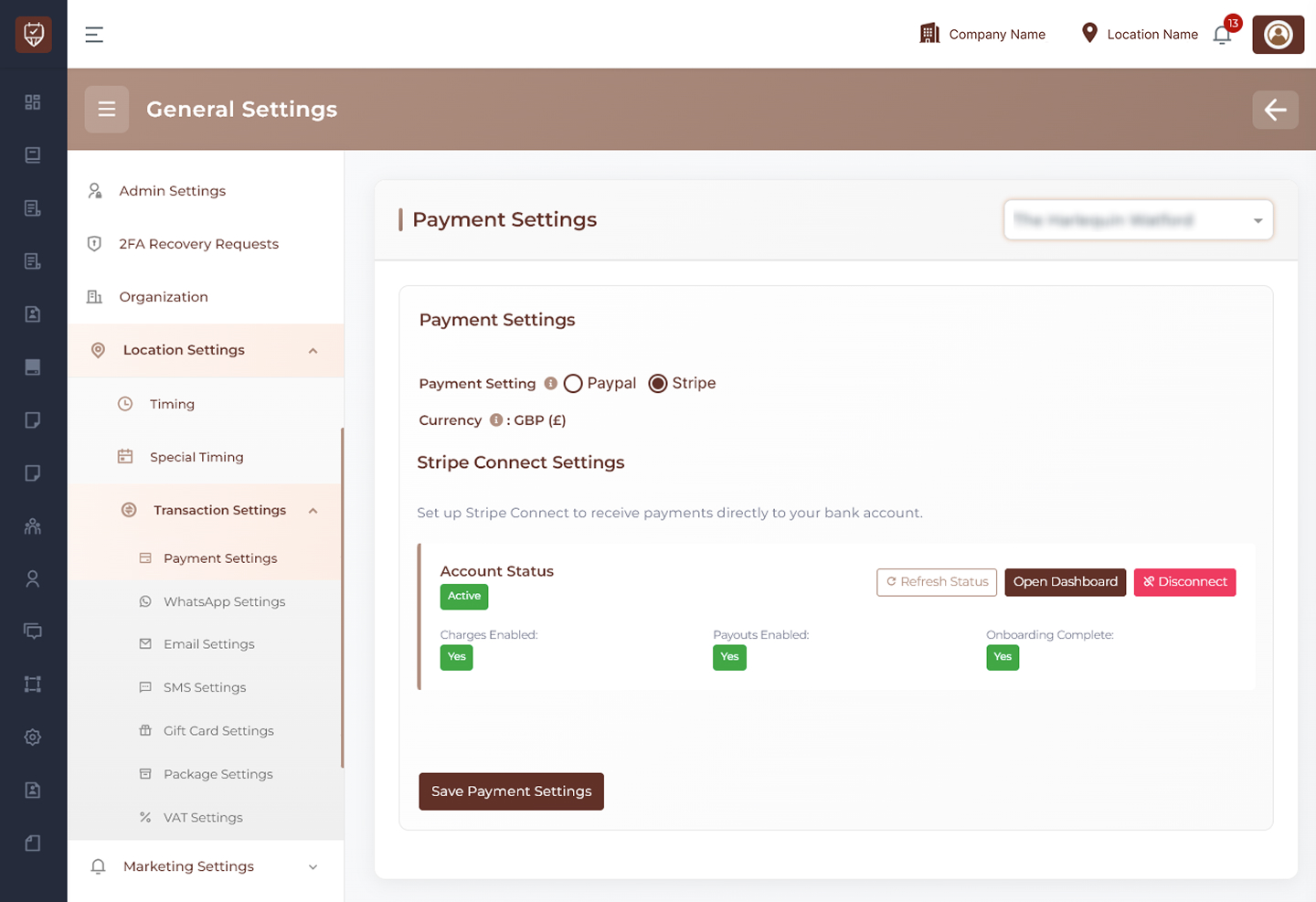
The Payment Settings page allows administrators to configure payment gateways for a selected location. This page supports multiple payment providers such as PayPal and Stripe, enabling secure online payment processing for bookings, deposits, products, and other transactions.
Location Selection
Use the location dropdown at the top-right to choose the branch or location where payment settings should be applied.
Examples:
- Main Branch
- City Center Branch
- North Location
Payment Provider Selection
Choose the payment gateway to use for the selected location.
Available options:
- PayPal
- Stripe
Only one provider can be selected as the active payment method at a time.
Currency
Displays the active payment currency used for transactions.
Examples:
- GBP (£)
- USD ($)
- EUR (€)
PayPal Settings
When PayPal is selected, configure the required PayPal API credentials.
PayPal Client ID
Enter the PayPal Client ID from your PayPal developer account. Used to connect the system with PayPal services.
PayPal Client Secret
Enter the PayPal Client Secret securely. Used for authentication and secure payment processing.
Actions
Save Payment Settings
Click to save PayPal configuration for the selected location.
Stripe Settings
When Stripe is selected, the Stripe Connect configuration panel becomes available.
Stripe Connect allows direct payment transfers to your connected business bank account.
Stripe Connect Status
Displays current Stripe account connection details.
Examples:
- Account Status
- Charges Enabled
- Payouts Enabled
- Onboarding Complete
These indicators help confirm if the Stripe account is fully operational.
Stripe Actions
Refresh Status
Updates the Stripe connection status in real time.
Open Dashboard
Opens the connected Stripe dashboard for account management, payouts, reports, and settings.
Disconnect
Removes the Stripe connection from the selected location. Use only if changing accounts or disabling Stripe payments.
Save Payment Settings
Saves Stripe as the selected payment provider.
How It Works
- Select the branch location first
- Choose PayPal or Stripe
- Enter required credentials or connect Stripe
- Save settings
- Online transactions will use the selected provider
Best Practices
- Use only verified business payment accounts
- Keep API credentials secure
- Test payment flow after setup
- Refresh Stripe status after onboarding
- Confirm payouts are enabled before going live
- Review currency settings before accepting payments