
Kiosk Mode
Customer Kiosk Mode provides a self-service experience that allows customers to independently manage appointments, consultations, loyalty benefits, rewards, and communication preferences using a dedicated kiosk device.
When enabled by staff, the kiosk presents customer-only actions while keeping administrative controls protected through secure exit access.
Overview
Customer Kiosk Mode is designed for in-branch self-service and allows customers to access selected features without staff assistance.
Customer can:
- Login using mobile number
- Register as a new customer
- Book an appointments
- View and manage bookings
- Check in for appointments
- Complete consultation forms
- Review consultation history
- View rewards points
- Access loyalty cards
- Manage notification preferences
Customer access remains restricted to customer-facing features only.
Customer Login
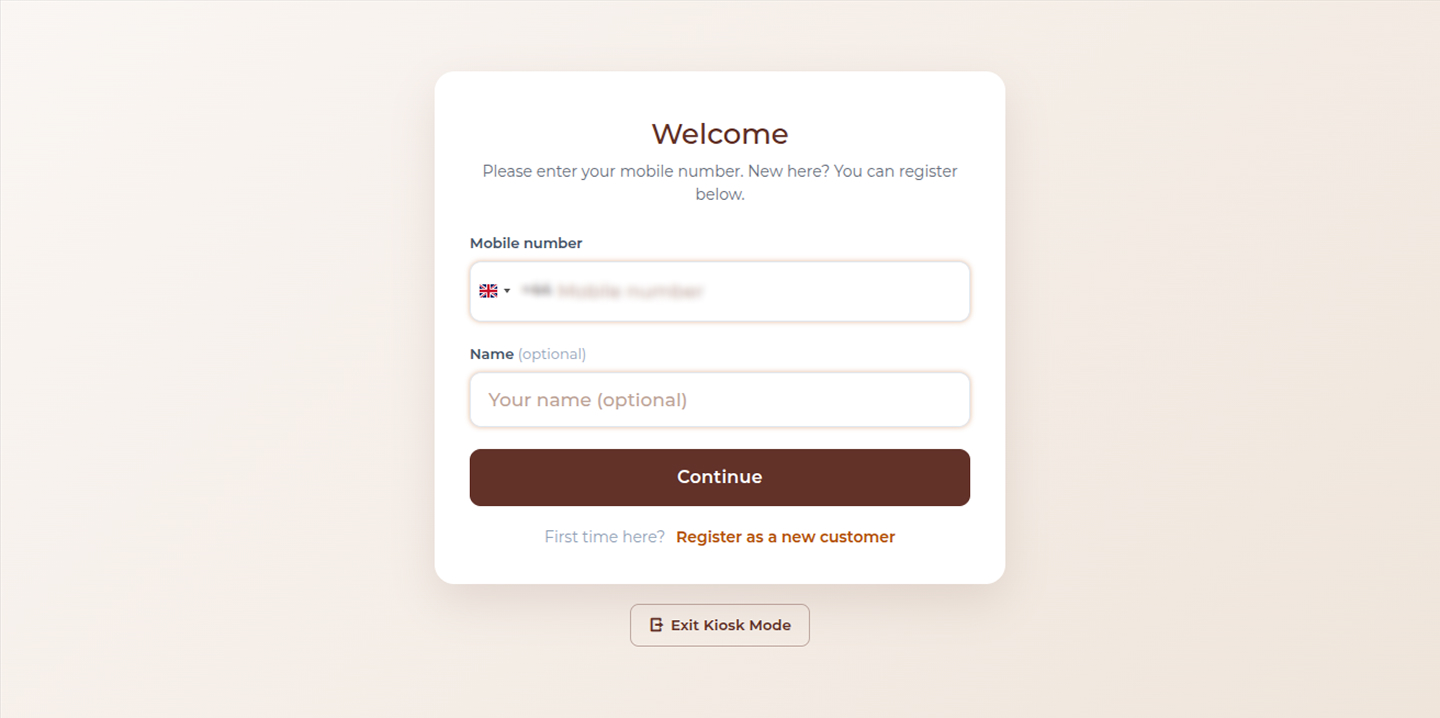
Customers begin their kiosk session by entering their mobile number.
The login screen allows returning customers to access their profile and continue using kiosk services.
Customers may:
- Enter mobile number
- Optionally enter name
- Continue into kiosk
- Register as a new customer
- Exit kiosk mode
If the mobile number already exists, the customer is redirected directly into the kiosk dashboard.
Register as a New Customer
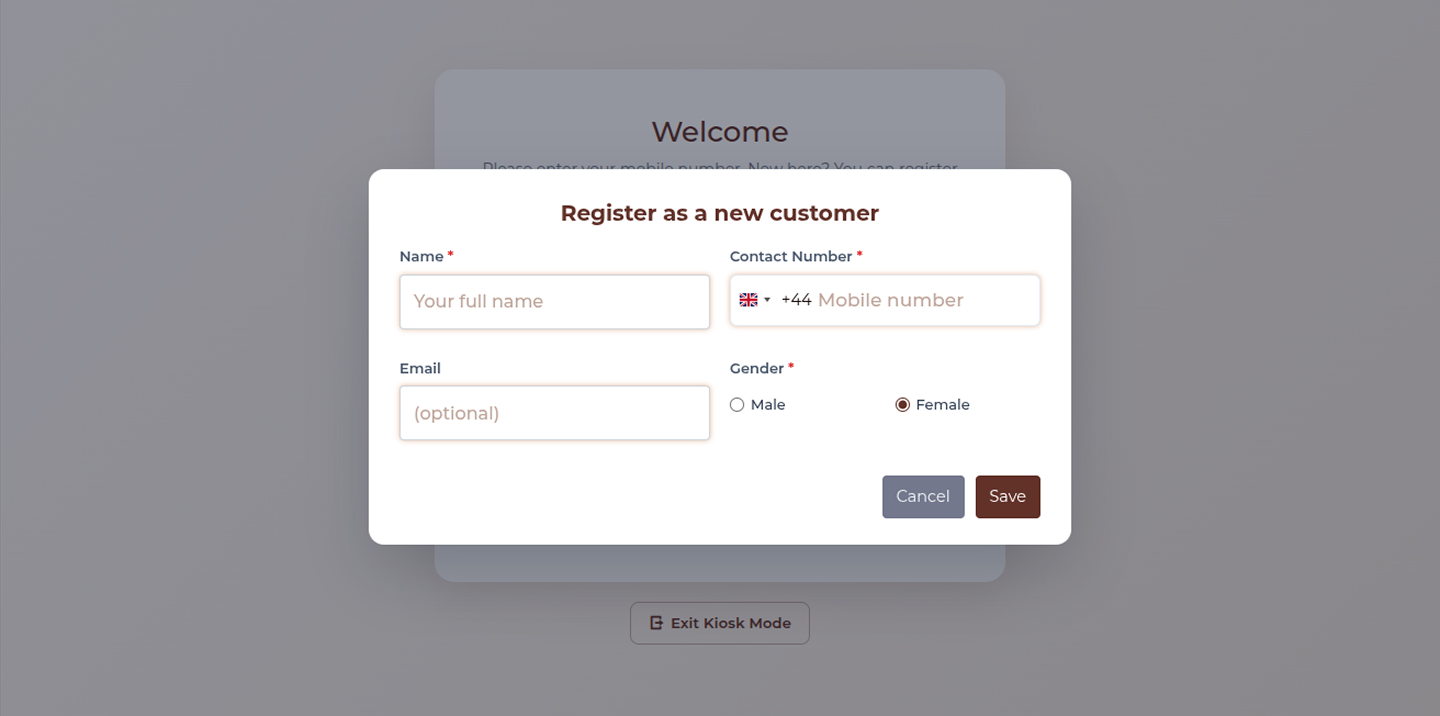
Customers who are visiting for the first time can create an account directly from kiosk mode.
Registration includes:
- Full name
- Contact number
- Optional email
- Gender selection
Once registration is completed successfully, the customer gains access to kiosk features without requiring staff assistance.
Kiosk Home
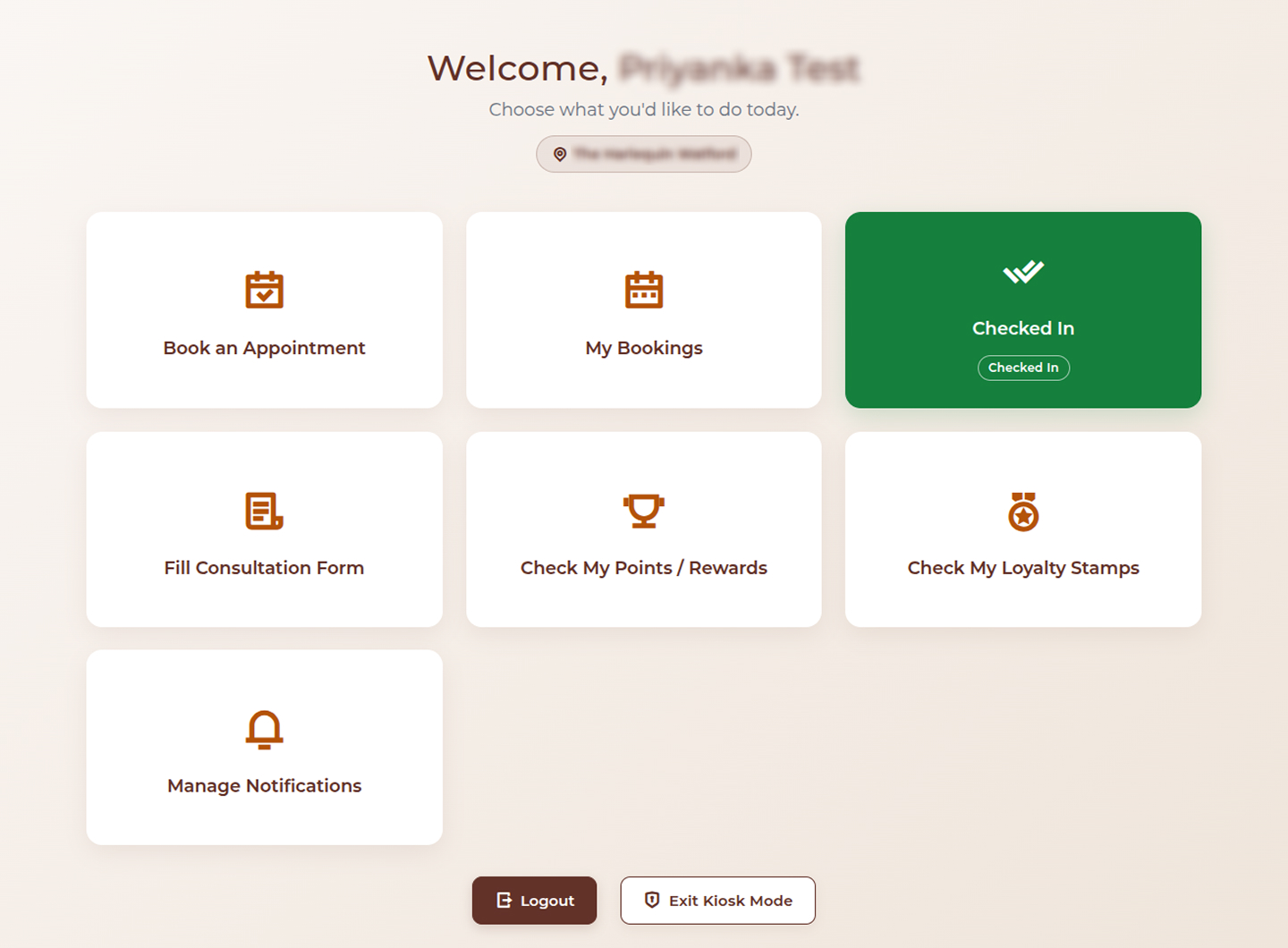
The Kiosk Home screen acts as the central customer dashboard.
Available options include:
Book an Appointment
Allows customers to browse available services and create new bookings.
Customer can:
- Browse services
- Select location
- Choose appointment time
- Confirm booking
My Bookings
Displays customer appointments and booking details.
Customer can:
- View appointment information
- Review consultation status
- Access booking information
- Logout
Checked In
Allows customers to check in for upcoming appointments.
Customers may:
- Confirm arrival
- View appointment status
- Monitor booking progress
Status indicators may include:
- Confirmed
- Pending
- Checked In
Fill Booking Consultation Form
Allows customers to complete treatment consultation forms before their visit.
Customer can:
- Complete treatment questionnaires
- Submit declarations
- Provide treatment information
- Add observations
- Submit consent
Check My Points / Rewards
Displays customer reward balance and activity.
Customer can:
- View available points
- Review reward history
- Track earned and redeemed points
- Download reward details
Check My Loyalty Stamps
Displays loyalty card progress.
Customer can:
- View earned stamps
- Track remaining visits
- Monitor reward eligibility
- Book eligible services
Manage Notifications
Customers can manage communication preferences.
Customers may enable or disable:
- Session reminders
- Birthday notifications
- Marketing notifications
Communication channels include:
- SMS
My Bookings

Customers can review all existing appointments.
Displayed information may include:
- Appointment date
- Appointment time
- Branch location
- Booking status
- Consultation status
- Check-in status
Available actions include:
- Open booking
- Review consultation
- Return to kiosk home
- Logout
Customer Check-In
Customers can self-check-in directly through kiosk mode.
Check-in allows customers to notify staff that they have arrived.
Features include:
- Appointment confirmation
- Arrival tracking
- Updated visit status
Status indicators may include:
- Confirmed
- Pending
- Checked In
Consultation Forms
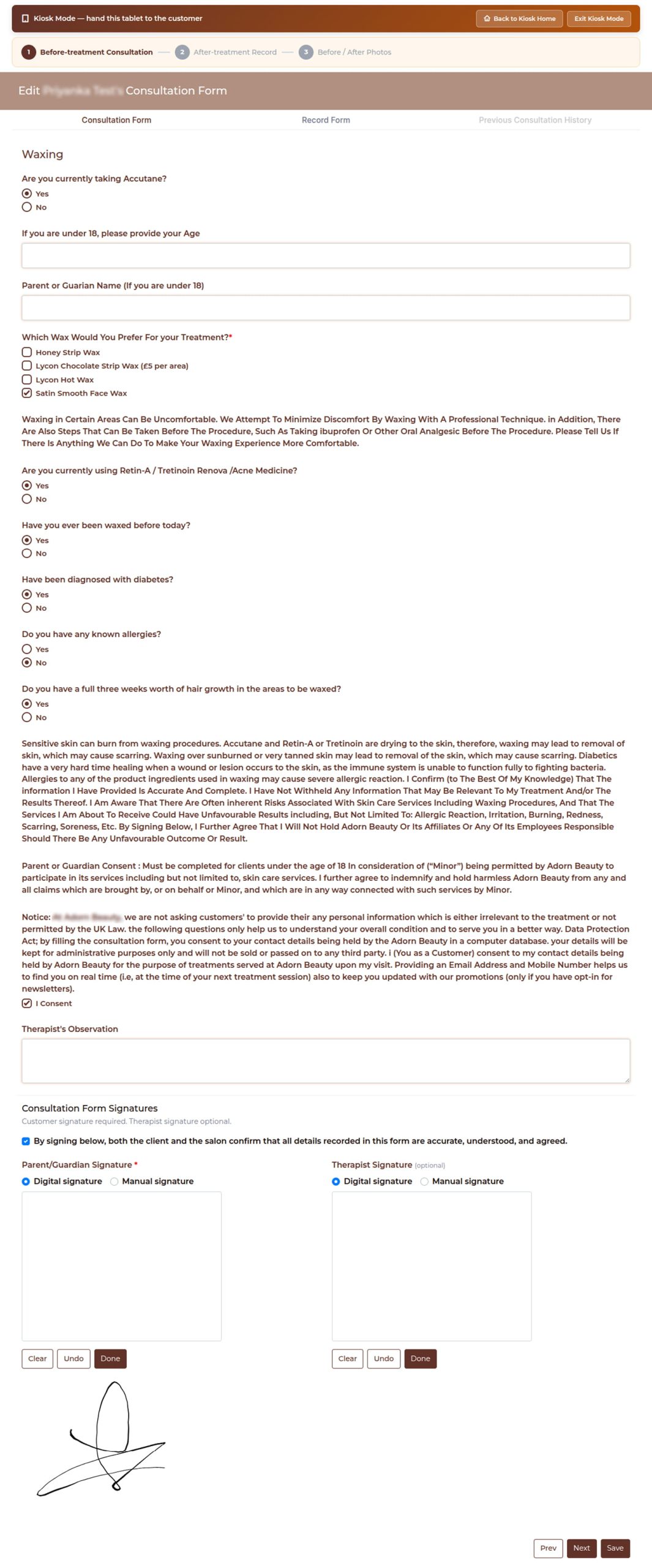
Customers can complete consultation forms digitally before treatment.
Supported consultation process includes:
Before-treatment Consultation
Customers may:
- Answer consultation questions
- Select treatment preferences
- Accept declarations
- Provide observations
- Confirm consent
Signature Support
Consultation forms support:
- Digital signature
- Manual signature
- Parent or guardian signature
- Therapist signature where applicable
After-treatment Record
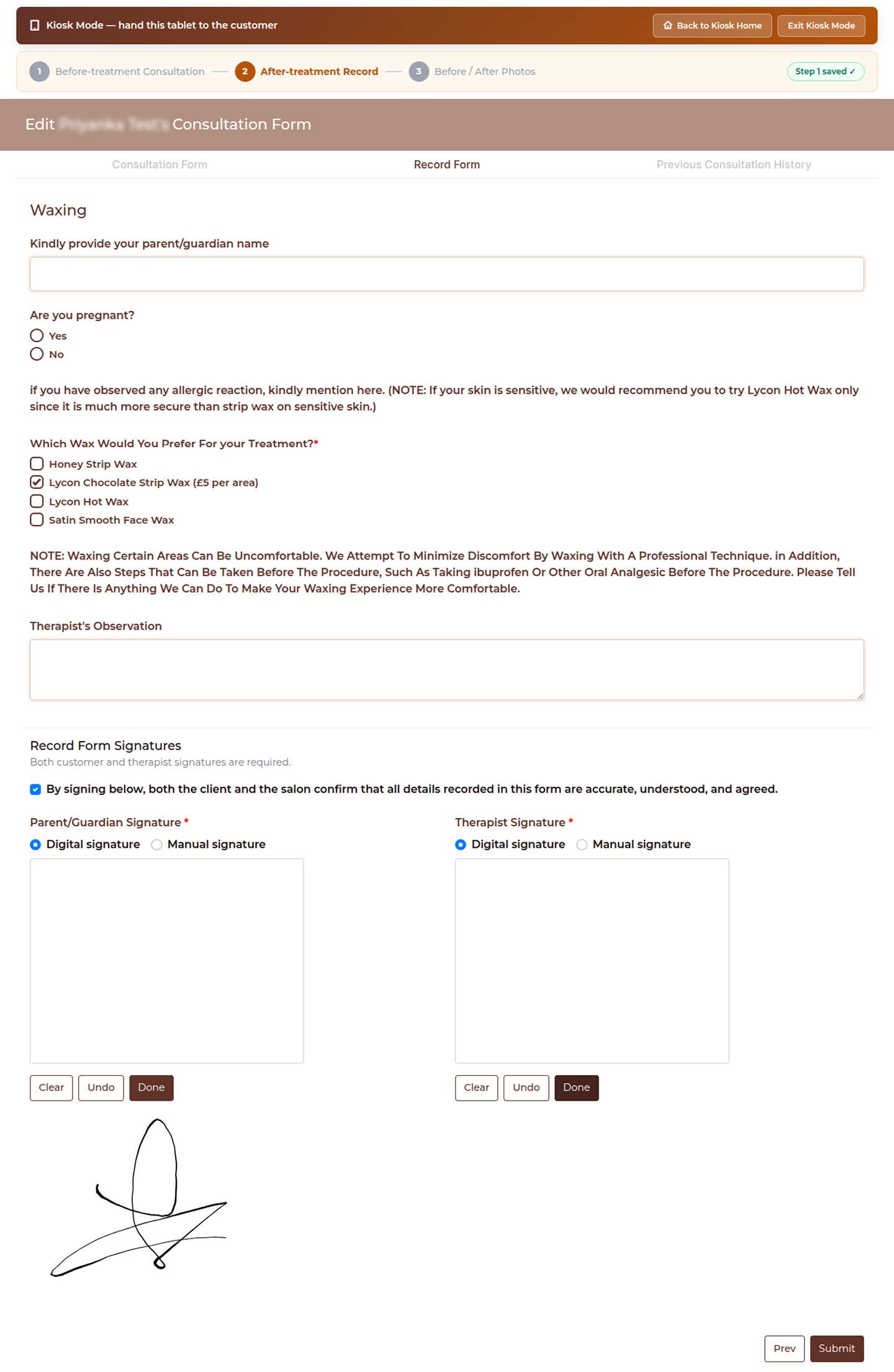
After treatment completion, customers may access treatment records.
Customer can:
- View completed records
- Review therapist notes
- Access consultation history
- View observations
- Confirm signatures
Previous Consultation History
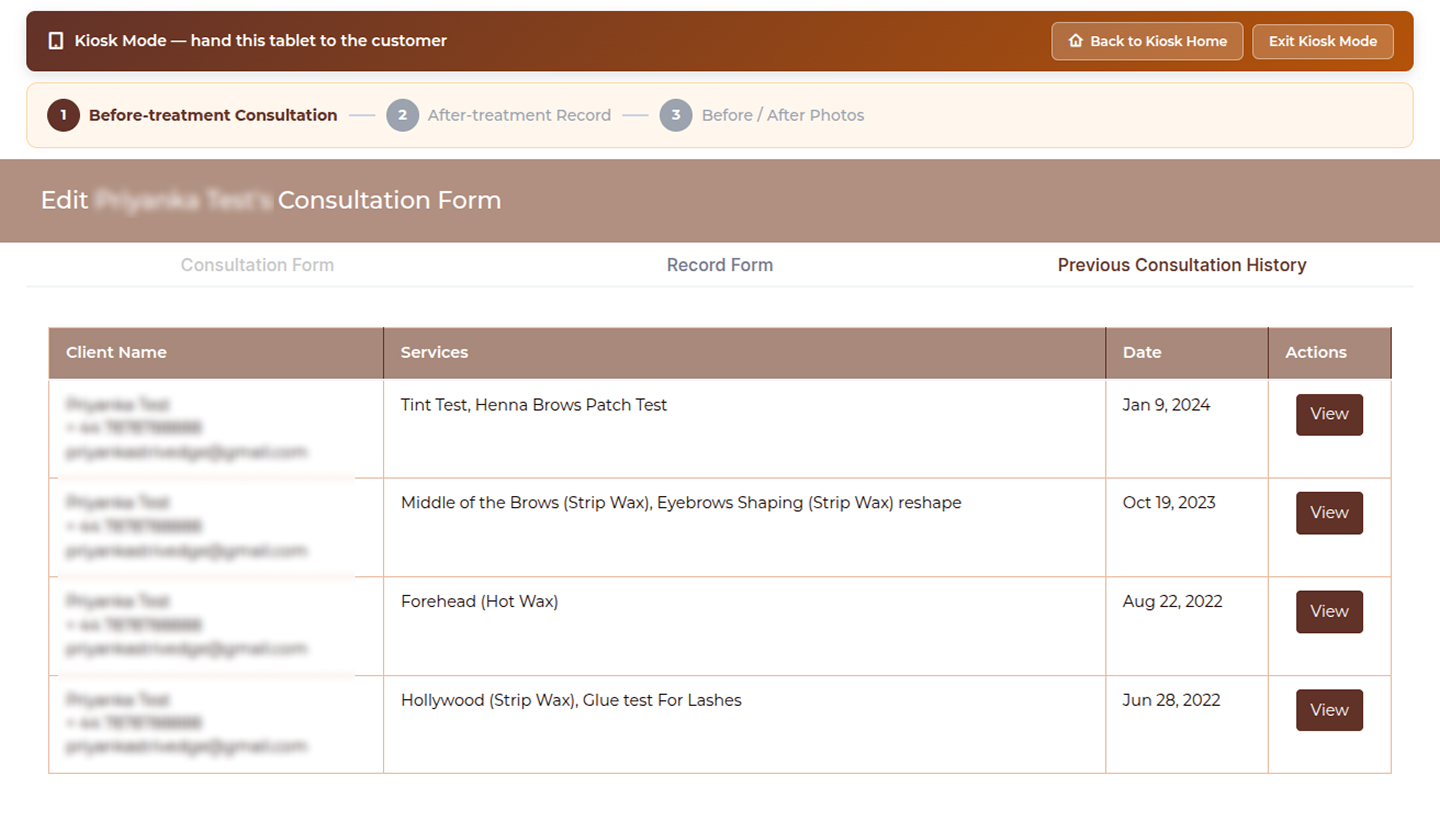
Customers may access historical consultation submissions.
History includes:
- Previous consultations
- Service history
- Treatment dates
- Consultation records
Available action:
- View consultation details
Consultation Review
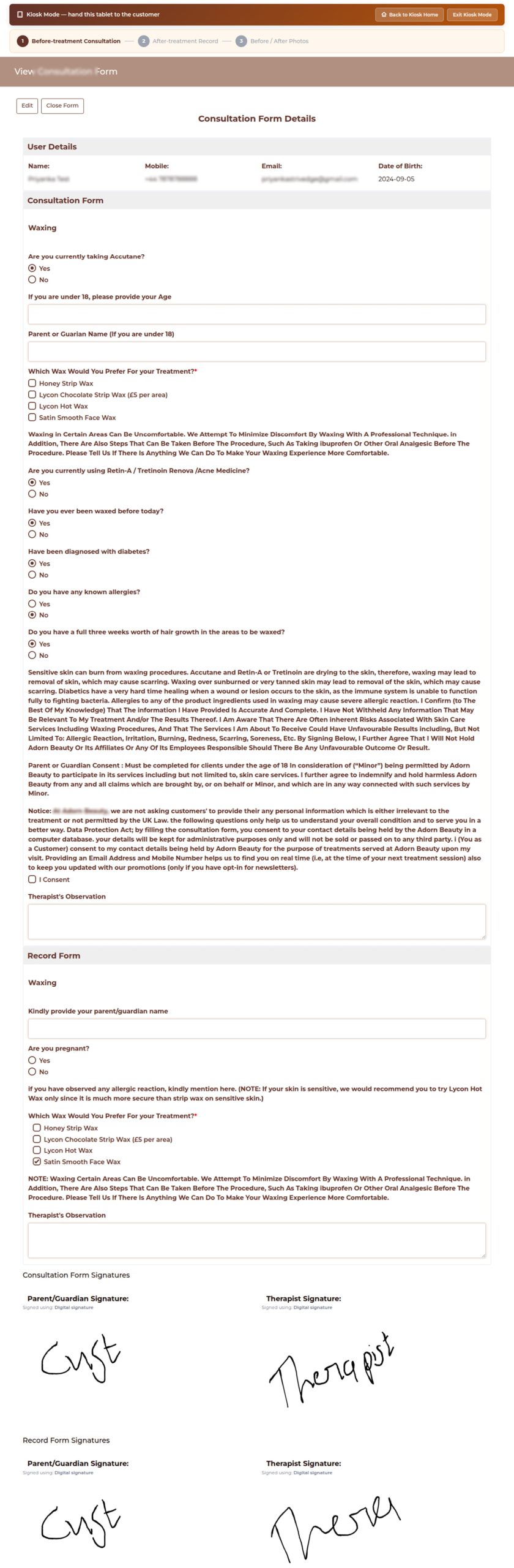
Customers may review completed consultation submissions.
Displayed information may include:
User Details
- Customer information
- Contact details
- Date of birth
Consultation Information
- Submitted answers
- Therapist observations
- Treatment records
- Signature confirmations
Consultation Access Options
Where available, customers may choose to open:
- Previous Record
- Consultation Form
- Record Form
When kiosk mode is active:
- Forms open in customer-safe mode
- Administrative controls remain hidden
- Photos and admin tools remain restricted
- Staff authentication is required to exit
Rewards
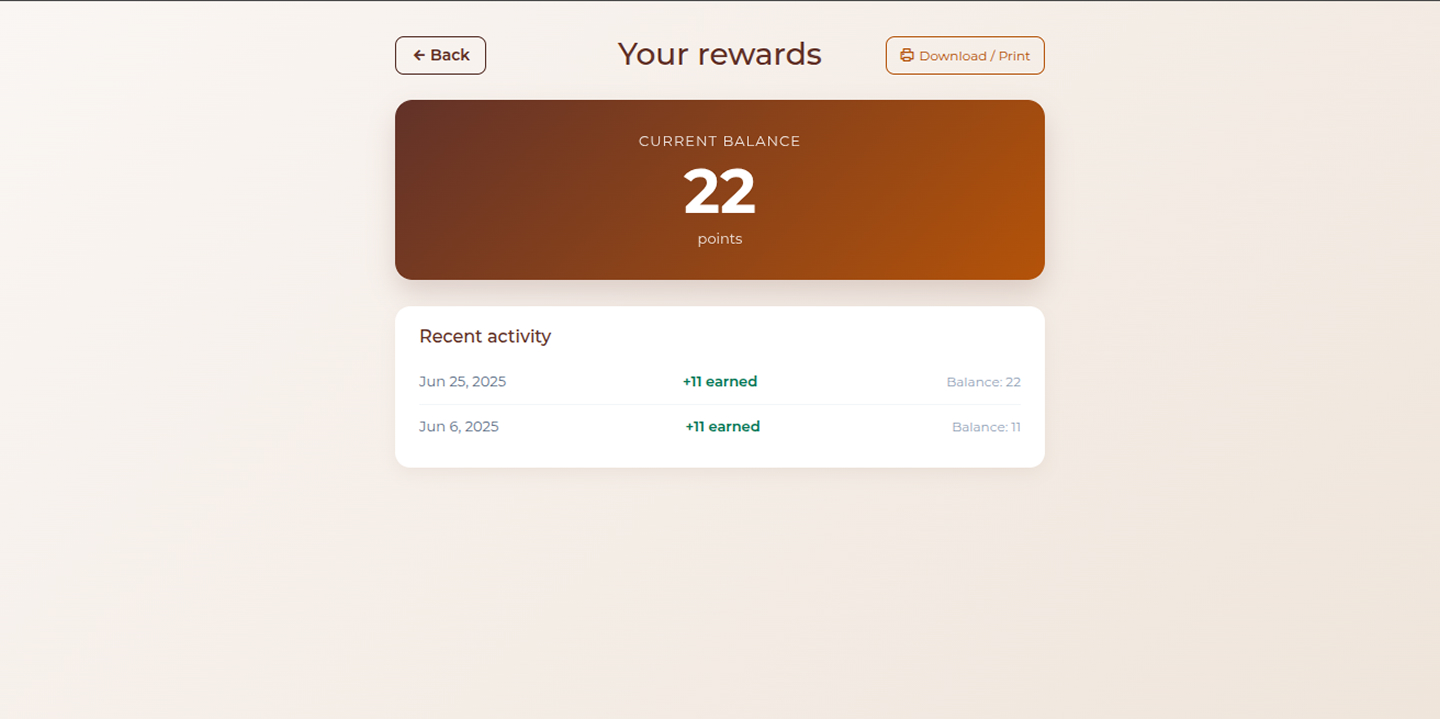
Customers can monitor reward balances and activity.
Displayed information includes:
Current Balance
Shows available reward points.
Activity History
Tracks:
- Earned points
- Redeemed points
- Balance changes
- Reward activity dates
Customers may also download or print reward information.
Loyalty Cards
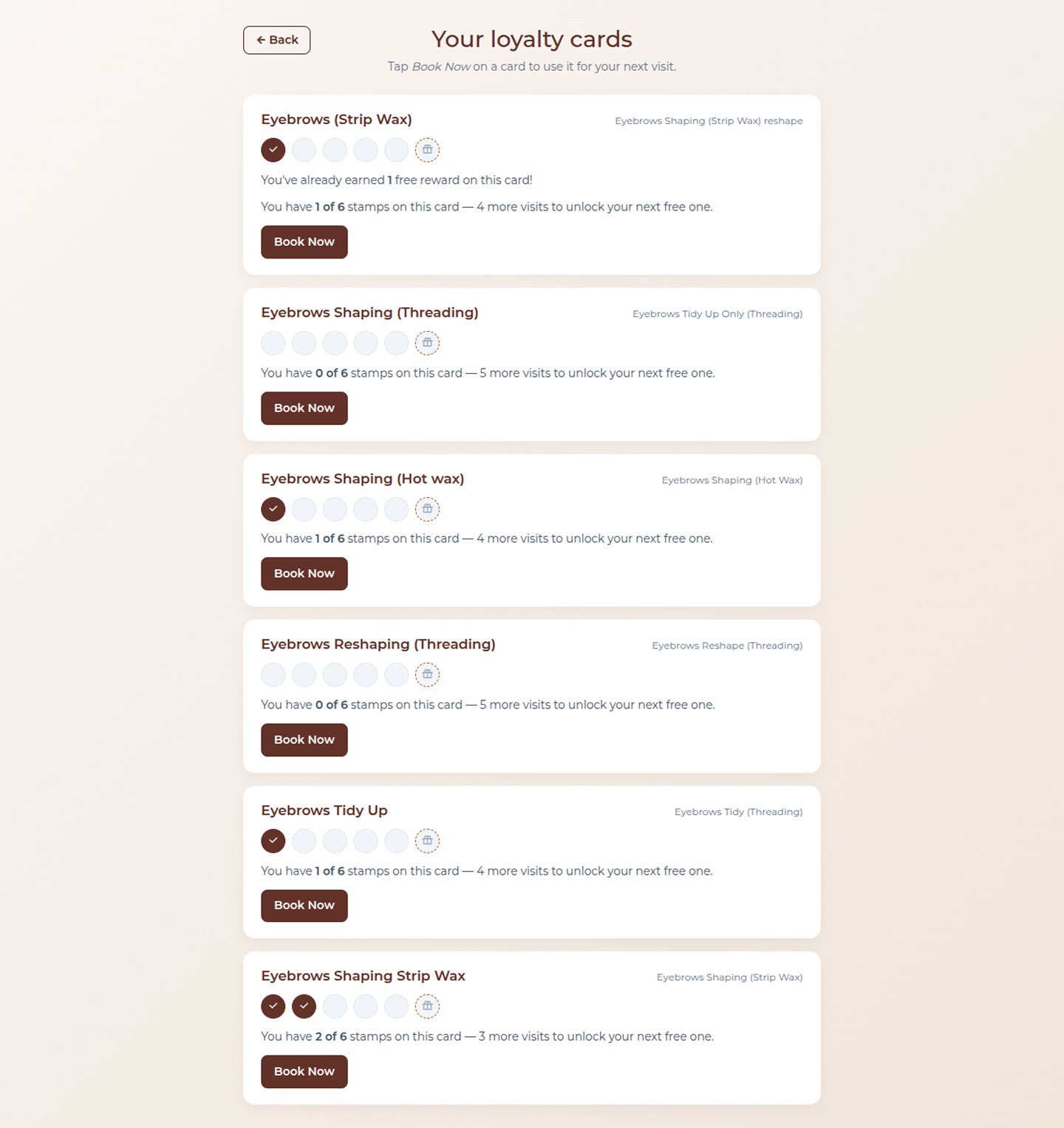
Customers can review active loyalty cards and reward progress.
Displayed information includes:
- Loyalty card details
- Stamp progress
- Remaining visits
- Reward eligibility
Available action:
- Book Now
Rewards become available automatically after completing required visits.
Manage Notifications
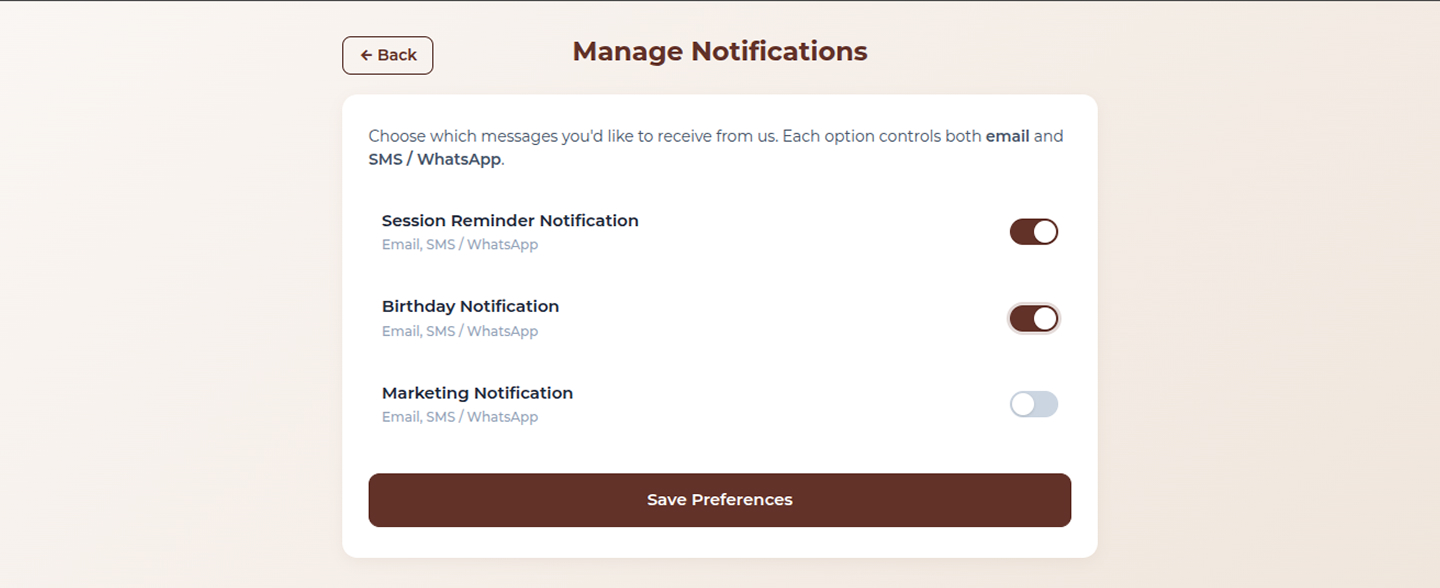
Customers can update communication preferences directly from kiosk mode.
Notification categories include:
Session Reminder Notification
Receive reminders through:
- SMS
Birthday Notification
Receive offers and birthday updates.
Marketing Notification
Receive promotional communications.
Customers can save preferences at any time.
Logout
Customers may logout from kiosk mode.
Logout will:
- End the current customer session
- Clear customer access
- Return the kiosk to the welcome screen
Exit Kiosk Mode
Kiosk mode can only be exited using staff authorization.
Selecting Exit Kiosk Mode opens secure verification.
Staff must:
- Enter a valid 4-digit staff PIN
- Select Unlock
Available actions:
- Unlock
- Cancel
This prevents customers from accessing administration areas.
Navigation Controls
Available navigation options throughout kiosk mode include:
- Back
- Continue
- Save
- Return to Kiosk Home
- Download / Print
- Logout
- Exit Kiosk Mode
Security
Customer Kiosk Mode includes:
- Customer-only interface
- Hidden administration controls
- Secure consultation workflows
- Session protection
- Staff-authorized exit process
- PIN-protected administrative access
Staff may enable or disable kiosk access through General Settings.