
Cloud Settings
The Cloud Settings page allows you to connect and configure cloud storage providers for secure data storage, backups, and file management. This enables your system to store and retrieve files using external cloud services.
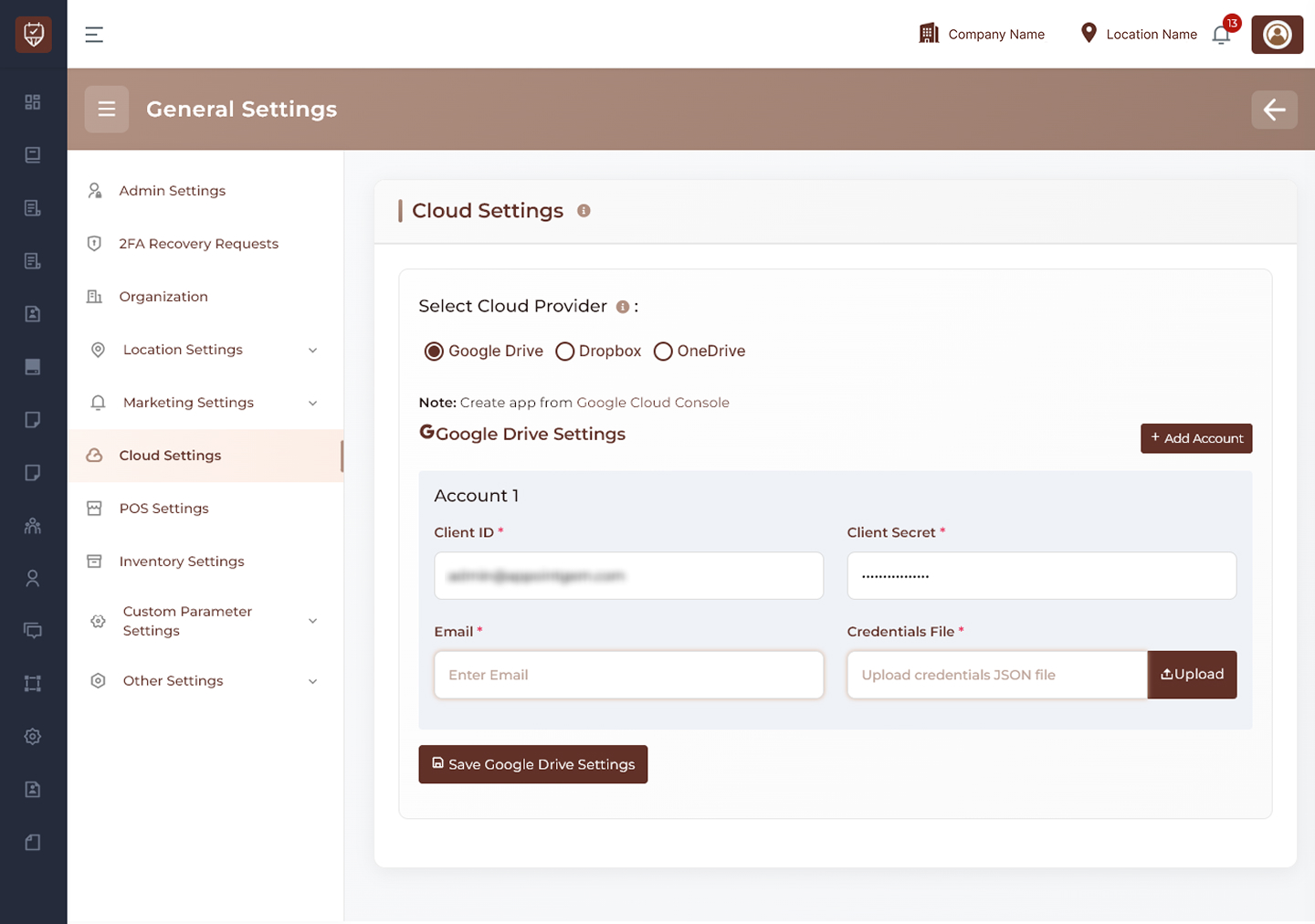
Cloud Provider Selection
Choose one of the available cloud providers:
- Google Drive
- Dropbox
- OneDrive
The configuration section updates automatically based on the selected provider.
Google Drive Configuration
- Connect your system to a Google Drive account
- Requires application setup from Google Cloud Console
- Upload a credentials file to enable secure integration
- Supports storing backups and files directly in Google Drive
Key Actions
- Add multiple accounts if required
- Upload credentials file for authentication
- Save settings to activate the integration
Dropbox Configuration
- Connect your system to a Dropbox account
- Requires app creation in Dropbox Developers portal
- Includes authorization-based authentication process
- Allows backup file management within Dropbox
Features
- Generate authorization code for secure access
- Option to create or assign file names for backups
- Supports token-based authentication
Key Actions
- Generate access token using authorization
- Add multiple accounts if needed
- Save configuration after setup
OneDrive Configuration
- Connect your system to a Microsoft OneDrive account
- Requires setup through Azure Portal
- Uses account authentication instead of manual credentials
Features
- Simple authentication flow using Microsoft account
- Secure connection without manual key handling
Key Actions
- Authenticate using Microsoft account
- Save settings to enable integration
Managing Accounts
Add Account
Use the Add Account button to configure multiple cloud accounts for flexibility and redundancy.
Save
Stores the selected provider configuration and activates cloud integration.
Best Practices
- Choose a provider based on your storage and security needs
- Ensure proper app setup before entering credentials
- Keep credentials and tokens secure
- Use multiple accounts for backup reliability
- Test integration after configuration