
Invoices Page
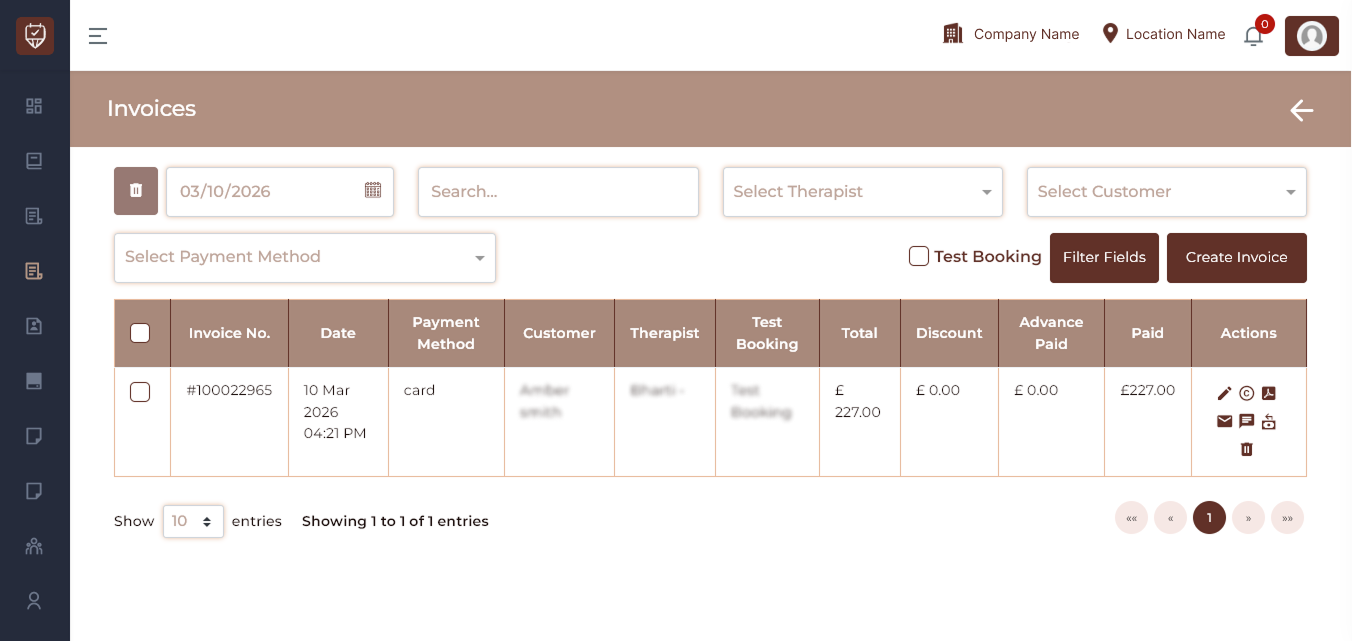
The Invoices page allows you to view, filter, manage, and create invoices for services provided to customers. It provides quick access to billing information such as payment method, therapist, customer, discounts, and payment status.
Use this page to track all invoices, monitor payments, and perform invoice-related actions.
Page Overview
Date Filter
Use this filter to select a specific date or date range.The invoice list will update automatically to show only the invoices created during the selected dates. This is useful when reviewing invoices for a particular day, week, or custom reporting period.
Search Bar
The Search field allows you to quickly locate a specific invoice.
You can search using:
- Invoice number
- Customer name
- Therapist name
- Any relevant keyword
The system will instantly filter and display matching invoices.
Therapist Filter
Select a Therapist from the dropdown to display invoices that are created by or assigned to that therapist. This is helpful when reviewing the billing performance of a specific staff member.
Customer Filter
Use this dropdown to select a Customer. Once selected, the list will show all invoices linked to that customer, making it easy to review their billing history.
Payment Method Filter
This filter allows you to display invoices based on the payment method used.
Examples include:
- Card
- Cash
- Bank Transfer
- Other configured payment methods
This helps when reconciling payments or reviewing transaction methods.
Filter Fields Button
After selecting one or more filters, click Filter Fields. This will apply all selected filters and refresh the invoice list accordingly.
Create Invoice Button
Click Create Invoice to generate a new invoice. This will redirect you to the invoice creation form, where you can:
- Select a customer
- Add services or products
- Apply discounts
- Record payments
Invoice Table Sections
The table below the filters displays all invoices based on the selected criteria.
Each column represents specific invoice information.
Checkbox (Bulk Action Selector)
Each invoice row contains a checkbox. Use these checkboxes to select one or multiple invoices for bulk actions such as:
- Exporting invoices
- Deleting records
- Other batch operations
Invoice Number
This column displays the unique invoice ID. Click the Invoice Number to open the detailed invoice view.
Date
Displays the date when the invoice was created. This helps track when transactions occurred.
Payment Method
Shows the payment method used by the customer for the invoice.
Examples include:
- Card
- Cash
- Bank Transfer
- Other configured payment methods
Customer Name
Displays the customer associated with the invoice. This helps identify who the invoice belongs to.
Therapist Name
Shows the therapist or staff member who handled the service or treatment linked to the invoice. This is useful for tracking staff-related revenue.
Total Amount
Displays the total amount billed on the invoice before deductions. This represents the full value of the services or products included.
Discount
Shows the discount applied to the invoice, if any. Discounts may come from:
- Promotional offers
- Manual adjustments
- Membership benefits
Advance Paid
Displays the amount the customer paid in advance before completing the final payment. Advance payments are typically recorded during booking.
Paid Amount
Shows the actual amount received for the invoice. This reflects the current payment status of the invoice.
Actions
The Actions column contains quick-access icons to manage the invoice.
Available actions include:
Edit : Modify invoice details.
View : Open and review the complete invoice.
Download / Print : Generate a printable or PDF version of the invoice.
Payment History : View all payments linked to the invoice.
Delete : Remove the invoice permanently from the system.
Invoice Add/Edit Page
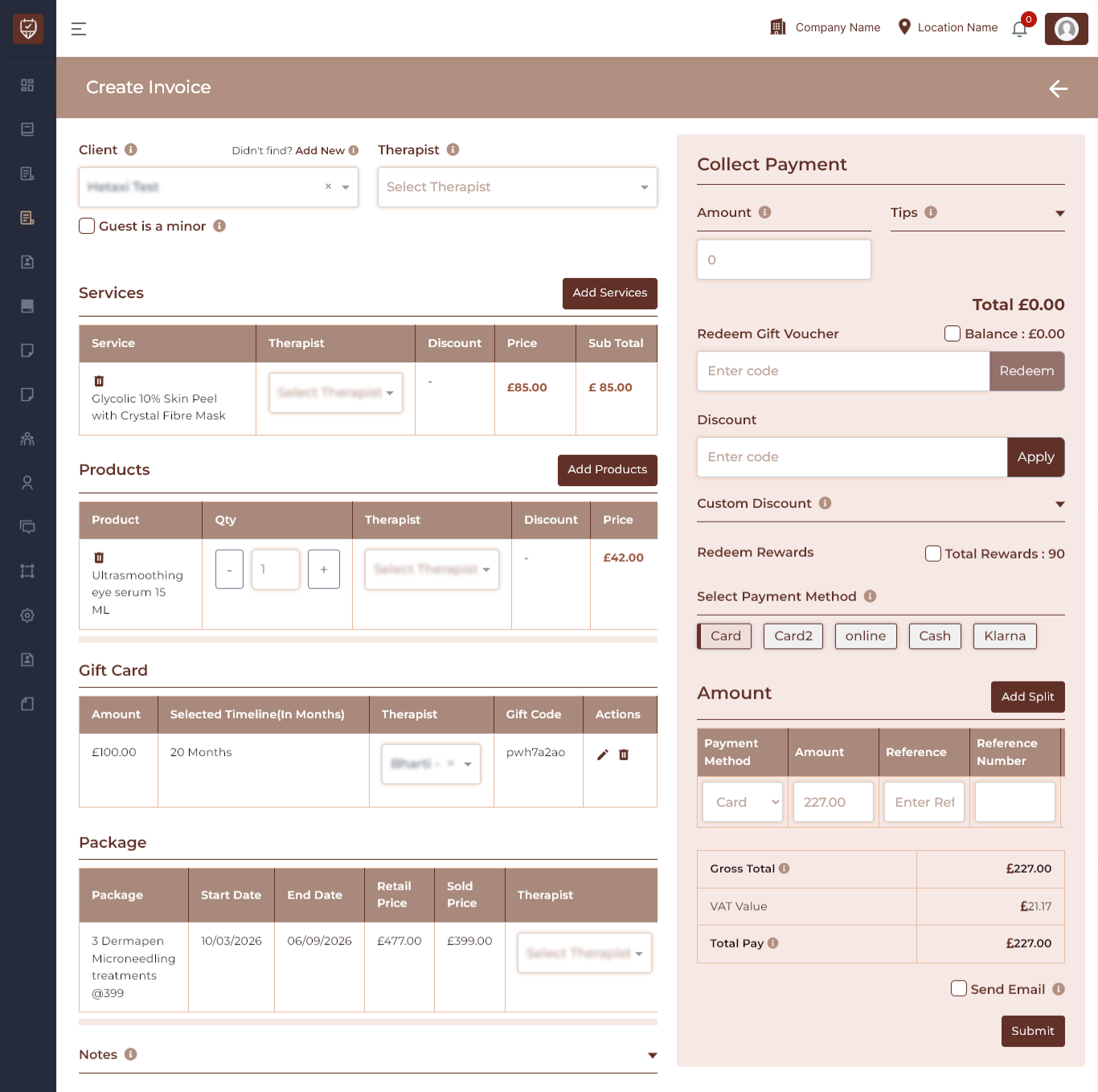
The Invoice Add/Edit Page allows you to create, modify, and finalize invoices for client services, products, gift cards, and packages. It also provides a detailed payment collection section for managing discounts, tips, and split payments.
This page ensures all sales are accurately recorded and linked to the correct client, therapist, and payment method.
Client
Select the customer for this invoice from the dropdown. Choosing a client ensures they receive loyalty reward points and allows the system to email or text the receipt. If the client doesn’t exist yet, you can create a new profile, enabling receipt delivery and tracking of loyalty points.
Therapist
Choose the therapist associated with this invoice. Revenue from this invoice will count toward their performance metrics. If no therapist is selected, the sale won’t be linked to any staff performance record.
Guest is a Minor
Mark this if the visiting client is a minor. This triggers additional safety and compliance notes as needed.
Test Booking
Enable this option when creating a dummy invoice. Test invoices won’t affect financial or performance reports.
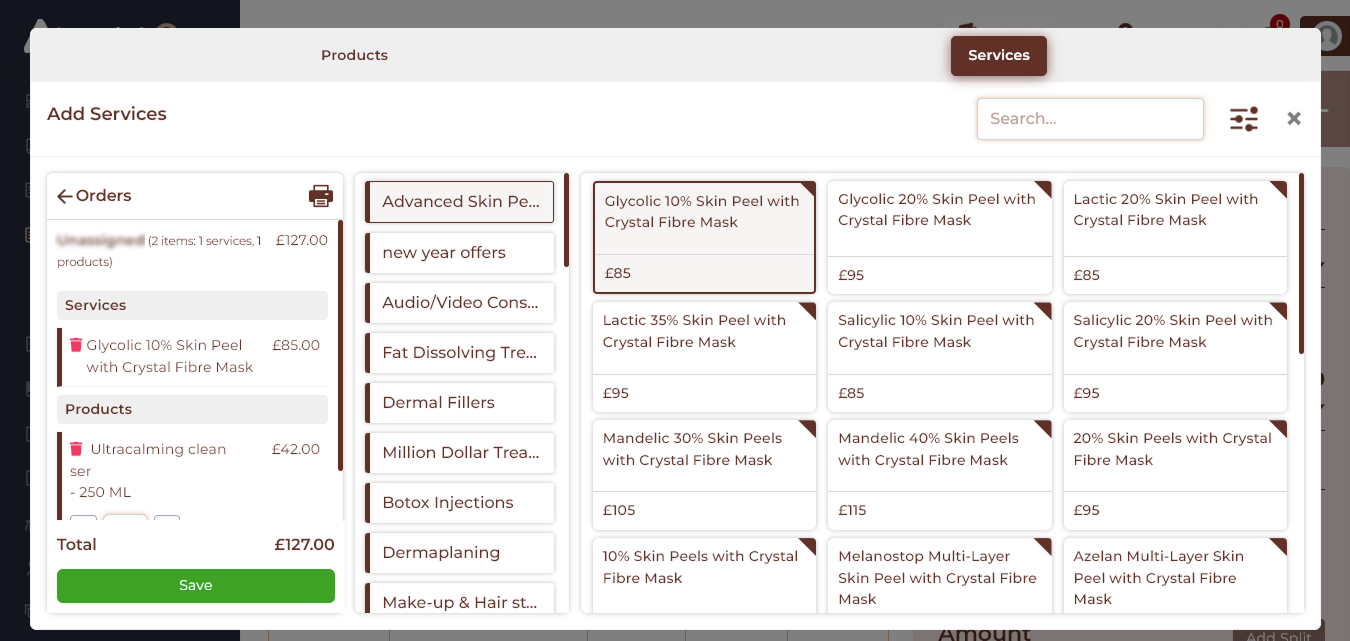
This popup view allows you to select both services and products.
Services Section
Add Services: Click to include the services the client received today. You can search, browse categories, assign therapists, and select multiple services. The total service value updates automatically.
Products Section
Add Products: Click to add retail product purchases. Adjust quantities, assign a therapist if necessary, and watch the subtotal update. Multiple products can be added in one invoice.
Gift Card
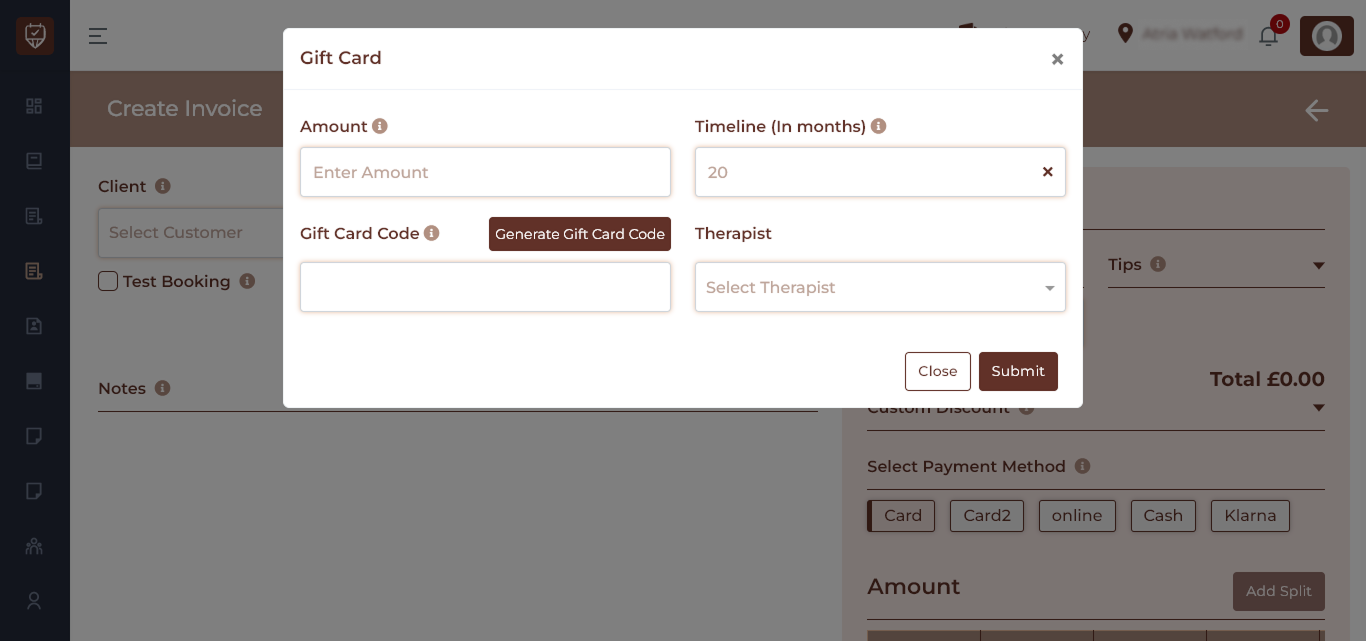
Add a gift card sale, specifying amount, duration, and therapist. A unique gift code is generated, and usage can be tracked.
Package
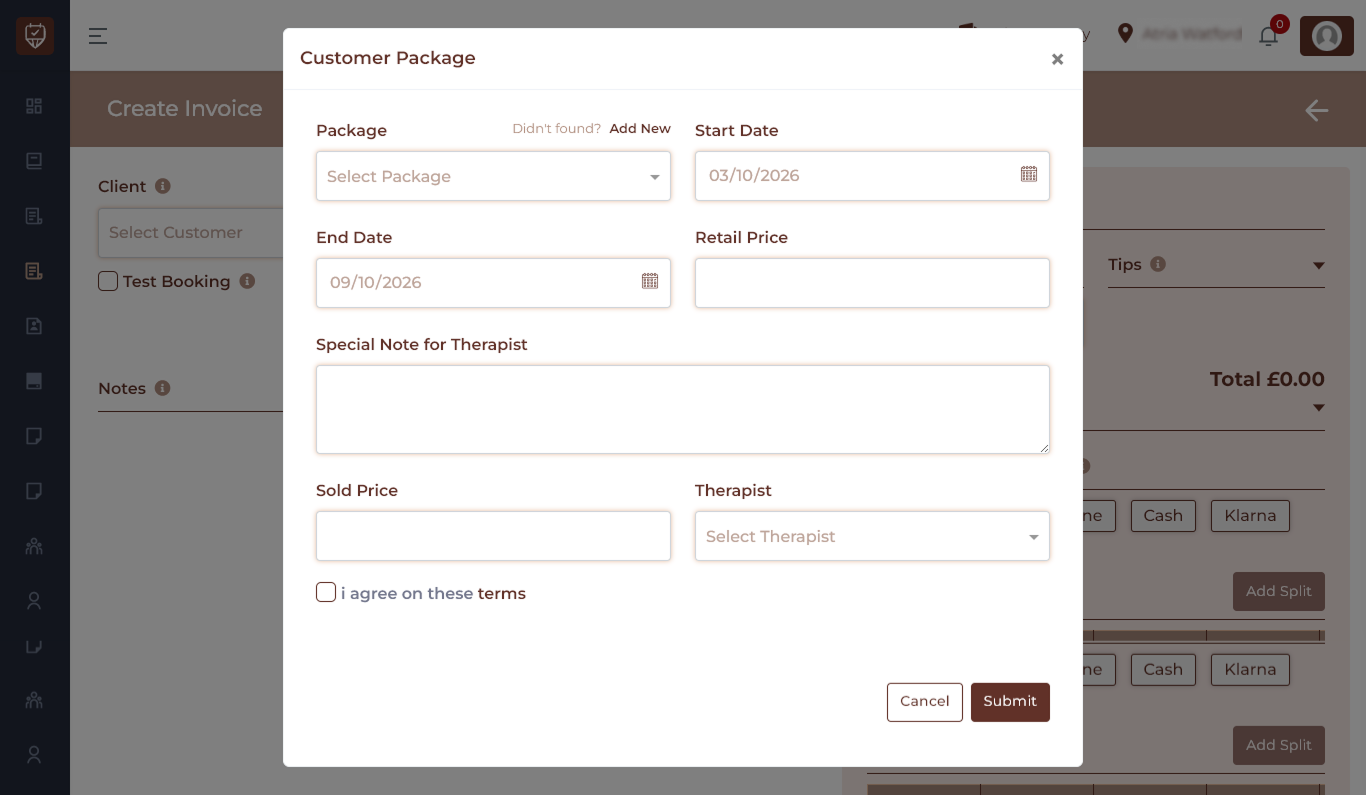
Add prepaid packages, such as multi-session bundles. Assign start/end dates and therapist, and track retail versus sold price. Multiple packages can be added if needed.
Notes Section
Use the Notes field to record internal comments or additional details about this invoice.
Collect Payment Section
- Amount: Enter manual charges for custom services or special items not listed.
- Tips: Add the tip amount the client wishes to give.
- Custom Discount: Apply special discounts for goodwill, loyalty, or promotional adjustments.
- Payment Method: Select the method used for payment, such as card, cash, or any available option.
Split Payments
You can divide the invoice total into multiple payments:
- Add Split: Click to split the payment into multiple methods, for example, part cash and part card.
- Payment Details: For each split, specify the payment method, amount, reference (such as terminal code or transaction ID), and official reference number. Each split line can be removed if necessary.
Invoice Summary
- Gross Total: Displays the total amount before applying discounts or adjustments.
- Total Pay: Shows the final amount the customer must pay.
- Send Email: Enable this option to email the invoice to the client. A valid email is required.
- Print & Download: Use the print icon to generate a paper copy or the download button to save a PDF for records.
- Submit: Click to finalize the invoice and complete the transaction.
Notes on Using the Page
- All sections (services, products, gift cards, packages) update the total dynamically.
- Ensure the correct therapist is selected to track staff performance.
- Always double-check payment splits to ensure accuracy before submitting.
- Minor clients or test bookings trigger compliance and reporting rules automatically.