
POS Settings
POS Settings allows administrators to configure invoice display preferences, policy information, automated report delivery, and payment methods used within the Point of Sale (POS) system.
These settings help standardize checkout behavior, invoice generation, reporting distribution, and payment handling.
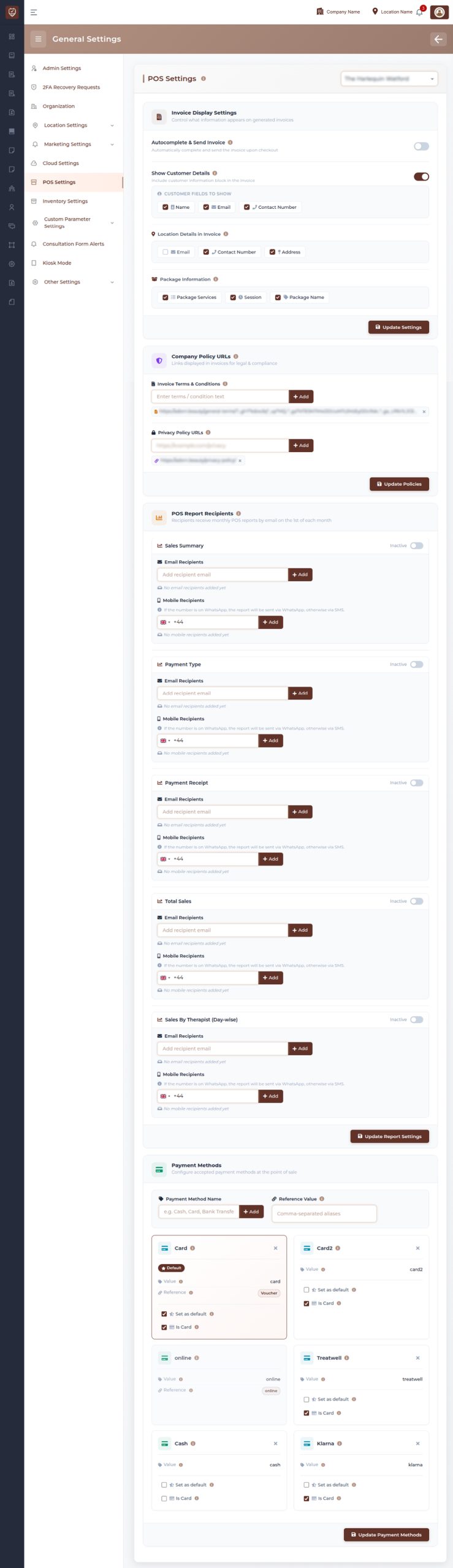
Overview
POS Settings provides centralized configuration for point-of-sale operations.
Administrators can:
- Configure invoice display settings
- Control invoice automation
- Customize invoice information visibility
- Manage invoice policy links
- Configure POS report recipients
- Manage available payment methods
- Control checkout behavior
Invoice Display Settings
Invoice Display Settings controls the information shown on generated invoices.
These settings determine how invoice data is presented after checkout and during invoice generation.
Autocomplete & Send Invoice
Allows invoices to be generated and delivered automatically after checkout.
When enabled:
- Invoices are created automatically
- Invoice sending becomes automated
- Checkout workflow becomes faster
Show Customer Details
Controls whether customer information appears on invoices.
Available customer information may include:
Name
Displays customer name.
Displays customer email information.
Contact Number
Displays customer contact information.
Location Details in Invoice
Controls which location information appears on invoices.
Available options may include:
Displays location email information.
Contact Number
Displays location contact details.
Address
Displays location address information.
Package Information
Controls package-related information shown in invoices.
Available information may include:
Package Services
Displays services included in packages.
Session Information
Displays session details.
Package Name
Displays package identification information.
Update Settings
Saves invoice configuration updates.
Changes become available in future invoice generation.
Company Policy URLs
Allows administrators to manage policy links displayed on invoices.
Used for:
- Legal compliance
- Customer reference
- Business policy communication
Invoice Terms & Conditions
Allows administrators to define invoice terms.
Used to display:
- Billing conditions
- Service policies
- Customer responsibilities
- Payment conditions
Multiple entries may be added where required.
Privacy Policy URL
Allows configuration of privacy policy references.
Used for:
- Data transparency
- Customer information access
- Compliance requirements
Configured links may appear on invoices.
Update Policies
Saves policy-related updates.
Updated policies become available immediately after saving.
POS Report Recipients
Allows automatic distribution of POS reports.
Recipients can receive reports through configured communication channels.
Supported report categories may include:
Sales Summary
Provides overall sales overview.
Payment Type
Provides payment breakdown analysis.
Payment Receipt
Provides payment transaction reporting.
Total Sales
Provides consolidated sales reporting.
Sales By Therapist (Day-wise)
Provides employee sales performance summaries.
Email Recipients
Allows report delivery to email recipients.
Features include:
- Add multiple recipients
- Manage recipient lists
- Automated report delivery
Mobile Recipients
Allows report delivery to mobile recipients.
Features include:
- Mobile number configuration
- Supported communication delivery
- Automated reporting notifications
Update Report Settings
Saves recipient and reporting configuration.
Changes apply to future scheduled reports.
Payment Methods
Allows configuration of available payment methods used during checkout.
Administrators can:
- Create payment methods
- Update payment labels
- Configure references
- Define default payment options
- Control payment availability
Payment Method Configuration
Each payment method supports:
Payment Method Name
Displays payment label.
Reference Value
Stores internal payment reference information.
Set as Default
Marks the payment method as default during checkout.
Is Card
Identifies card-based payment methods.
Update Payment Methods
Saves payment method changes.
Updated methods become available during POS transactions.
Best Practices
- Enable invoice automation only after testing checkout workflows.
- Keep invoice details consistent and customer-friendly.
- Review report recipients regularly to avoid unnecessary deliveries.
- Configure payment methods carefully before enabling them in POS.
- Update policies and payment settings periodically to maintain compliance.