
Categories
Overview
The Categories page allows you to organize items, products, or services into structured groups. Categorization helps streamline management, improve searchability, and ensure better organization across the system.
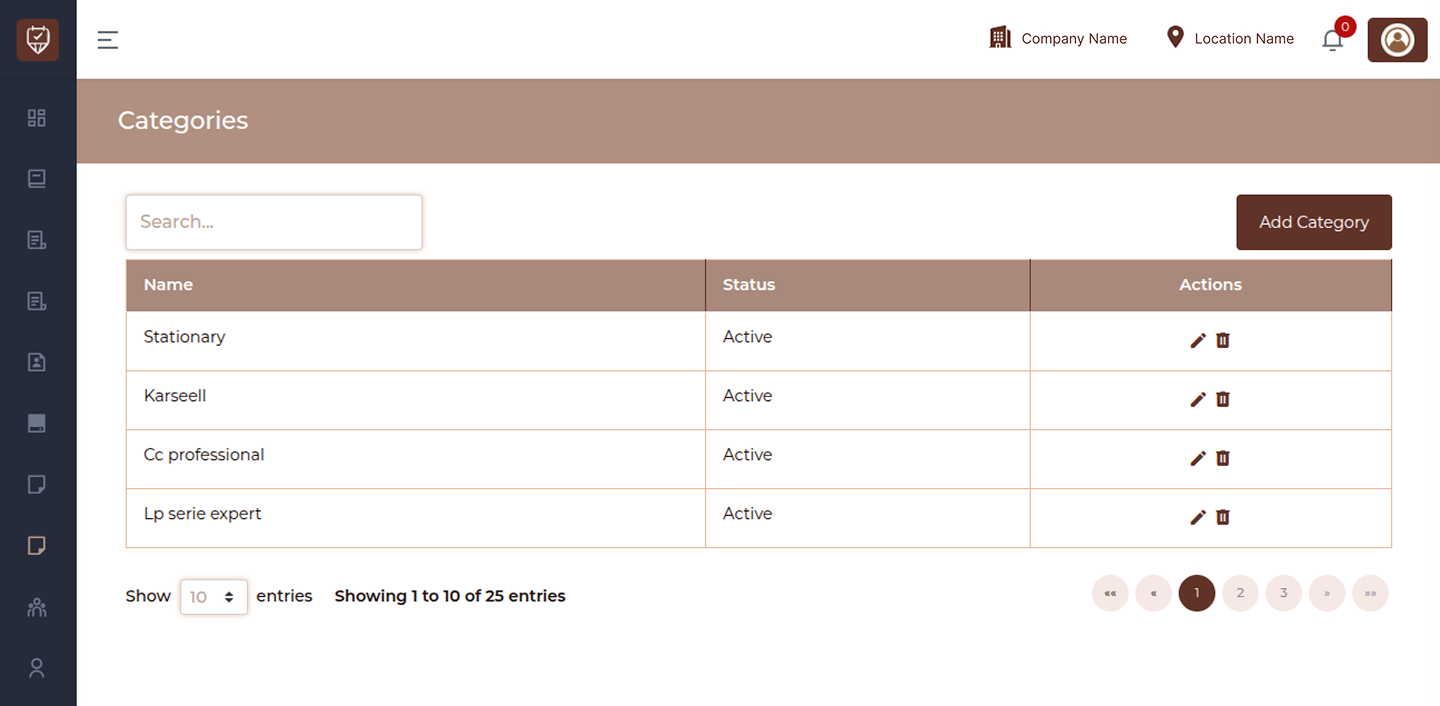
Search
Use the search bar to quickly find specific categories. The list updates dynamically as you type, making it easier to locate entries.
Add Category
Click the Add Category button to create a new category. This helps in organizing items under appropriate groupings.
The page displays all categories in a table format with the following details:
Name
Displays the category name used for grouping and identification.
Status
Indicates whether the category is active or inactive:
Active : The category is available for use
Inactive : The category is disabled and not available for new assignments
Actions
Provides options to manage categories:
Edit : Update category details
Delete : Remove the category from the system
Add / Edit Category
Overview
The Add / Edit Category page allows you to create a new category or update an existing one. Categories help organize items, products, or services into structured groups, making management and navigation easier across the system.
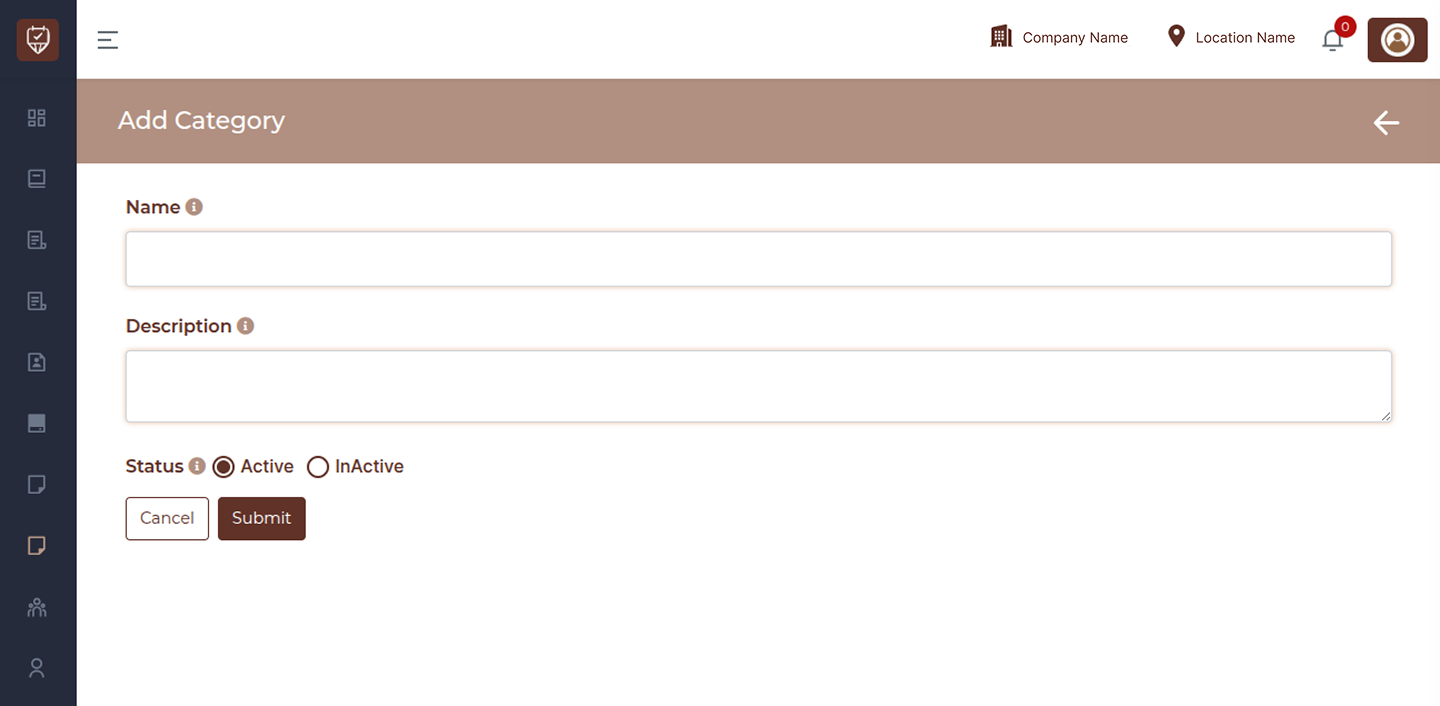
Name
Enter the category name. This is used to identify and group related items within the system.
Description
Provide a brief description of the category. This can include details about what the category represents or any internal notes for better understanding.
Status
Control whether the category is available for use:
Active : The category can be selected and used across the system
Inactive : The category is disabled and will not be available for new assignments
Actions
Submit : Save the category details and apply the changes.
Cancel : Discard any changes and return to the previous screen without saving.
Back Arrow (Top Right) : Navigate back to the category list page without applying updates.