
Dynamic Cronjob
The Dynamic Cronjob page is used to manage automated background tasks that trigger offers, notifications, or actions based on predefined conditions. It helps you automate customer engagement, marketing campaigns, and system operations without manual intervention.
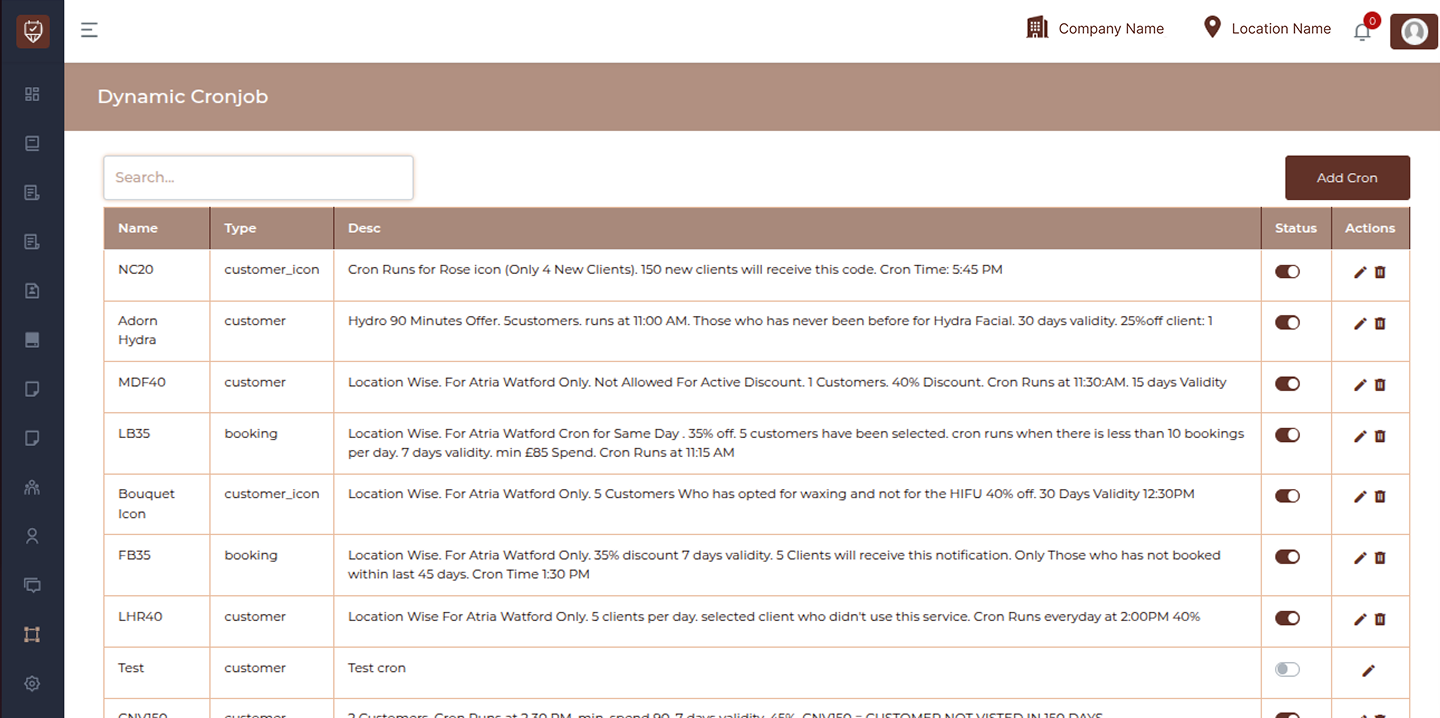
This page allows you to:
- View all configured cron jobs
- Automate customer targeting and offer distribution
- Manage scheduled system actions
- Enable or disable cron jobs as needed
Filters & Controls
Search
Search cron jobs using name or description.
Add Cron
Create a new cron job with custom rules and scheduling.
Cronjob List Columns
Name
Displays the unique identifier or name of the cron job.
Type
Indicates the category of cron job:
- customer : Targets customers based on rules
- customer_icon : Targets specific customer groups or icons
- booking : Based on booking-related conditions
Description
Provides details about what the cron job does, including targeting rules, timing, and conditions.
Status
Toggle to activate or deactivate the cron job.
Actions
Provides options to manage the cron job:
- Edit : Modify cron job configuration
- Delete : Remove the cron job from the system
Best Practices
- Use clear and descriptive names for easy identification
- Clearly define cron timing and conditions to avoid conflicts
- Avoid overlapping cron jobs targeting the same customers
- Regularly review and disable unused cron jobs
- Test cron jobs before activating them in production
Add / Edit Dynamic Cron Job
The Add / Edit Dynamic Cron Job page is used to create automated workflows that trigger offers, notifications, or actions based on predefined rules. It allows you to configure targeting, discount logic, communication content, and scheduling in a structured step-by-step process. This setup is divided into four steps: Cron Details, Discount Settings, Content Settings, and Customer & Schedule.
Step 1: Cron Details
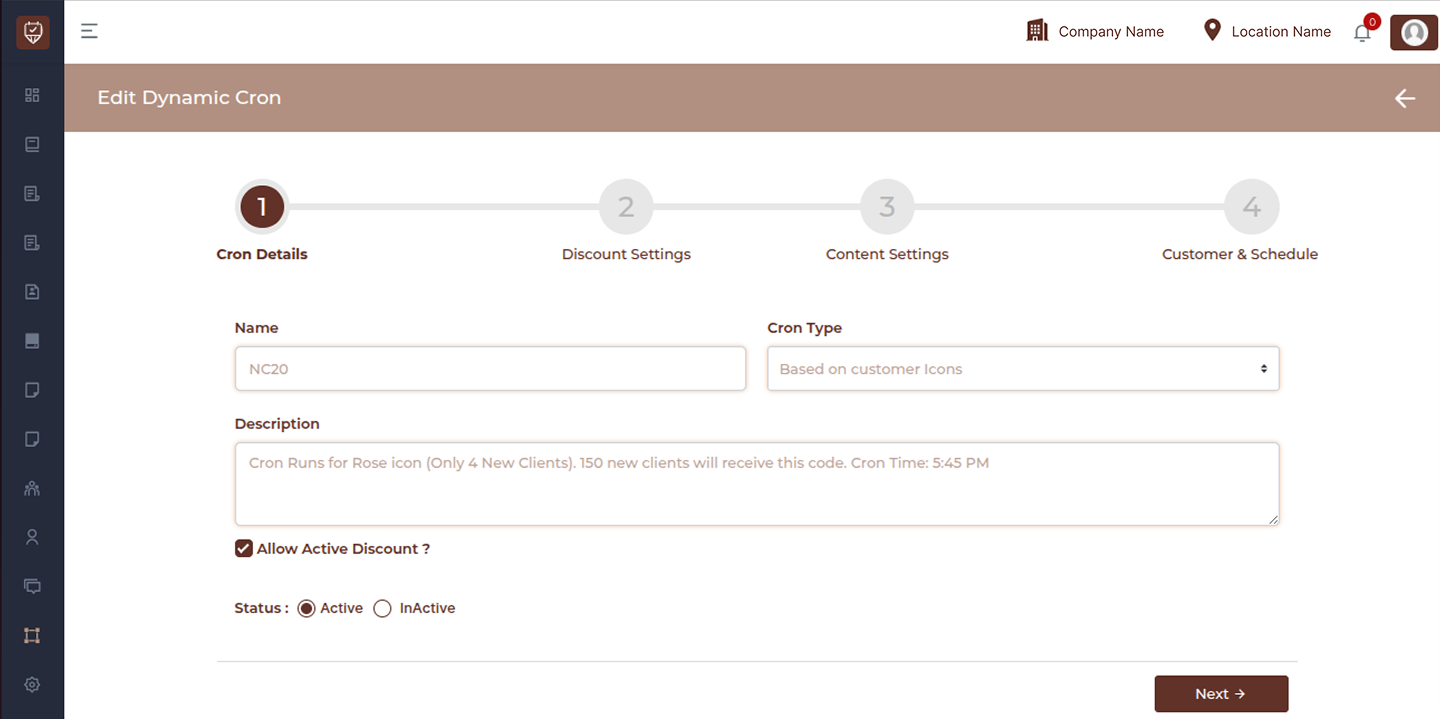
This step defines the basic configuration of the cron job.
Name
Enter a unique name for the cron job for identification.
Cron Type
Select the type of cron logic such as customer-based, booking-based, or icon-based targeting.
Description
Provide details about the cron job, including its purpose and behavior.
Allow Active Discount
Enable to allow this cron to run even if other discounts are active.
Status
Set the cron job as Active or Inactive.
Step 2: Discount Settings
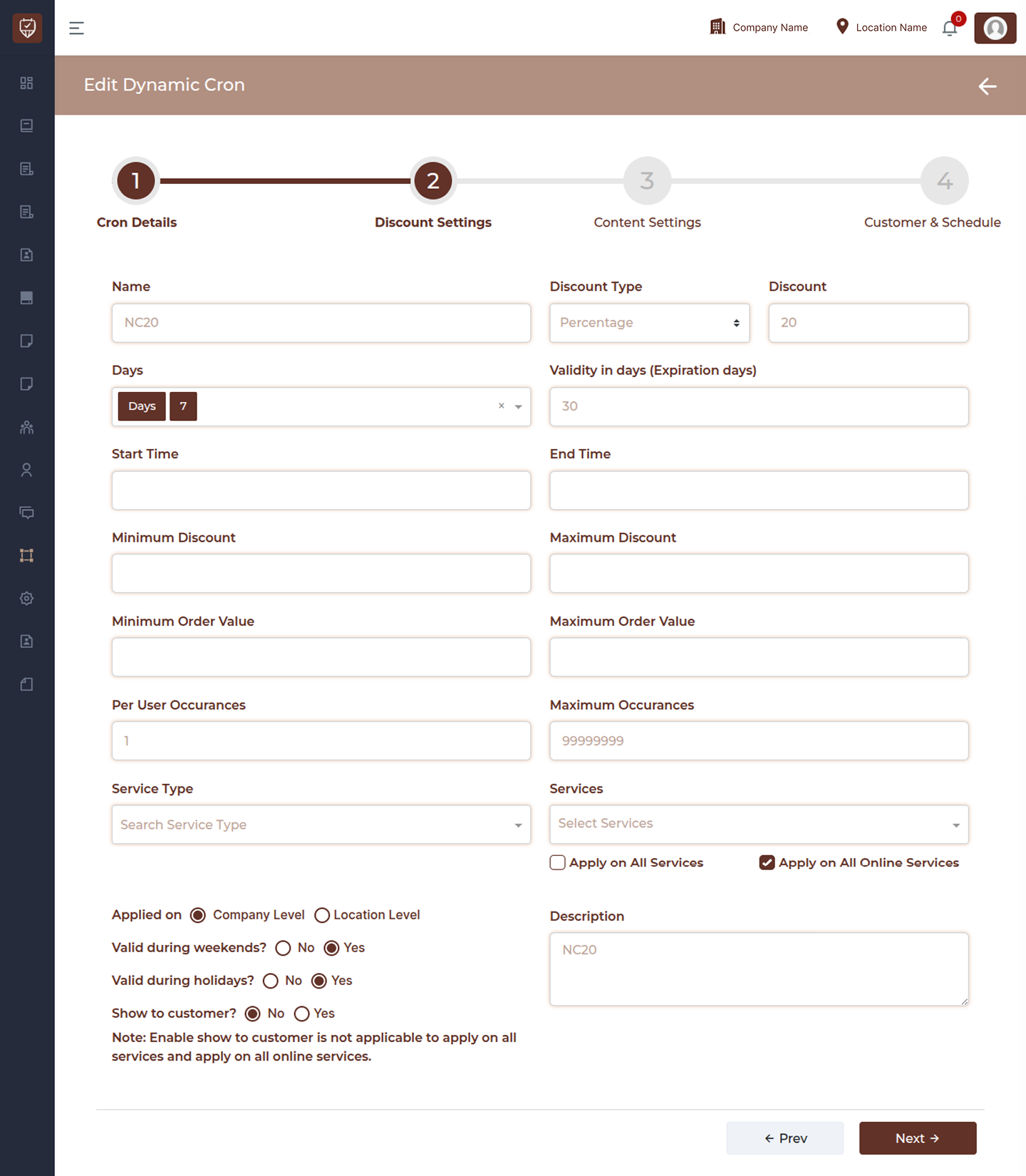
This step defines how discounts or offers will be applied when the cron runs.
Discount Type
Select how the discount is applied such as percentage or fixed amount.
Discount
Enter the value of the discount.
Days
Select the applicable days for the cron execution.
Validity in days
Define how long the generated offer remains valid.
Start Time
Set the start time for cron execution.
End Time
Set the end time for cron execution.
Minimum Discount
Set the minimum discount limit.
Maximum Discount
Set the maximum discount cap.
Minimum Order Value
Set the minimum order value required for the discount.
Maximum Order Value
Set the maximum order value limit.
Per User Occurrences
Limit how many times a single customer can receive or use the offer.
Maximum Occurrences
Set the total usage limit across all customers.
Service Type
Select the service category to which the discount applies.
Services
Choose specific services for the discount.
Apply on All Services
Apply the discount to all services.
Apply on All Online Services
Restrict the discount to online bookings only.
Applied on
Select whether the discount applies at company level or location level.
Valid during weekends
Enable or disable weekend applicability.
Valid during holidays
Enable or disable holiday applicability.
Show to customer
Control whether the offer is visible to customers.
Description
Add notes or details about the discount configuration.
Step 3: Content Settings
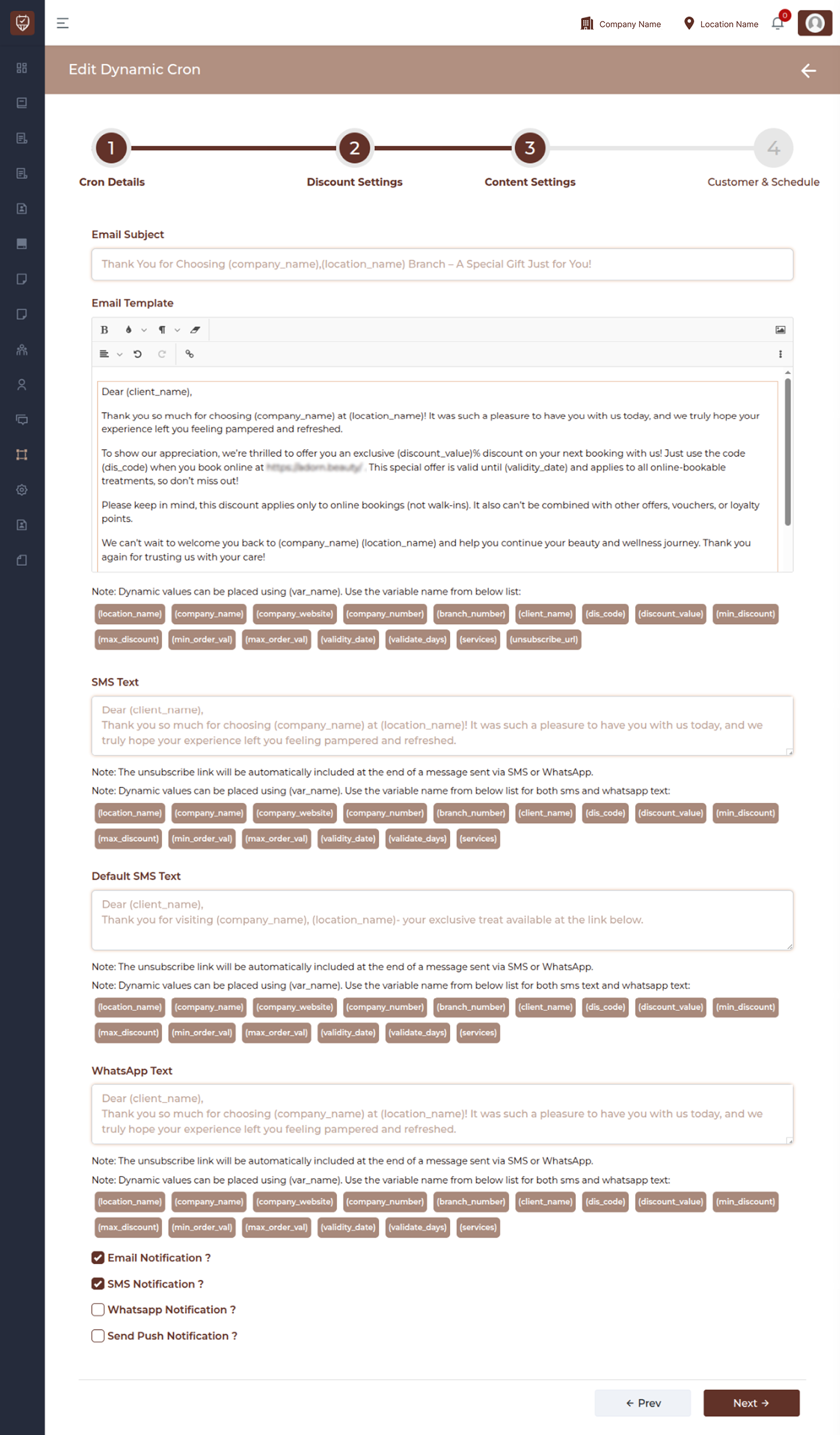
This step defines communication templates and notification channels.
Email Subject
Enter the subject line for email notifications.
Email Template
Create the email message content using dynamic variables.
SMS Text
Define the SMS message content.
Default SMS Text
Set a fallback SMS message if custom content is not available.
WhatsApp Text
Define the WhatsApp message content.
Dynamic Variables
Use placeholders such as:
- client_name
- company_name
- location_name
- discount_value
- dis_code
- validity_date
- services
These values are automatically replaced when messages are sent.
Notification Options
Enable or disable communication channels:
- Email Notification
- SMS Notification
- WhatsApp Notification
- Push Notification
Step 4: Customer & Schedule
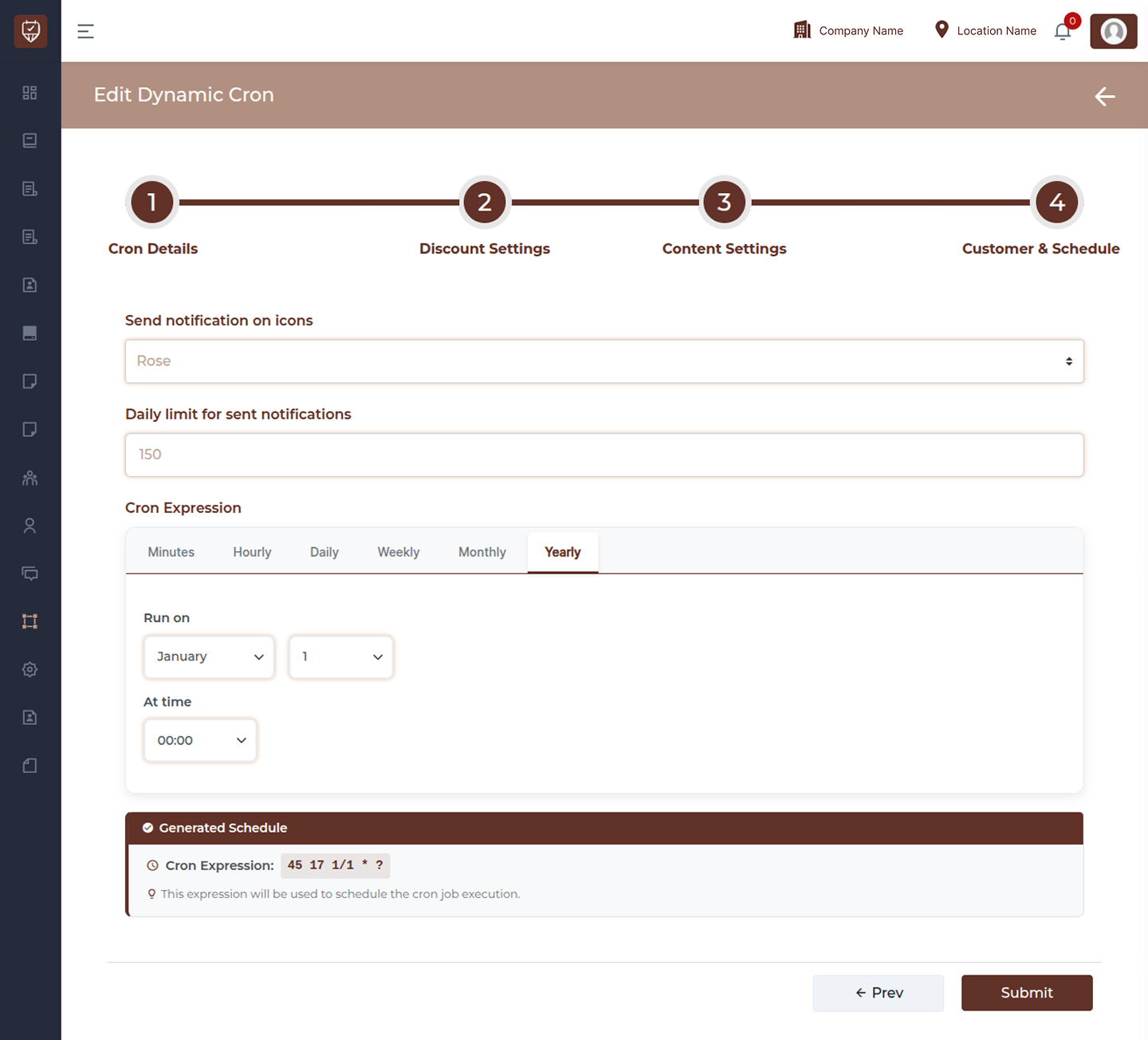
This step defines targeting limits and cron execution timing.
Send notification on icons
Select customer icons or groups to target.
Daily limit for sent notifications
Set how many notifications can be sent per day.
Cron Expression
Define when the cron job will execute using scheduling options:
- Minutes
- Hourly
- Daily
- Weekly
- Monthly
- Yearly
Run on
Select the specific date or day for execution.
At time
Set the exact execution time.
Generated Schedule
Displays the cron expression that will be used for execution.
Actions
Provides options to manage the cron job:
- Next : Proceed to the next configuration step
- Prev : Go back to the previous step
- Submit : Save and activate the cron job
Best Practices
- Use clear naming for easy identification
- Avoid overlapping cron jobs targeting the same customers
- Set appropriate limits to prevent over-notification
- Use dynamic variables to personalize communication
- Test cron schedules before activating