
Discounts
The Discounts page is used to manage all promotional offers and discount codes within the system. It allows you to create, view, edit, and organize discounts that can be applied to bookings or services. This helps attract new customers, increase sales, and run targeted promotional campaigns.
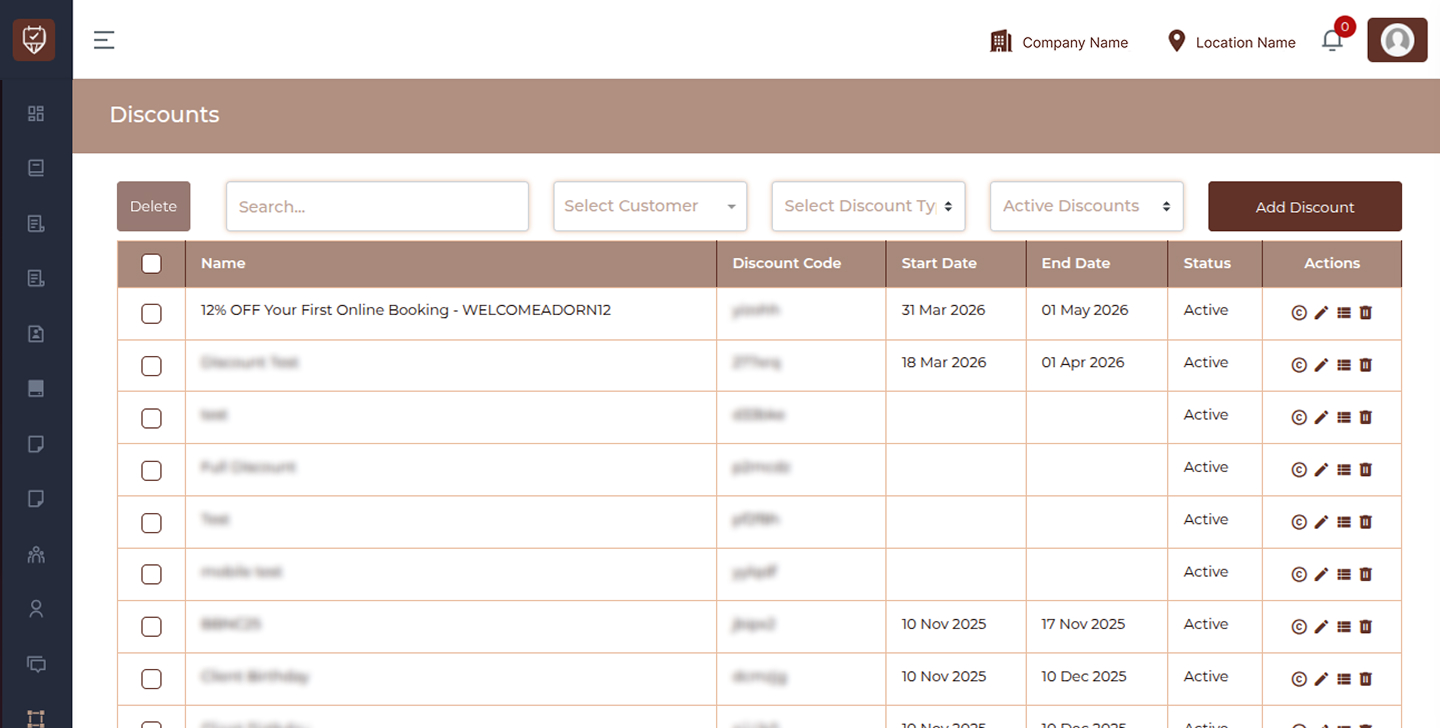
This module allows you to:
- View all discount offers
- Search and filter discounts
- Create new discount campaigns
- Edit or update discount details
- Enable or disable discounts
- Manage discount validity
Controls
Delete
Allows you to remove selected discounts from the system.
Search
Quickly find discounts by entering a name or keyword.
Select Customer
Filter discounts assigned to a specific customer.
Select Discount Type
Filter discounts based on type or category.
Active Discounts
Filter to display only active or inactive discounts.
Add Discount
Click to create a new discount offer.
Discount Table
Select Checkbox
Allows selection of one or multiple discounts for bulk actions.
Name
Displays the name or title of the discount.
Discount Code
Shows the unique code that customers can use to apply the discount.
Start Date
Indicates when the discount becomes active.
End Date
Displays the expiry date of the discount.
Status
Shows whether the discount is currently active or inactive.
Actions
Provides options to manage the discount:
- View : Open and review discount details
- Edit : Modify discount information
- Duplicate : Create a copy of the discount
- Delete : Remove the discount from the system
Best Practices
- Use clear and meaningful discount names
- Set proper start and end dates for campaigns
- Regularly review active discounts to avoid overlap
- Use unique discount codes for better tracking
- Disable expired discounts instead of deleting if needed for records
Add / Edit Discount
The Add / Edit Discount page is used to create and manage promotional offers with flexible rules based on date, time, services, and usage limits. It helps control how and when discounts are applied to bookings.
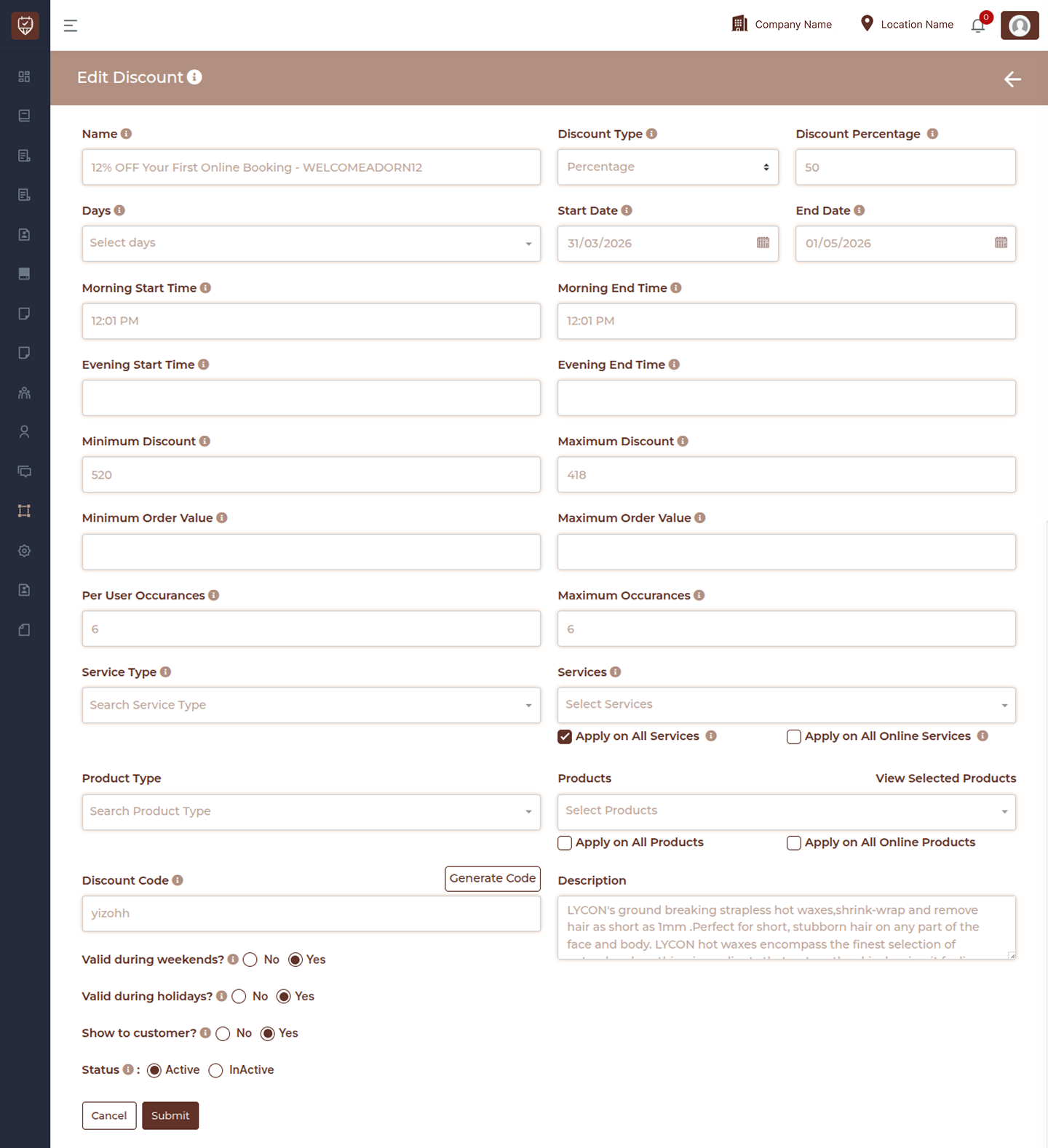
This allows you to:
- Create percentage or flat discounts
- Control usage limits and restrictions
- Apply discounts to specific services or products
- Define validity based on date, time, and conditions
Name
Enter a clear and meaningful name for the discount.
Discount Type
Select how the discount is applied, such as percentage or flat amount.
Discount Value
Enter the value of the discount based on the selected type.
Days
Select the days of the week when the discount is applicable.
Start Date
Set the date from which the discount becomes active.
End Date
Define the expiry date of the discount.
Morning Start Time
Set the start time for morning-based discounts.
Morning End Time
Set the end time for morning-based discounts.
Evening Start Time
Set the start time for evening-based discounts.
Evening End Time
Set the end time for evening-based discounts.
Minimum Discount
Set the minimum discount amount that can be applied.
Maximum Discount
Set a cap on the maximum discount allowed.
Minimum Order Value
Discount applies only when the order meets this minimum value.
Maximum Order Value
Restrict the discount to orders below this value.
Per User Occurrences
Limit how many times a single customer can use the discount.
Maximum Occurrences
Set the total number of times the discount can be used.
Service Type
Select the category of services eligible for the discount.
Services
Choose specific services where the discount will apply.
Apply on All Services
Apply the discount to all available services.
Apply on All Online Services
Restrict the discount to online bookings only.
Product Type
Select the category of products eligible for the discount.
Products
Choose specific products where the discount will apply.
Apply on All Products
Apply the discount to all products.
Apply on All Online Products
Restrict the discount to online product purchases.
Discount Code
Enter or generate a unique code for customers to use.
Generate Code
Automatically create a secure discount code.
Description
Add details about the discount for internal or customer reference.
Valid during weekends
Control whether the discount is applicable on weekends.
Valid during holidays
Control whether the discount is applicable on holidays.
Show to customer
Choose whether the discount is visible to customers.
Status
Set the discount as Active or Inactive.
Actions
- Cancel : Exit without saving changes
- Submit : Save and activate the discount
Best Practices
- Use clear and simple discount names
- Set proper validity dates to avoid misuse
- Limit usage with per-user and global restrictions
- Apply discounts only to relevant services or products
- Regularly review and update discount rules