
Unconfirmed Bookings
The Unconfirmed Bookings page displays all appointment requests that have been created but are not yet confirmed or finalized. This section helps staff review pending bookings and take necessary actions to confirm or manage them.
It ensures no booking request is missed and allows smooth conversion of pending appointments into confirmed bookings.
This module allows you to:
- View all unconfirmed booking requests
- Filter bookings based on date and customer
- Review service details before confirmation
- Convert pending bookings into confirmed appointments
- Manage customer booking requests efficiently
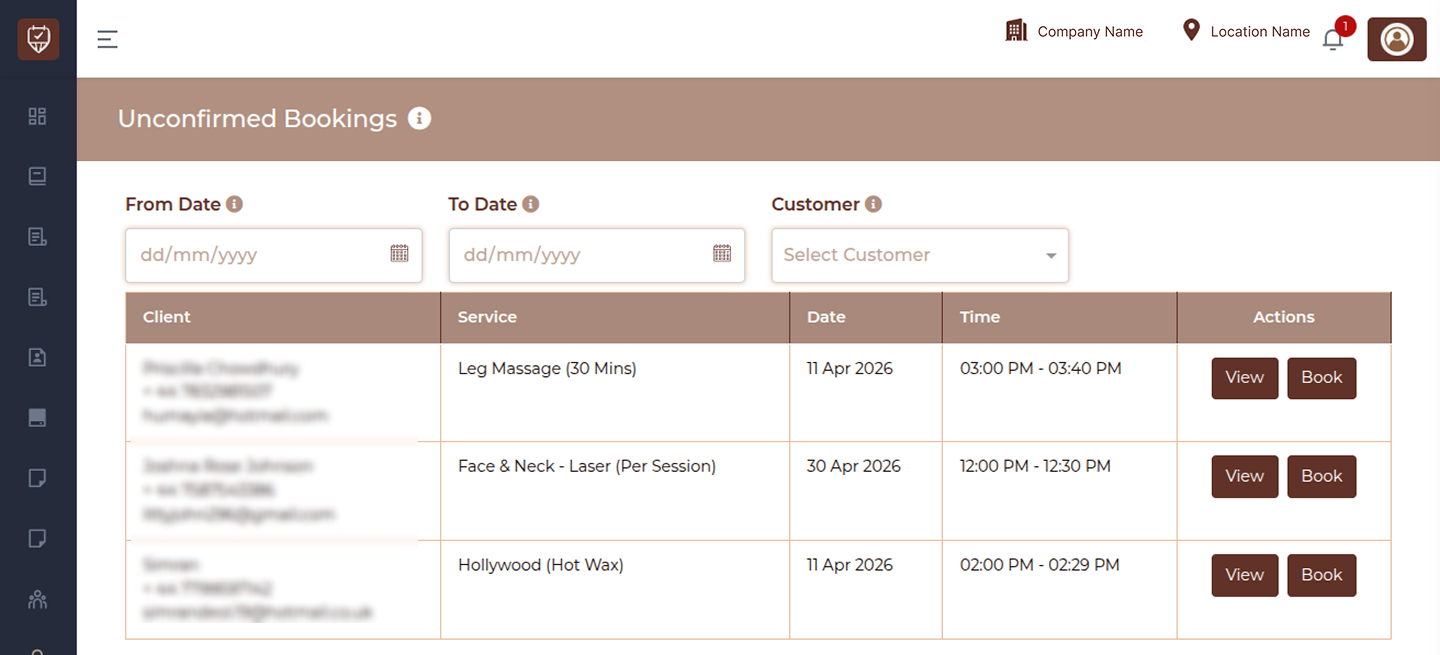
Filters
From Date
Filter bookings starting from a specific date.
To Date
Filter bookings up to a selected end date.
Customer
Select a specific customer to view their unconfirmed bookings.
Booking Table
Client
Displays the customer’s basic details such as name, contact number, and email.
Service
Shows the service or multiple services requested in the booking.
Date
Displays the scheduled date of the appointment.
Time
Shows the time slot selected for the booking.
Actions
Provides options to manage the booking:
- View → Open and review booking details
- Book → Confirm and convert the request into a finalized appointment
Best Practices
- Regularly check unconfirmed bookings to avoid missed appointments
- Verify service details before confirming bookings
- Confirm bookings promptly to improve customer experience
- Use filters to quickly find relevant booking requests
- Ensure correct date and time before converting to confirmed booking
Unconfirmed Bookings Appointment Details
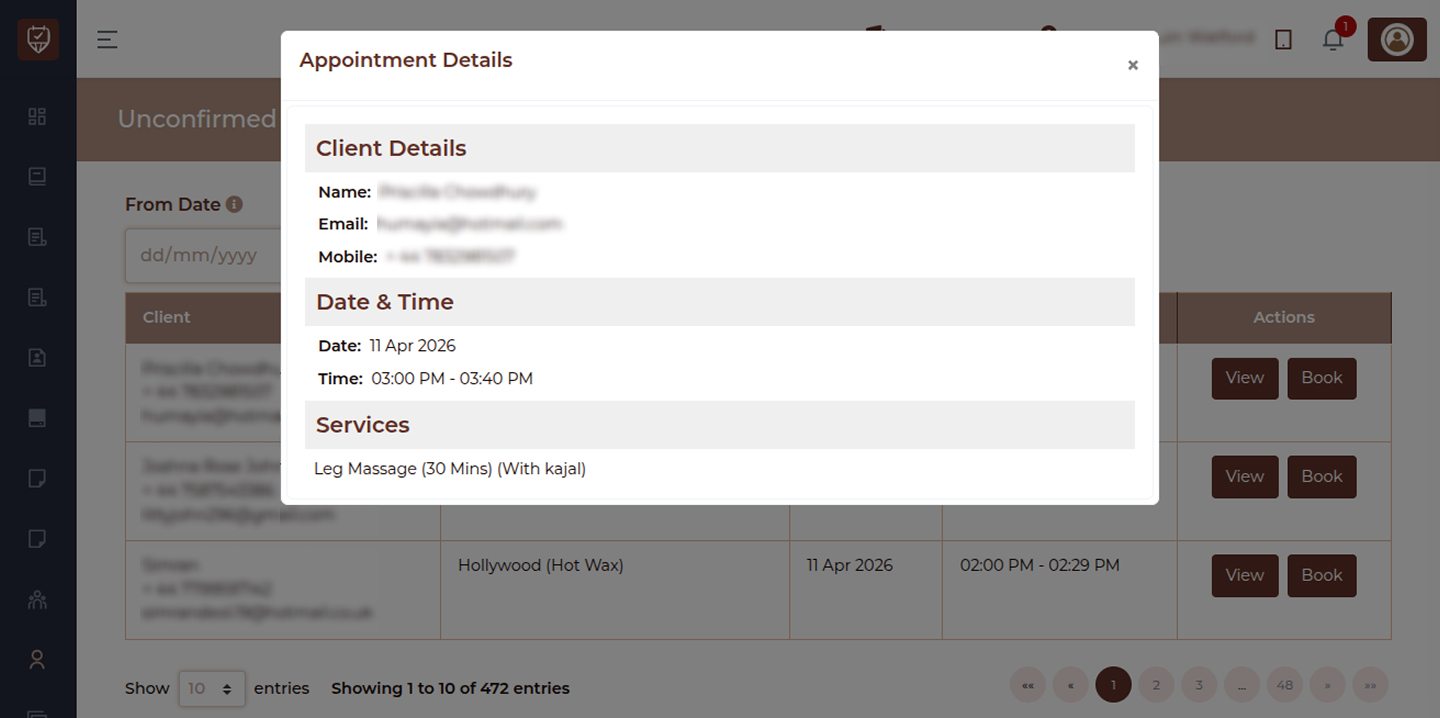
The Appointment Details popup provides a quick overview of a selected booking from the Unconfirmed Bookings list. It allows staff to review all important booking information before taking further action such as confirming the appointment.
This popup ensures that all booking details are verified accurately before proceeding.
This section allows you to:
- View customer details
- Check appointment date and time
- Review selected services
- Validate booking information before confirmation
Client Details
Name
Displays the name of the customer associated with the booking.
Shows the email address of the customer.
Mobile
Displays the contact number of the customer.
Date & Time
- Date: Shows the scheduled date of the appointment.
- Time: Displays the time slot selected for the appointment.
Service
Displays the service or services selected by the customer for the appointment.
Best Practices
- Always review customer details before confirming the booking
- Verify appointment date and time to avoid scheduling conflicts
- Check selected services to ensure correct booking
- Use this popup as a quick validation step before clicking “Book”
- Confirm all details to maintain accuracy in scheduling