
Cleaning Forms Management
The Cleaning Forms Management page allows you to view, filter, and manage all cleaning records submitted by staff. These records help track daily cleaning activities and ensure operational standards are maintained.
To use this feature, cleaning form templates must first be created in the Consultation Forms section. Once configured, staff can complete these forms, and all submissions will be visible on this page.
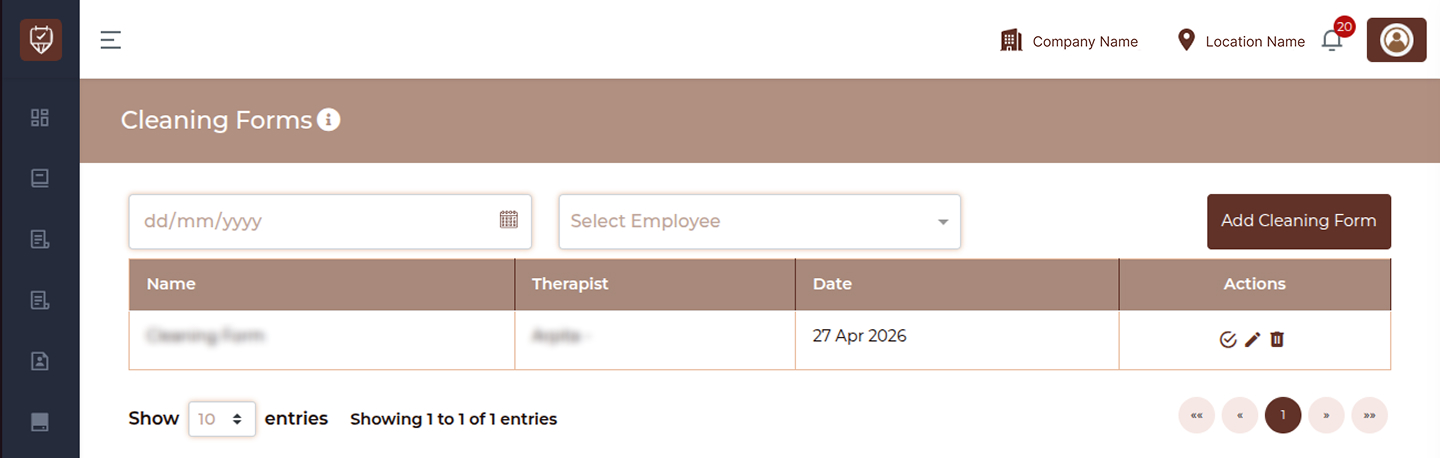
Date Filter
Select a specific date to view cleaning forms submitted on that day. This helps you review daily activity quickly and efficiently.
Employee Filter
Use the dropdown to filter records by a specific staff member. This is useful for checking individual performance or verifying completed tasks.
Add Cleaning Form
Click this button to manually create a new cleaning form entry.
This is useful when:
- A form was completed offline
- An entry needs to be recorded by an administrator
Cleaning Forms Table
The table displays all submitted cleaning forms along with key details:
Name : Shows the name of the cleaning form. This typically reflects the template used when the form was created.
Therapist :Displays the staff member who completed the cleaning form.
Date : Indicates when the cleaning form was submitted.
Actions :Provides options to manage each record, such as viewing or editing the submitted form.
How to Use
- Use filters to quickly locate specific records
- Monitor daily submissions to ensure compliance
- Add manual entries when required
- Review individual staff contributions through the employee filter
Cleaning Form Management
The Cleaning Form module allows you to create, assign, and complete cleaning checklists for treatment rooms or operational tasks. It ensures that hygiene procedures are properly followed and recorded with visual proof and signatures.
This process is divided into multiple steps for better data capture and validation.
Step 1: Select Cleaning Form & Employee
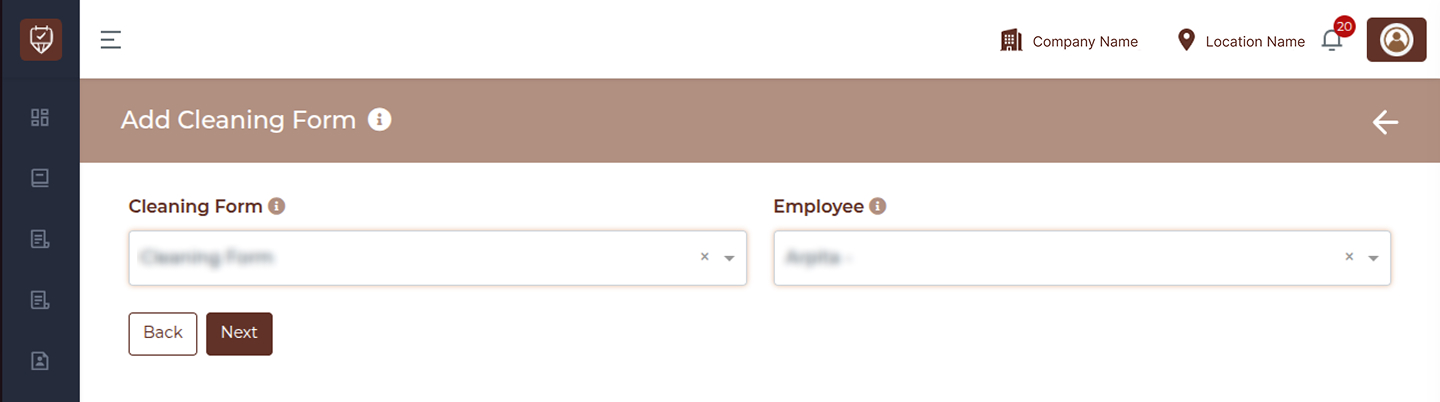
This is the initial setup screen where you choose the form and assign responsibility.
Cleaning Form : Select the cleaning form template you want to use.
- Displays available predefined cleaning forms
- Determines what questions or checklist items will appear in the next step
Employee : Select the staff member responsible for completing the cleaning process.
- This is a selectable dropdown field
- Shows available employees
- The selected employee will be linked to the submitted form
Navigation Buttons :
- Next Move to the checklist step
- Back Return to the previous page
Step 2: Cleaning Checklist (Form Questions)
This step displays the actual checklist defined in the selected cleaning form.
Form Title :Displays the name of the selected cleaning group or section.
Checklist Questions Each question represents a cleaning requirement.
Answer Options :
- Typically shown as selectable options
- Staff must select the appropriate option for each question
Purpose :
- Cleaning tasks are completed properly
- Room usage is tracked
- Standard procedures are followed
Navigation Buttons :
- Prev – Go back to previous step
- Next – Proceed to image upload
- Back – Exit or return
Step 3: Upload Before & After Images
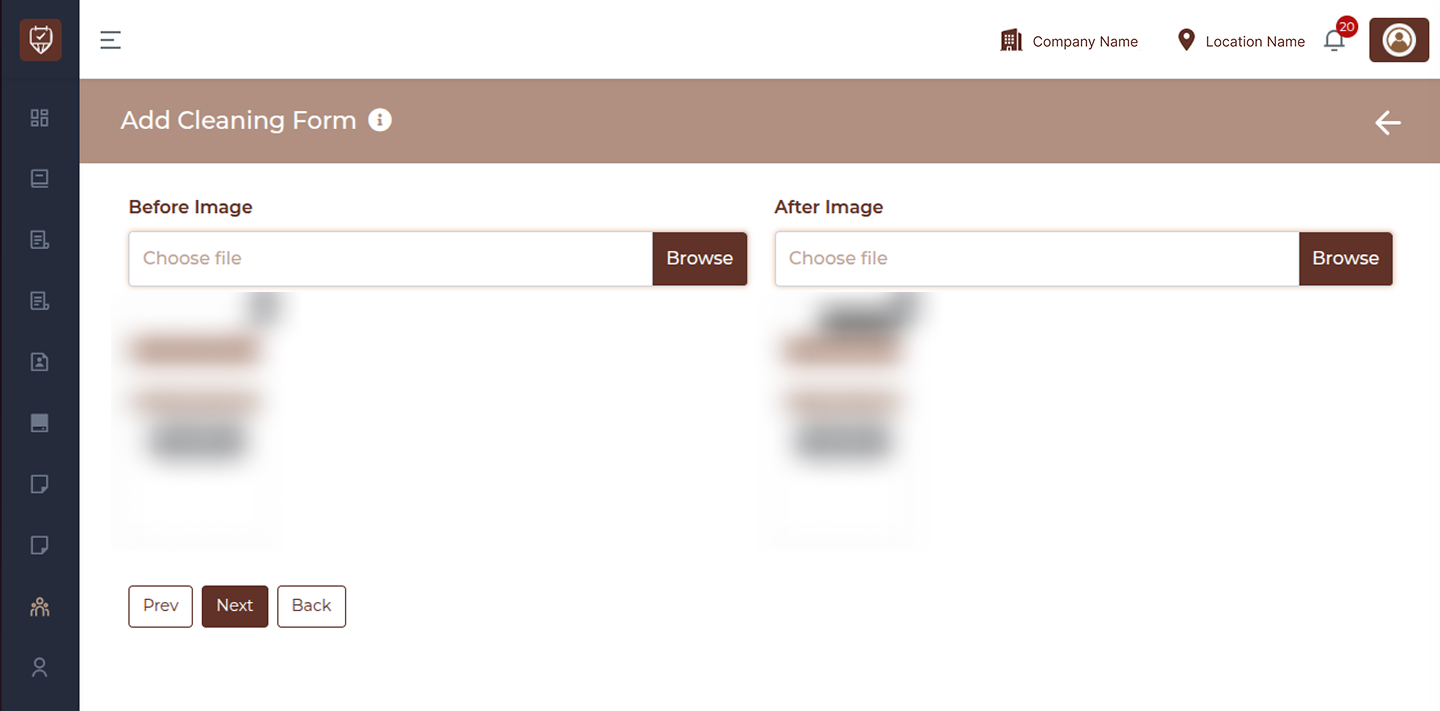
This step captures visual proof of cleaning.
Before Image : Upload an image showing the condition before cleaning.
- Click Browse to select a file
- Helps document initial state
After Image : Upload an image after cleaning is completed.
- Click Browse to select a file
- Confirms cleaning has been performed
Why This Is Important :
- Provides audit evidence
- Ensures accountability
- Helps maintain hygiene standards
Navigation Buttons :
- Prev – Return to checklist
- Next – Proceed to signature step
- Back – Exit process
Step 4: Signatures & Submission
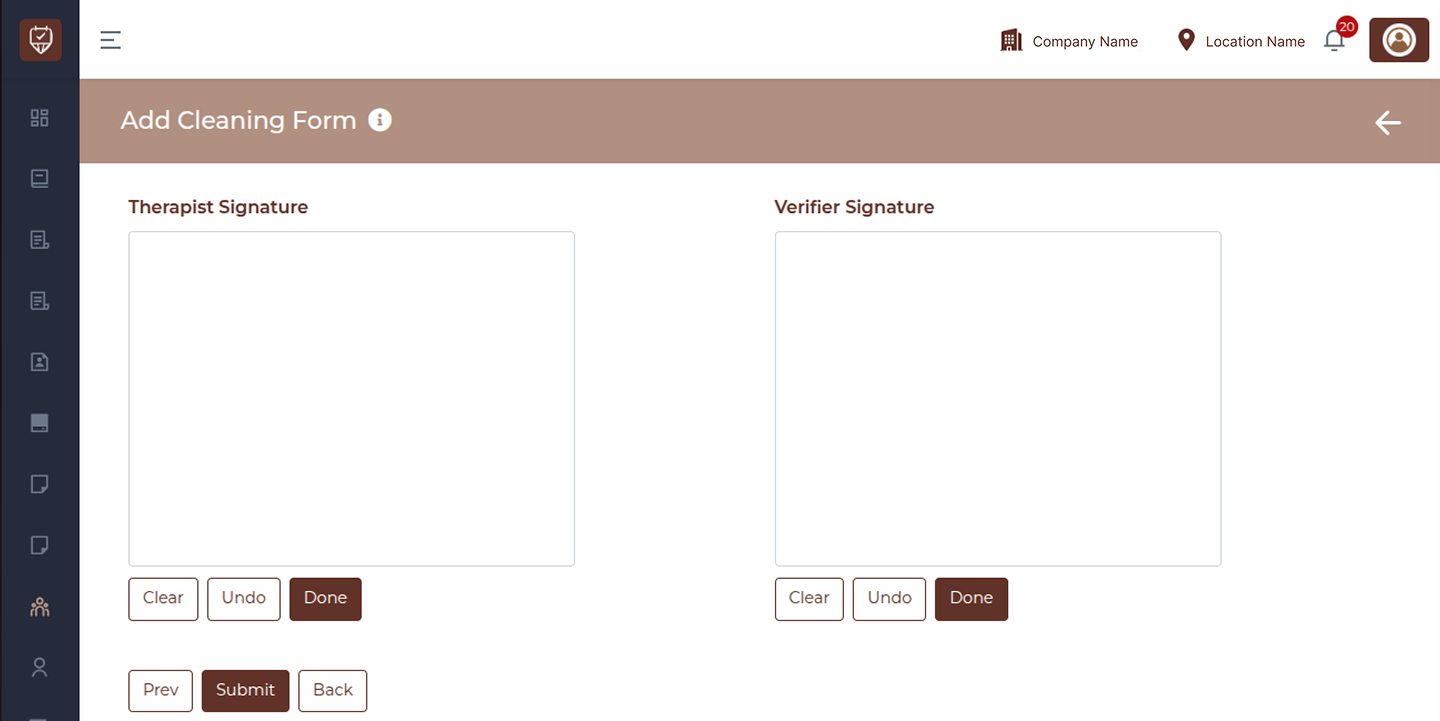
This is the final step where verification is completed.
Therapist Signature
- The staff member performing the cleaning signs here
- Draw signature inside the provided box
Available Actions
- Clear – Remove signature
- Undo – Undo last stroke
- Done – Confirm signature
Verifier Signature
- A supervisor or authorized person signs here
- Confirms that cleaning has been properly completed
Available Actions
- Clear – Remove signature
- Undo – Undo last stroke
- Done – Confirm signature
Final Actions
- Prev – Go back to previous step
- Submit – Save and complete the cleaning form
- Back – Exit without saving
How the Cleaning Form Works
Once submitted:
- The form is recorded in the system
- Images and signatures are stored as proof
- Employee responsibility is tracked
- Cleaning history can be reviewed anytime
Best Practices
- Always select the correct cleaning form
- Assign the responsible employee accurately
- Complete all checklist questions carefully
- Upload clear before and after images
- Ensure both signatures are captured
- Review before submitting