
Service Types
Overview
The Service Types page allows you to manage and organize different categories of services offered within the system. These categories help structure services, control their availability, and define how they appear across different platforms such as admin panels and mobile applications.
Page Features
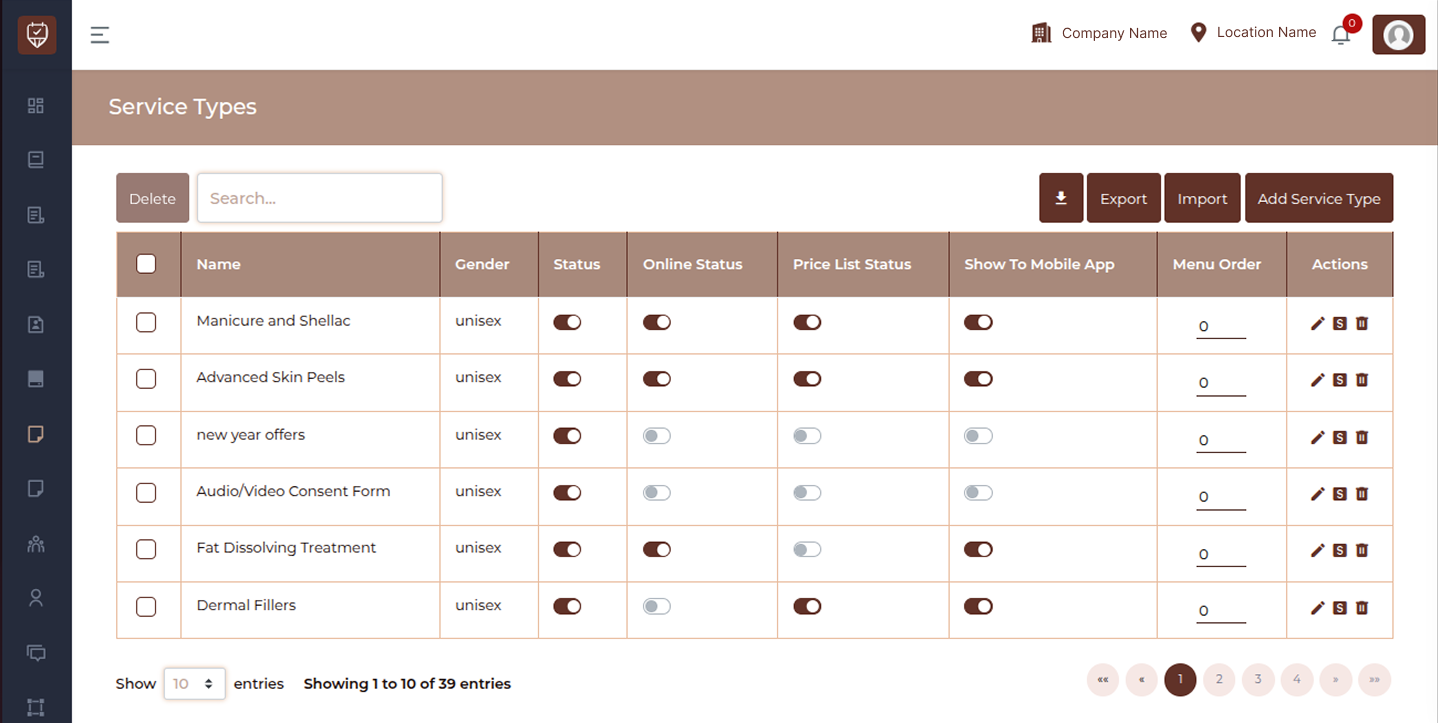
Search : Use the search bar to quickly find specific service types by name.
Bulk Selection & Delete : Checkboxes are available next to each entry, allowing you to select multiple service types and delete them using the Delete button.
Export / Import
Export: Download the list of service types for reporting or backup purposes.
Import: Upload service types in bulk using a supported file format.
Add Service Type : Click Add Service Type to create a new service category with relevant configurations.
Service Types Table
The table displays all configured service types along with their key settings:
Name :
Displays the name of the service category.
Gender :
Indicates whether the service type is applicable to male, female, or unisex clients.
Status :
Controls whether the service type is active in the system. Active service types are available for use.
Online Status :
Determines whether the service type is visible for online bookings.
Price List Status :
Controls whether the service type appears in pricing-related sections or lists.
Show To Mobile App :
Defines whether the service type is visible in the mobile application.
Menu Order :
Allows you to set the display order of service types for better organization in listings.
Toggle Controls
Several columns include toggle switches that allow quick enabling or disabling of features:
- Activate or Deactivate a Service Type: Easily enable or disable specific service types based on your needs.
- Control Online Visibility: Manage whether your services are visible to customers online.
- Manage Price List Inclusion: Choose which services appear in your pricing list.
- Show or Hide in Mobile App: Decide which service types are displayed in the mobile application.
These toggles help make quick updates without opening the edit page.
Actions
Each service type includes the following action icons:
Edit : Opens the edit page to modify service type details and settings.
Services : Redirects to the Services page filtered for the selected service type, allowing you to manage services under that category.
Delete :Removes the selected service type from the system.
Add / Edit Service Type
Overview
The Add / Edit Service Type page allows you to create new service categories or update existing ones. Service types help organize services, improve client experience, and control how services are displayed across the system, including online booking, mobile apps, and marketing materials.
Service Type Name
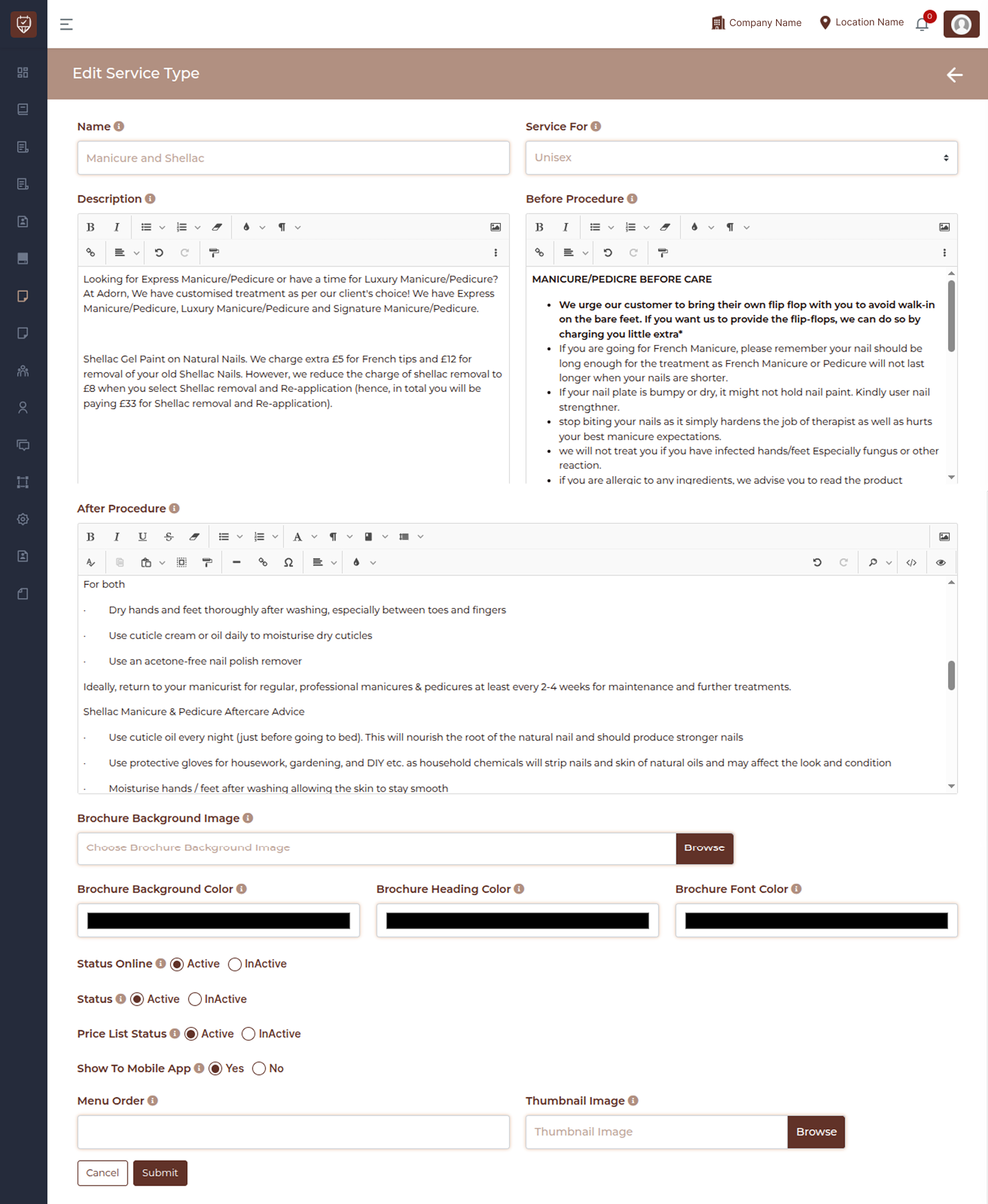
This field is used to define the main name of the service type. It helps categorize services, organize menus, and makes it easier for clients to find relevant treatments.
Service For (Gender)
Select the appropriate gender category such as male, female, or unisex. This ensures services are filtered correctly for clients during booking.
Description
Provide a clear description of the service type. This helps clients understand what the category includes and assists staff in explaining available treatments.
Before Procedure Instructions
Add any important pre-treatment instructions or precautions. These guidelines help clients prepare properly and ensure safe and effective service delivery.
After Procedure Instructions
Include aftercare instructions to guide clients on what to do or avoid after their treatment. This helps maintain results and ensures proper recovery.
Brochure Background Image
Upload an image that will be used as the background for brochures or marketing materials related to this service type.
Brochure Background Color
Select a background color for the brochure layout to maintain a consistent and professional design.
Brochure Heading Color
Choose the color used for headings in brochures to ensure clarity and alignment with your branding.
Brochure Font Color
Set the color of the text used in brochures. Make sure it is readable and visually appealing.
Status Online
Controls whether this service type is visible in online booking. Enable it to allow clients to view and book services under this category online.
Status
Determines whether the service type is active within the system. Active service types are available for use, while inactive ones remain saved but hidden.
Price List Status
Defines whether the service type appears in price lists or exported pricing documents.
Show to Mobile App
Enable this option to display the service type in the mobile application. Disable it to hide it from app users.
Menu Order
Set the display order of the service type within lists. Lower numbers appear first. If left blank, the system will arrange items automatically.
Thumbnail Image
Upload an image that represents the service type. This image is displayed in service menus, mobile apps, and brochures to enhance visual presentation.
Actions
Submit : Saves the service type and applies all configured settings.
Cancel : Closes the page without saving any changes.