
Service Test Management
The Service Test page allows you to manage all patch tests or pre-service tests required before performing specific treatments. These tests are typically used to ensure customer safety and confirm eligibility for certain services.
This page helps you create, update, import, and manage all service-related test requirements in one place.
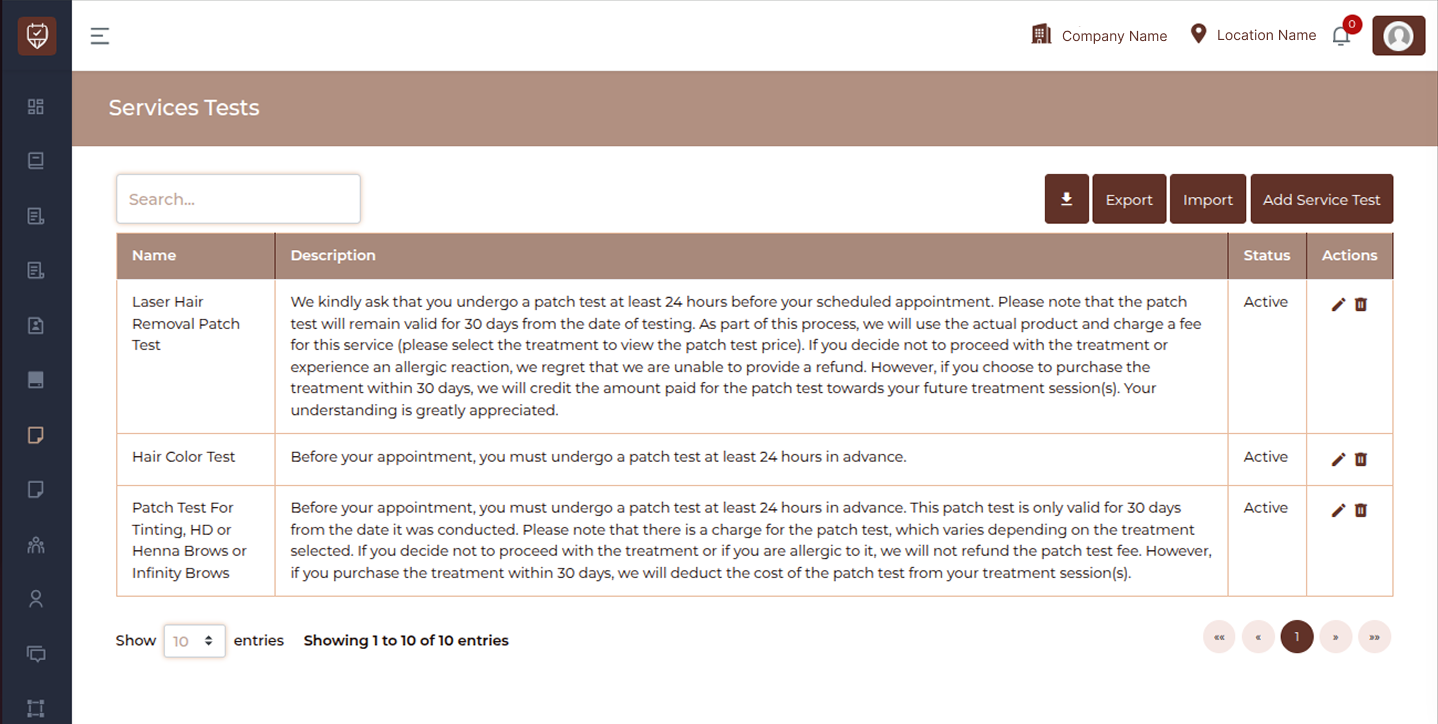
Page Overview
IMAGE
Search Bar
Located at the top-left.
Use the search field to quickly find a specific service test by name.
Example:
- Glue test
- Waxing Test
- Laser Hair Removal Patch Test
Action Buttons
Located at the top-right of the page.
Export :
Allows you to download the list of service tests.Use this to:
- Share data externally
- Maintain backup records
- Analyze test requirements
Import :
Upload multiple service tests using a file.Use this to:
- Setting up a new system
- Migrating data from another platform
- Bulk updating service test records
Add Service Test
Click this button to create a new service test.
You will be required to enter:
- Test Name
- Description
- Status (Active/Inactive)
Service Test Table
The main section displays a list of all configured service tests.
Name
Displays the name of the service test.
- Glue Test
- Waxing Test
- Hybrid Tint Test
- Hair Color Test
Description
Provides detailed instructions or conditions related to the test.
This typically includes:
- When the test should be performed (e.g., 24–48 hours before appointment)
- Validity duration (e.g., 30 days)
- Refund or charge policy
- Safety instructions
Status
Indicates whether the test is currently active.
Active : Available for use
Inactive : Hidden or not in use
Actions
Each row includes action icons:
Edit : Modify test details
Delete : Remove the test
Use these to keep your service test data up to date.
Best Practices
- Always include timing (24–48 hours before appointment)
- Mention validity period clearly
- Define refund or charge policy
- Keep descriptions simple but informative
- Regularly review and update test requirements
Add / Edit Service Test
The Add / Edit Service Test page allows you to create or update pre-service tests required before booking specific treatments. These tests help ensure client safety and proper service eligibility.
Use this form to define test details, link services, and control availability.
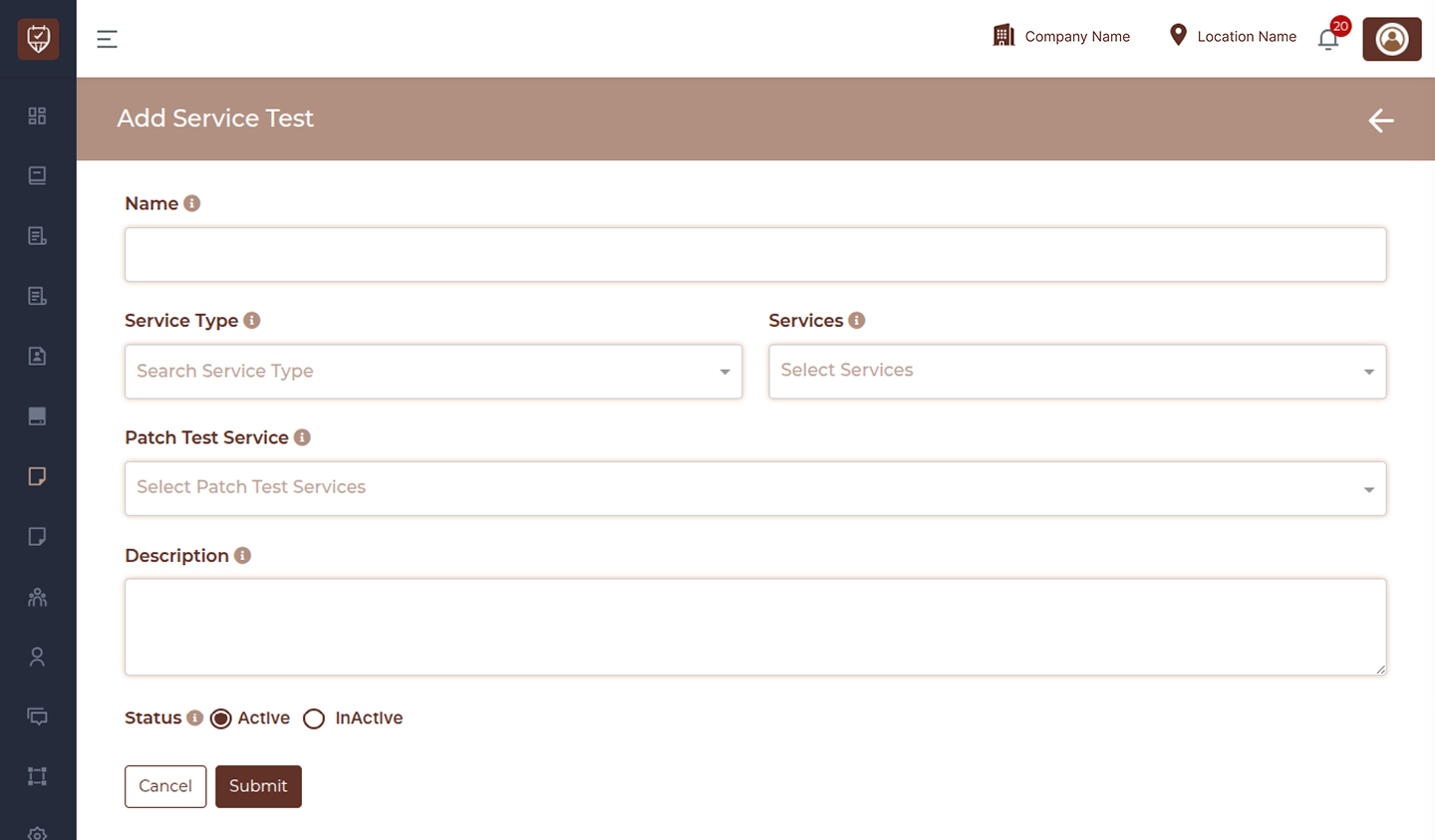
Form Overview
This form includes fields to define the service test name, associated services, related patch tests, and additional instructions.
Service Test Name
Enter the official name of the service test.
This can be:
- A patch test
- A consultation test
- Any pre-service requirement
Use a clear and easily recognizable name so staff and clients can identify it quickly.
Service Type
Select the category this test belongs to.
Linking a test to a service type helps:
- Organize tests efficiently
- Maintain proper grouping
- Ensure accurate mapping with related services
Services
Select one or multiple services that require this test.
Key points:
- This is a selectable dropdown field
- You can choose multiple services
- Includes an option to view selected services
- Customers must complete this test before booking the selected services
Patch Test Service
Select a related or secondary patch test if applicable.
Key points:
- This is a selectable dropdown field
- Includes an option to view selected patch test services
Use this when:
- A service requires a specific patch test beforehand
- Additional validation is needed before booking
This ensures proper booking restrictions and compliance.
Description
Provide detailed information about the test.
- Purpose of the test
- Preparation instructions
- Safety guidelines
- Validity duration (if applicable)
Clear descriptions help:
- Staff follow correct procedures
- Clients understand requirements
- Reduce confusion and errors
Status
Set the availability of the service test.
Active : The test can be assigned and used
Inactive : The test is not available for selection or booking
Use inactive status to temporarily disable a test without deleting it.
Submit
Click Submit to save the service test.
- Creates a new test (Add mode)
- Updates existing test (Edit mode)
Cancel
Click Cancel to exit without saving changes.
Best Practices
- Use clear and specific names
- Link all relevant services properly
- Add detailed and easy-to-understand descriptions
- Use patch test linking when required
- Keep inactive tests instead of deleting for future use