
Services
Merge Services allows administrators to consolidate multiple services into a single base service while preserving historical usage and updating related records across the system.
This feature helps reduce duplicate services and maintain consistent service management.
Overview
Merge Services is used to combine multiple services into one primary service.
Administrators can:
- Select a base service to keep
- Merge duplicate or related services
- Update connected records automatically
- Preserve historical references
- Reduce service duplication
Only the selected base service remains active after merge completion.
Accessing Merge Services
Navigate to:
Services → Merge Service
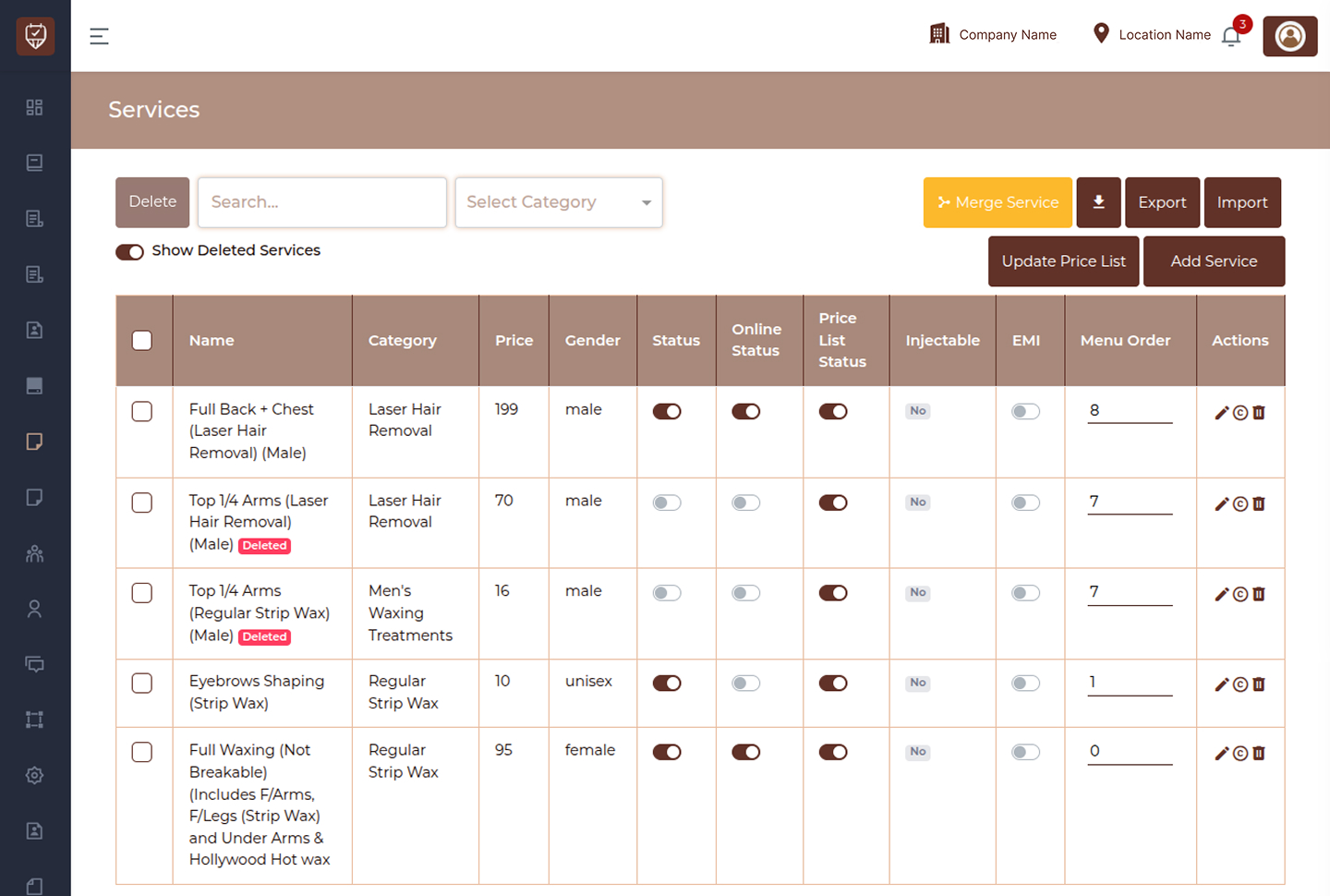
The Services page provides access to:
- Search services
- Filter by category
- View deleted services
- Manage service availability
- Launch the merge workflow
Service List Management
The Services page displays service information including:
- Service name
- Category
- Price
- Gender
- Service status
- Online availability
- Price list status
- Injectable status
- EMI availability
- Menu order
Additional actions may include:
- Edit service
- View service details
- Delete service
Selecting Services to Merge
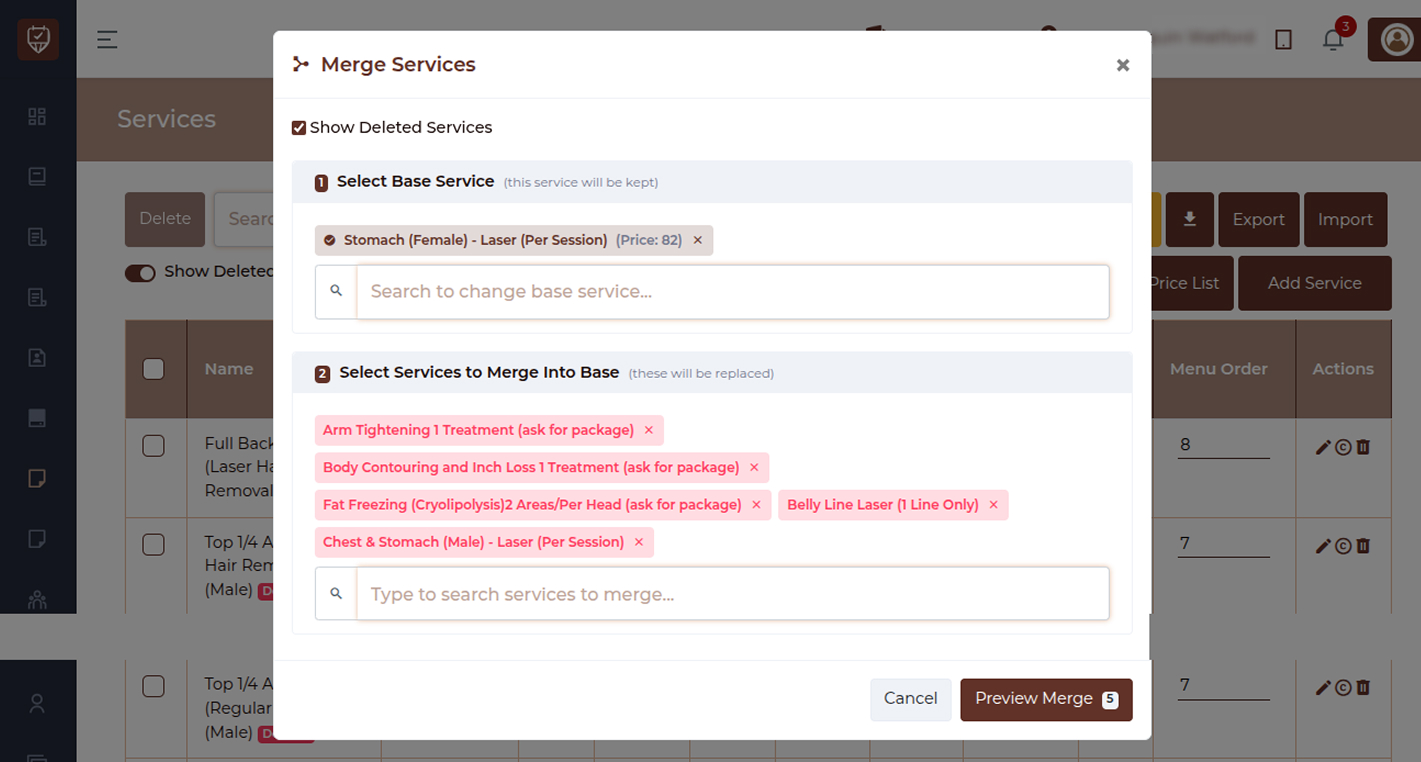
The merge workflow begins by selecting services.
Step 1 — Select Base Service
Choose the service that will remain after the merge.
The selected base service:
- Remains active
- Receives merged references
- Becomes the final service record
Only one base service can be selected.
Step 2 — Select Services to Merge
Select one or more services that should be merged into the base service.
Merged services:
- Are replaced by the base service
- Stop being used independently
- Transfer related references
Optional — Show Deleted Services:
Allows deleted services to appear during service selection.
Preview Merge
Before applying changes, administrators can review the merge summary.
The preview displays:
- Selected base service
- Services being replaced
- Number of impacted records
- Merge validation information
Preview allows verification before confirmation.
Merge Impact Analysis
Before confirming the merge, the system displays affected records.
Supported impact areas may include:
- Appointments – Updates appointment references to use the base service.
- Invoices – Updates invoice records where applicable.
- Packages – Updates package service references.
- Loyalty Cards – Updates loyalty associations.
- Consultation Forms – Updates service references in consultation and booking records.
Impact counts are displayed before execution.
Merge Confirmation
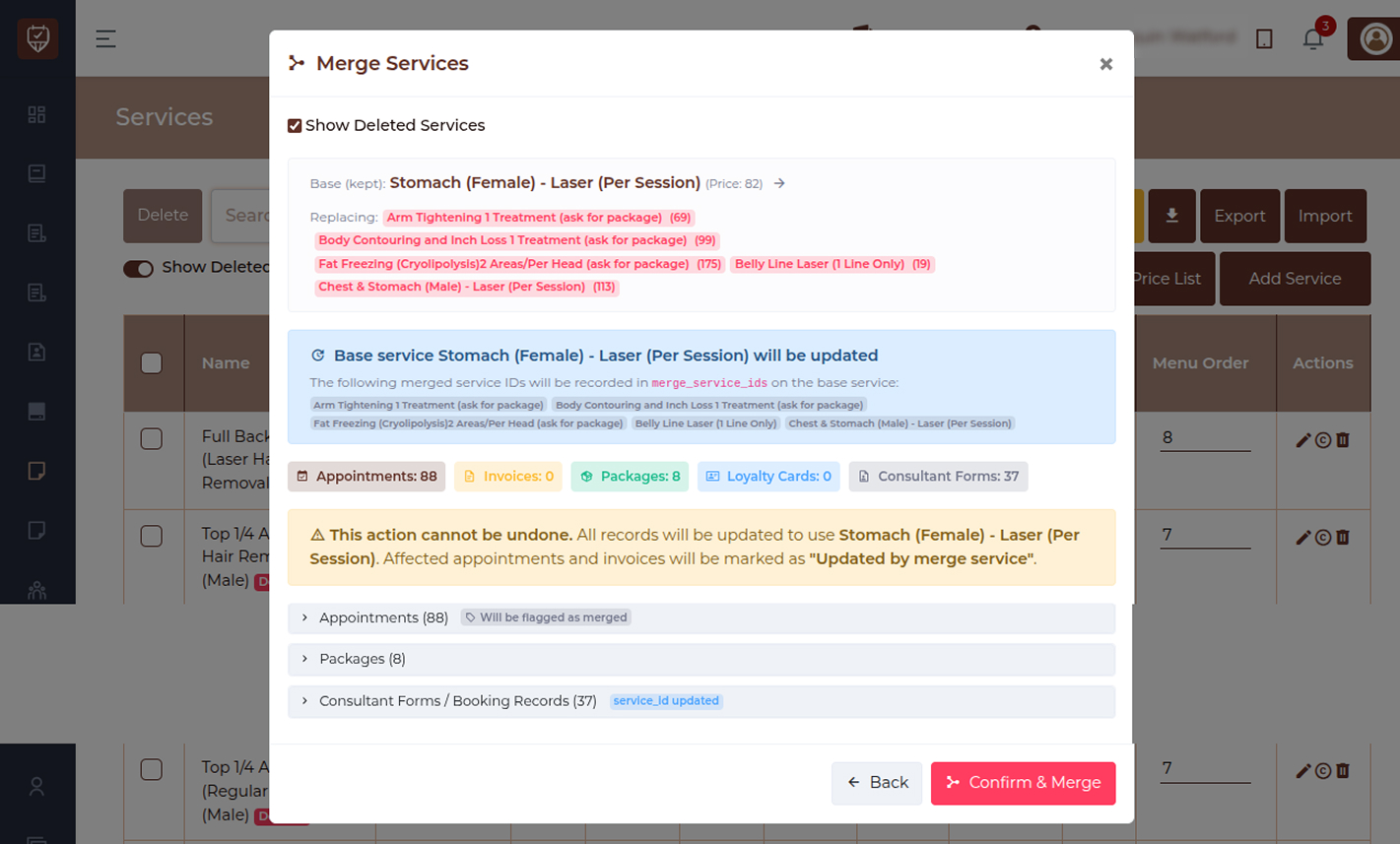
Once reviewed, administrators can confirm the merge.
Available actions:
Back
Returns to service selection.
Confirm & Merge
Starts the merge process.
After confirmation:
- Related records are updated
- Service references are replaced
- Merge tracking information is stored
Merge Rules
The merge process follows these rules:
- One service must remain as base
- Multiple services may be merged
- Related records are updated automatically
- Historical tracking remains available
- Merge actions affect future usage
Important Notes
Merge operations cannot be automatically undone.
Before confirming:
- Verify selected services
- Review impacted records
- Confirm service naming consistency
- Validate appointment and package impact
Best Practices
- Review services carefully before selecting a base service.
- Use merge to reduce duplicate or outdated services.
- Verify affected records during preview.
- Confirm appointment and package impact before merging.
- Perform merges during low operational activity periods.
Add / Update Service
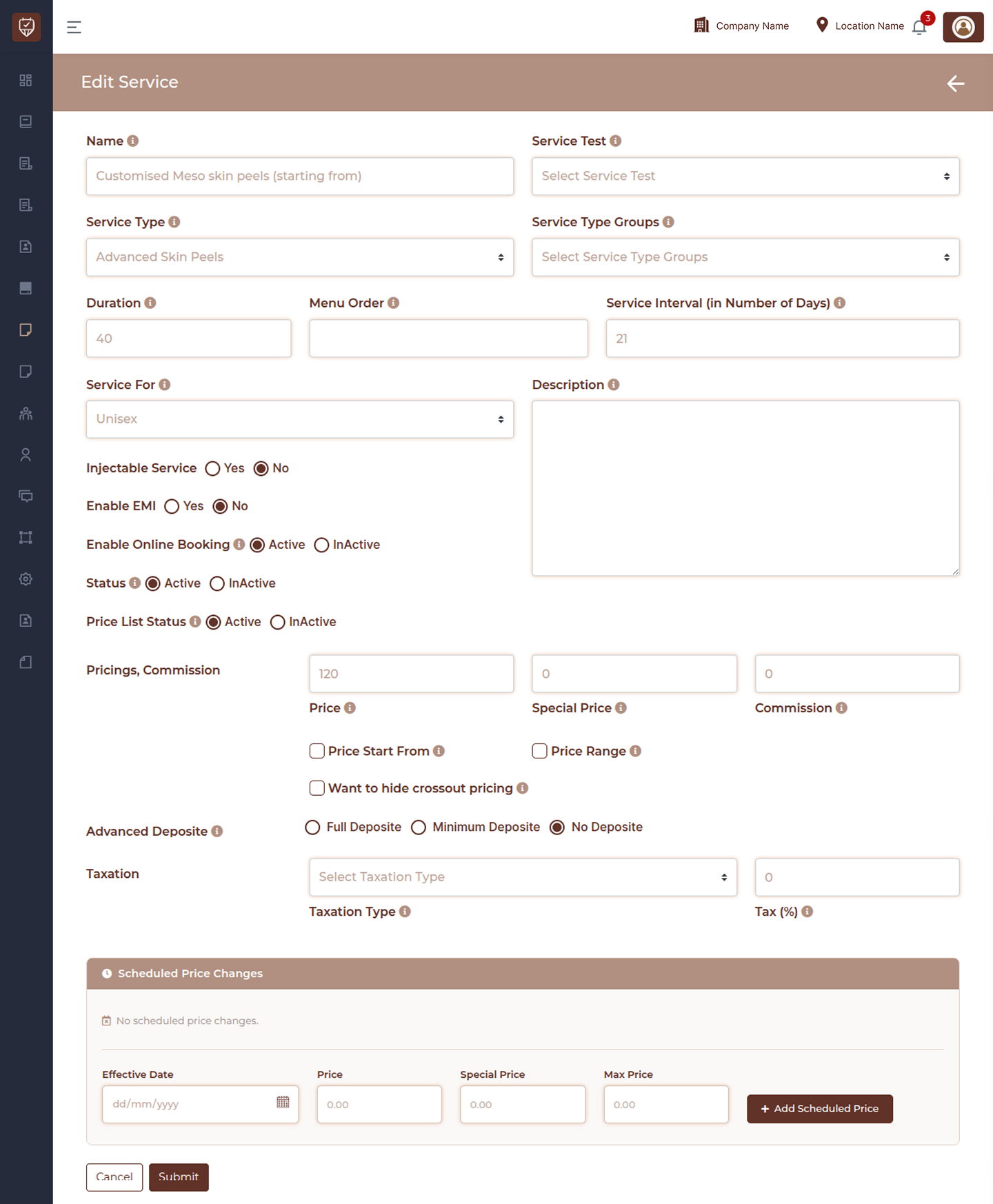
The Edit Service page allows administrators to modify existing service details, pricing configuration, availability settings, scheduling preferences, deposits, taxation rules, and future pricing updates.
This page is used to maintain accurate service information and control how services behave across bookings, pricing lists, and operational workflows.
Overview
Edit Service allows administrators to update service configuration after creation.
Administrators can:
- Modify service details
- Configure booking availability
- Manage pricing and commission
- Control deposits and taxation
- Schedule future price updates
- Manage service visibility
Changes become available after saving.
Basic Service Information
This section controls the primary information used to identify and organize services.
Name
Defines the service display name.
Used in:
- Service listings
- Booking workflows
- Reports
- Price lists
Service names should remain clear and customer-friendly.
Service Test
Allows association of testing or validation configurations where applicable.
Used to support service-related workflows.
Service Type
Defines the category or classification of the service.
Used for:
- Service organization
- Reporting
- Filtering
- Operational grouping
Service Type Groups
Allows grouping services under broader classifications.
Used to simplify:
- Service management
- Categorization
- Search and filtering
Duration
Defines the expected service duration.
Used for:
- Appointment scheduling
- Calendar allocation
- Capacity planning
Duration is typically configured in minutes.
Menu Order
Controls the display order of services.
Lower values may appear earlier in listings.
Used for:
- Customer booking order
- Service arrangement
- UI presentation
Service Interval (In Number of Days)
Defines the minimum interval before the same service becomes available again.
Used for:
- Service scheduling
- Repeat booking management
- Treatment spacing
Service Availability
Controls how and where services can be accessed.
Service For
Defines service availability by customer category.
Used for:
- Service filtering
- Customer eligibility
- Booking visibility
Description
Allows administrators to provide service information.
Descriptions may include:
- Service overview
- Treatment information
- Customer guidance
- Additional notes
Injectable Service
Controls whether the service is treated as an injectable service.
Used to:
- Separate service handling
- Apply workflow rules
- Support reporting requirements
Enable EMI
Controls whether installment payment options are available.
When enabled:
Customers may access installment-based payments where supported.
Enable Online Booking
Controls customer access to online booking.
- Active – Service appears in online booking.
- Inactive – Service remains unavailable for online booking.
Status
Controls service availability.
- Active – Service can be used.
- Inactive – Service becomes unavailable.
Price List Status
Controls visibility inside pricing and price lists.
- Active – Displays in pricing workflows.
- Inactive – Hides from pricing lists.
Pricing & Commission
Controls service pricing behavior.
Price
Defines the standard service price.
Used during:
- Checkout
- Invoice generation
- Booking calculations
Special Price
Allows temporary or promotional pricing.
Used to:
- Apply discounts
- Offer promotions
- Override standard pricing
Commission
Defines commission values associated with the service.
Used for:
- Employee calculations
- Performance reporting
- Commission tracking
Price Start From
Allows prices to display as starting values.
Used where pricing varies.
Example: Starting from selected price.
Price Range
Allows display of variable pricing.
Used for services with multiple pricing options.
Hide Crossout Pricing
Controls visibility of crossed-out pricing displays.
Used during promotional pricing presentation.
Advanced Deposit
Controls booking deposit requirements.
Available options include:
Full Deposit
Requires complete payment.
Minimum Deposit
Requires partial payment.
No Deposit
Allows booking without deposit.
Taxation
Controls tax configuration for the service.
Taxation Type
Defines applicable tax rules.
Used for:
- Tax calculation
- Pricing adjustment
- Invoice generation
Tax (%)
Defines tax percentage applied to service pricing.
Used during transaction calculations.
Scheduled Price Changes
Allows future pricing updates to be configured in advance.
Administrators can define:
- Effective date
- Future price
- Future special price
- Maximum price
Scheduled changes activate automatically based on configured dates.
Add Scheduled Price
Creates a future pricing rule.
Used to:
- Plan price updates
- Schedule promotions
- Manage future pricing changes
Save Changes
Select Submit to apply updates.
Select Cancel to discard changes.
Saved updates become available across service workflows.
Best Practices
- Keep service names consistent and easy to identify.
- Review pricing before enabling online booking.
- Use scheduled pricing instead of manual future updates.
- Configure deposits carefully to match booking policies.
- Verify taxation and commission values before saving.