
Holidays
The Holidays page allows administrators to manage special dates on which offers, discounts, or promotional pricing should not be applied. These dates can represent festivals, peak business days, or special events where discounts need to be restricted.
Administrators can add new holidays, update existing ones, or remove holidays when they are no longer required.
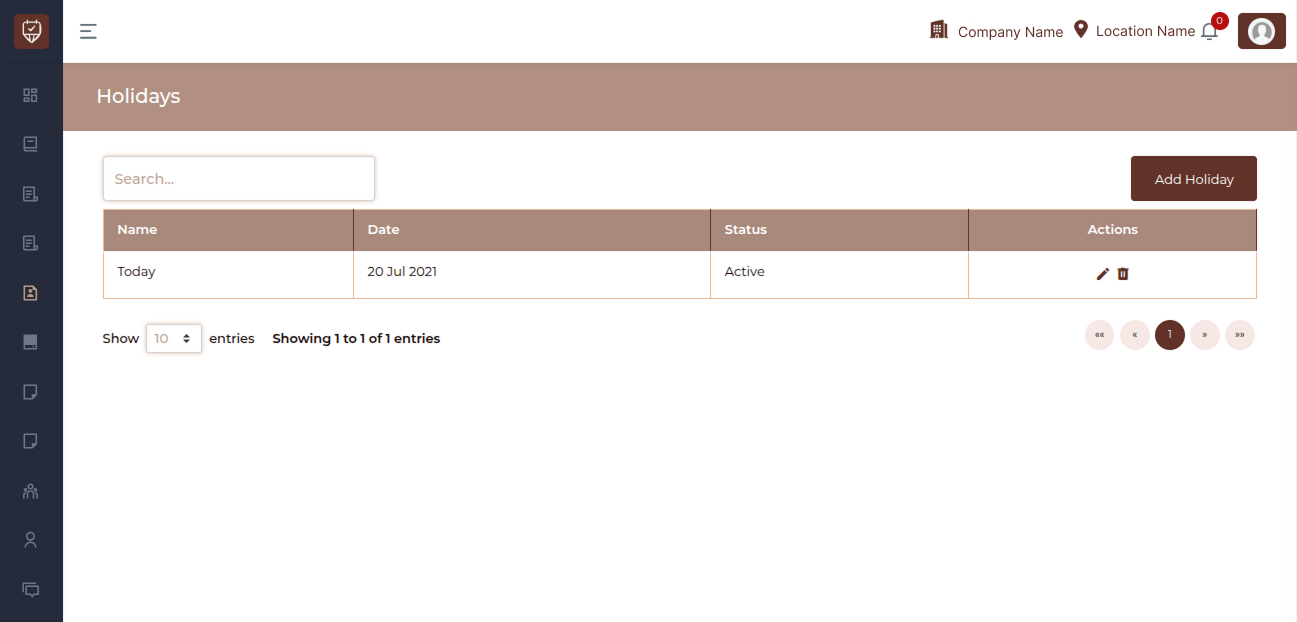
Search
The Search field helps quickly locate a holiday from the list. By typing the name of a holiday, the system filters the results and displays only matching records. This is useful when managing multiple holiday entries.
Holiday List
The main section of the page displays all configured holidays.
Each entry represents a specific date where discounts or promotional offers are restricted based on the system configuration.
The list displays the following information.
Name
Displays the name assigned to the holiday or special date.
This name helps administrators easily identify the purpose of the holiday, such as a festival, event day, or special operational date.
Date
Shows the calendar date associated with the holiday.
This is the specific day when discounts or promotional offers are prevented from being applied.
Status
Indicates whether the holiday is currently active.
Active : When the holiday is active, the system blocks discounts or promotional offers on that date.
Inactive : Inactive holidays remain saved in the system but do not affect discounts or offers.
Actions
The actions column provides options to manage each holiday entry.
Edit : Allows administrators to modify the holiday name, date, or status.
Delete : Removes the holiday from the system. Deleting a holiday will allow discounts and promotions to be applied on that date again.
Add Holiday
The Add Holiday button allows administrators to create a new holiday entry.
This is used to define special dates on which discounts, offers, or promotions should not be applied to bookings.
Selecting this option opens the holiday form where the required information can be entered.
Add / Edit Holiday
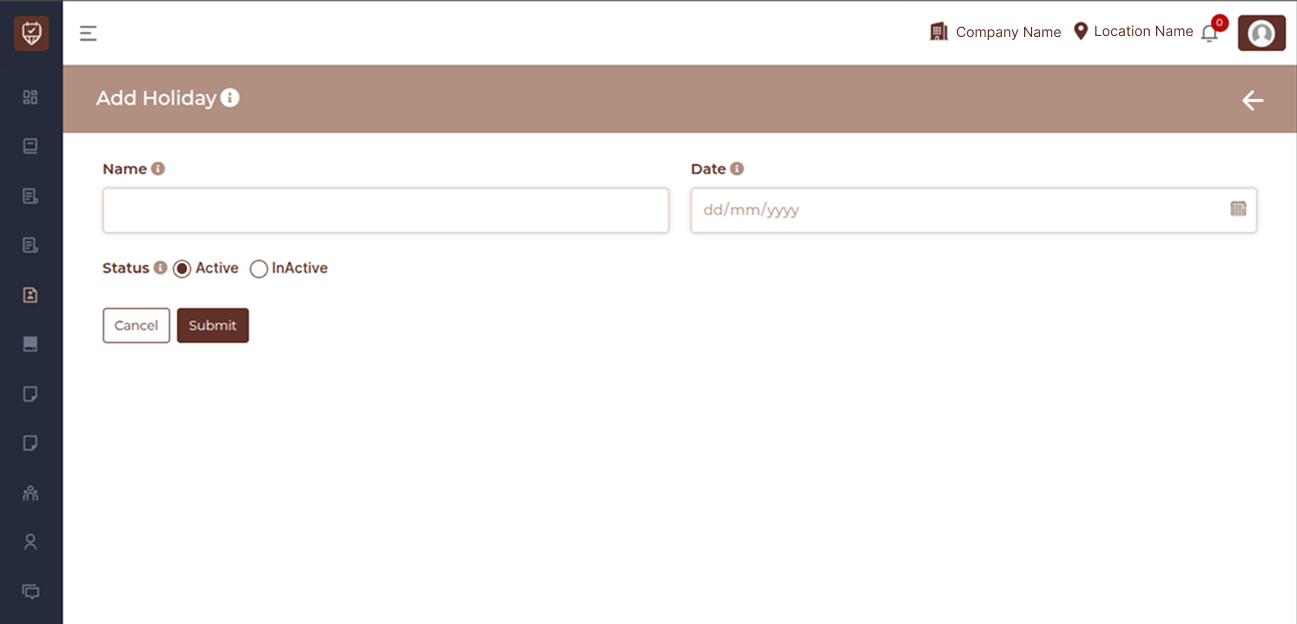
The Add Holiday and Edit Holiday pages allow administrators to create or modify a holiday entry that blocks discounts on a selected date.
Both pages use the same form structure.
Name
The Name field is used to enter a title for the holiday.
This name helps identify the purpose of the blocked date, such as a festival day, peak operational day, or special event.
Using clear and descriptive names helps administrators manage holidays more effectively.
Date
The Date field is used to select the specific day when discounts and promotional offers should not be applied.
This date determines when the system will block promotional pricing.
Calendar Icon
The calendar icon allows the user to open a date picker and choose the desired date from the calendar interface.
This makes selecting the correct holiday date easier and prevents formatting errors.
Status
The Status option determines whether the holiday rule is currently applied.
Active : When set to Active, the system blocks discounts or promotional offers on the selected date.
Inactive : When set to Inactive, the holiday remains stored in the system but does not block discounts.
Action Buttons
Cancel : The Cancel button exits the page without saving any changes.
Submit : The Submit button saves the holiday entry and adds it to the holiday list.
Once saved and set to active, the system will prevent discounts or promotions from being applied on that date.