
Appointments
The Appointments page provides a calendar-based scheduling interface used to view, manage, and monitor appointments across different time periods.
Appointments can be displayed in Month, Week, or Day view to help manage availability and booking activity.
Overview
The appointment calendar provides a centralized scheduling workspace.
Users can:
- View appointments by date
- Navigate between time periods
- Monitor daily schedules
- Review booking distribution
- Manage appointment visibility
Calendar Navigation
Navigation controls allow movement across appointment periods.
Available actions:
- Previous period
- Next period
- Return to Today
- Switch calendar view
The selected date range updates automatically.
Month View
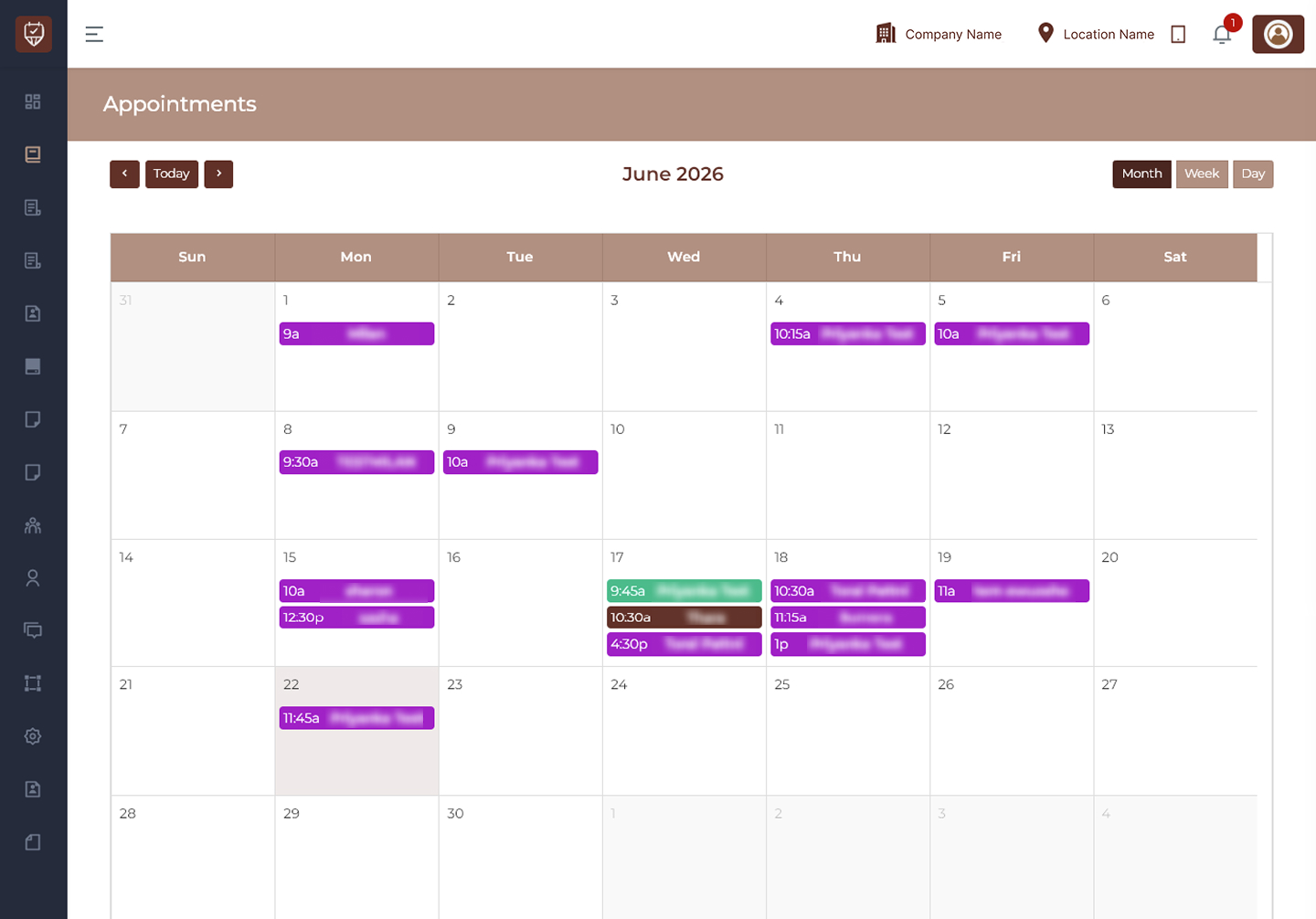
Month View provides a high-level overview of scheduled appointments for an entire month.
Displays:
- Monthly appointment activity
- Appointment count by day
- Booking distribution
- Calendar overview
Used for:
- Long-term planning
- Capacity monitoring
- Schedule visibility
Week View
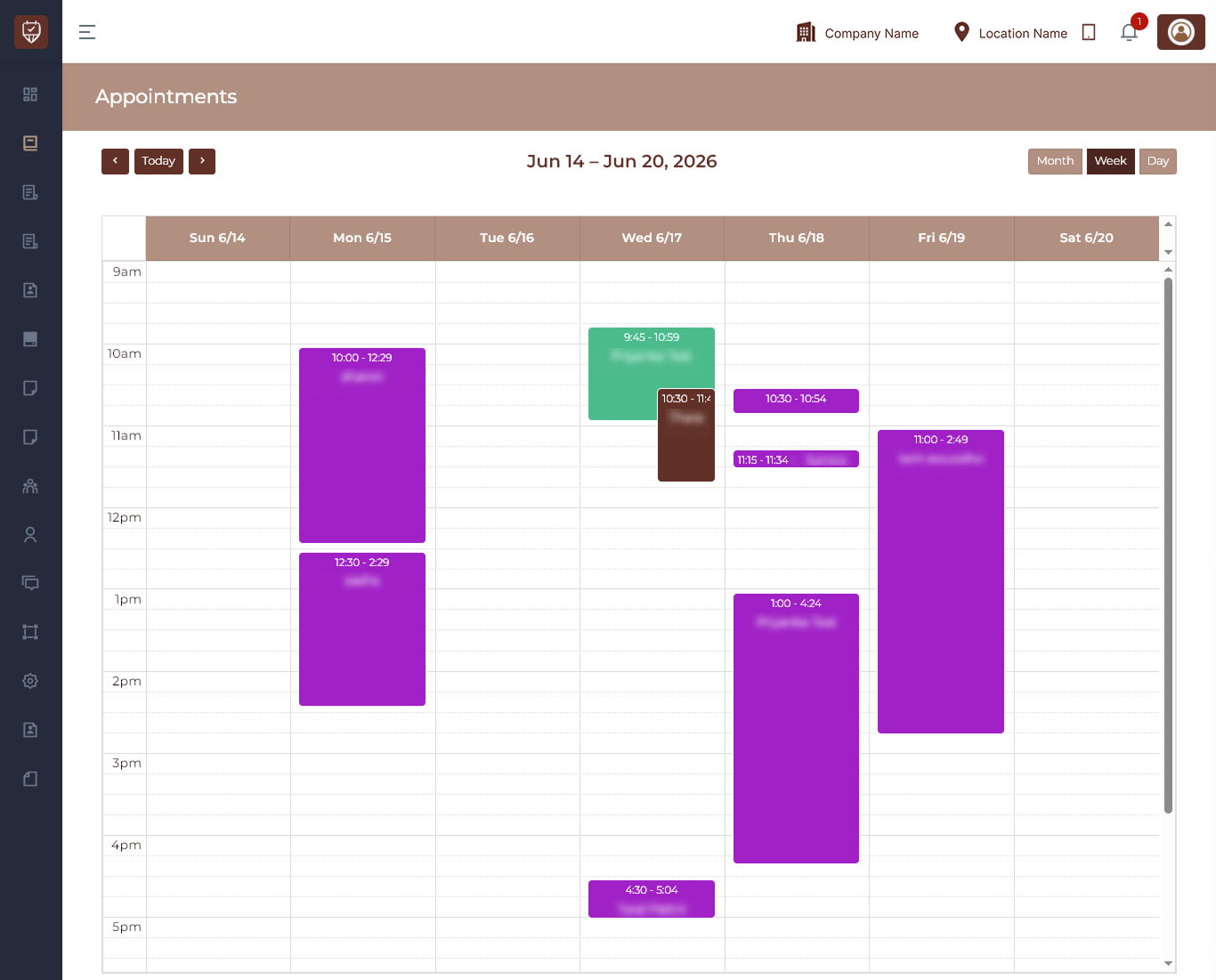
Week View displays appointments across a selected week.
Displays:
- Daily appointment schedule
- Appointment duration
- Booking overlaps
- Weekly workload
Used for:
- Team planning
- Weekly scheduling
- Appointment coordination
Day View
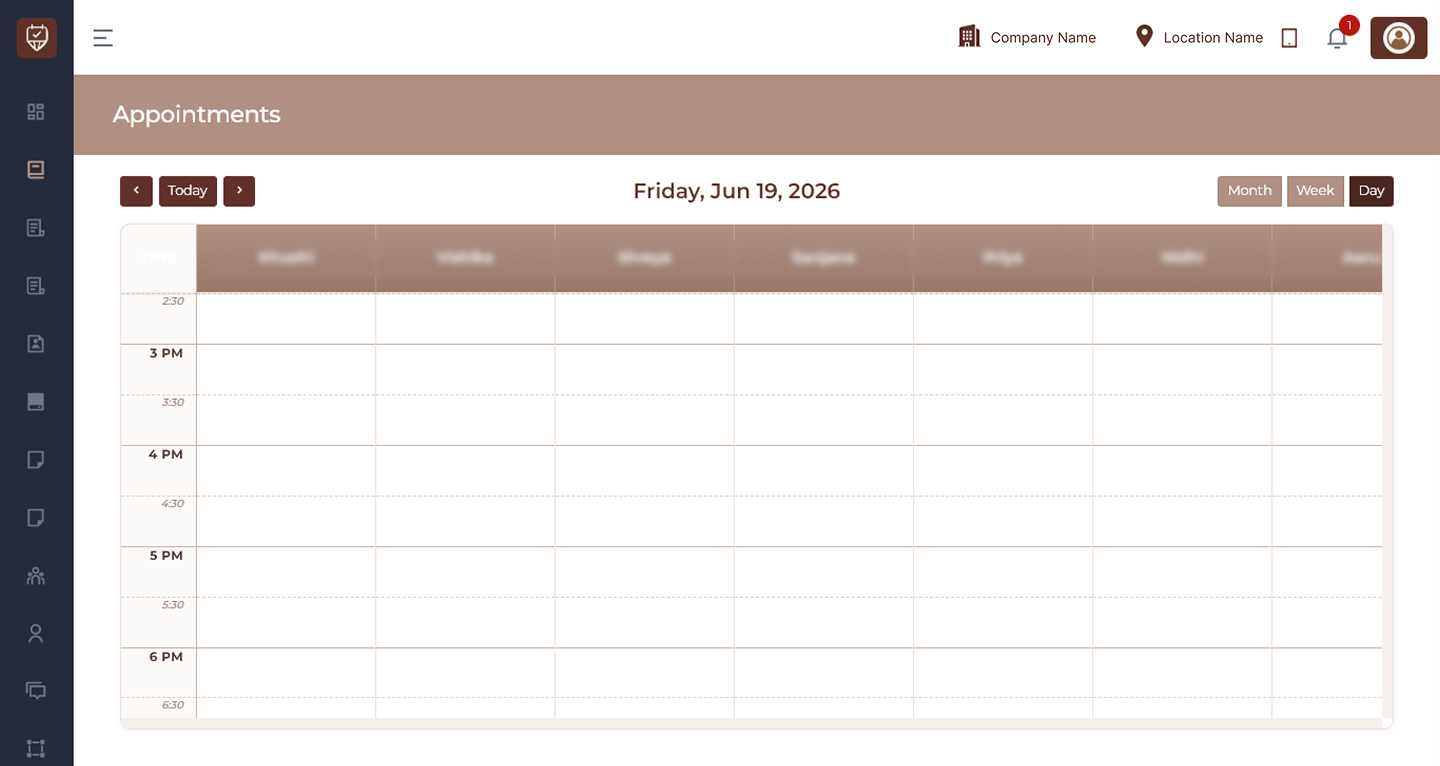
Day View displays appointments for a single selected date.
Displays:
- Time-based appointment slots
- Daily availability
- Appointment duration
- Schedule management
Used for:
- Real-time appointment tracking
- Daily planning
- Availability monitoring
Appointment Display
Appointments appear directly within calendar slots.
Displayed information may include:
- Appointment start time
- Appointment duration
- Customer details
- Service information
- Appointment status
Visual indicators help distinguish appointment types and scheduling activity.
Date Selection
The calendar automatically updates based on the selected date.
Users can:
- Open current day
- Move forward or backward
- Switch between calendar periods
Scheduling Visibility
Calendar layouts adjust automatically depending on selected view.
This allows users to:
- Focus on a specific day
- Compare weekly schedules
- Monitor monthly appointment activity
Best Practices
- Use Day View for operational scheduling.
- Use Week View for workload planning.
- Use Month View to monitor booking trends.
- Review appointment availability before creating bookings.
- Return to Today for quick navigation.